Challenge 42: Azure Firewall deployment and rules
60-90 minutes | ~$1.25/hour | Exam weight: 15-20%
Azure Firewall Standard costs approximately $1.25/hour ($912/month). Deploy only for the duration of this lab and delete immediately after. Consider using the portal to verify concepts if you want to avoid charges entirely.
Scenario
Contoso Financial Services is implementing a hub-spoke network architecture. All internet-bound traffic from spoke VNets must traverse a centralized Azure Firewall in the hub VNet for inspection. The firewall must:
- Allow outbound access only to approved FQDNs (microsoft.com domains, Ubuntu update servers)
- Block all other outbound internet traffic by default
- Allow DNS (UDP/53) and NTP (UDP/123) network-level traffic to specific servers
- Publish an internal web application to the internet via DNAT (Destination NAT)
- Enable threat intelligence in Alert and Deny mode to block known malicious IPs
Exam skills covered
| Skill | Weight |
|---|---|
| Deploy Azure Firewall (Standard SKU) | High |
| Create and configure firewall policies | High |
| Configure application rules (FQDN filtering) | High |
| Configure network rules (IP-based filtering) | High |
| Configure DNAT rules (inbound NAT) | Medium |
| Enable threat intelligence and DNS proxy | Medium |
| Configure UDR for firewall routing | High |
Prerequisites
- Azure subscription with Contributor role
- Azure CLI 2.60+ with the
azure-firewallextension - Azure PowerShell Az 12.0+
- Understanding of hub-spoke architecture and UDR concepts
Task 1: Deploy the hub VNet with AzureFirewallSubnet
Azure Firewall requires a dedicated subnet named AzureFirewallSubnet with a minimum size of /26 (64 addresses).
- Subnet name must be exactly
AzureFirewallSubnet - Minimum size is /26 (supports up to ~60 firewall instances during scale-out)
- Microsoft recommends /26 for all deployments
- No other resources can be deployed in this subnet
Azure CLI
# Set variables
RG="rg-firewall-challenge"
LOCATION="eastus2"

# Create resource group
az group create --name $RG --location $LOCATION

# Create hub VNet with AzureFirewallSubnet
az network vnet create \
  --resource-group $RG \
  --name vnet-hub \
  --location $LOCATION \
  --address-prefixes 10.0.0.0/16 \
  --subnet-name AzureFirewallSubnet \
  --subnet-prefixes 10.0.1.0/26

# Create a spoke VNet for workloads
az network vnet create \
  --resource-group $RG \
  --name vnet-spoke \
  --location $LOCATION \
  --address-prefixes 10.1.0.0/16 \
  --subnet-name snet-workload \
  --subnet-prefixes 10.1.1.0/24

# Peer hub and spoke
az network vnet peering create \
  --resource-group $RG \
  --name hub-to-spoke \
  --vnet-name vnet-hub \
  --remote-vnet vnet-spoke \
  --allow-vnet-access \
  --allow-forwarded-traffic

az network vnet peering create \
  --resource-group $RG \
  --name spoke-to-hub \
  --vnet-name vnet-spoke \
  --remote-vnet vnet-hub \
  --allow-vnet-access \
  --allow-forwarded-traffic

# Create public IP for the firewall
az network public-ip create \
  --resource-group $RG \
  --name pip-firewall \
  --location $LOCATION \
  --sku Standard \
  --allocation-method Static
Azure PowerShell
# Set variables
$rg = "rg-firewall-challenge"
$location = "eastus2"
# Create resource group
New-AzResourceGroup -Name $rg -Location $location
# Create hub VNet
$fwSubnet = New-AzVirtualNetworkSubnetConfig `
-Name "AzureFirewallSubnet" -AddressPrefix "10.0.1.0/26"
$hubVnet = New-AzVirtualNetwork `
-ResourceGroupName $rg `
-Name "vnet-hub" `
-Location $location `
-AddressPrefix "10.0.0.0/16" `
-Subnet $fwSubnet
# Create spoke VNet
$workloadSubnet = New-AzVirtualNetworkSubnetConfig `
-Name "snet-workload" -AddressPrefix "10.1.1.0/24"
$spokeVnet = New-AzVirtualNetwork `
-ResourceGroupName $rg `
-Name "vnet-spoke" `
-Location $location `
-AddressPrefix "10.1.0.0/16" `
-Subnet $workloadSubnet
# Create peerings
Add-AzVirtualNetworkPeering `
-Name "hub-to-spoke" `
-VirtualNetwork $hubVnet `
-RemoteVirtualNetworkId $spokeVnet.Id `
-AllowForwardedTraffic
Add-AzVirtualNetworkPeering `
-Name "spoke-to-hub" `
-VirtualNetwork $spokeVnet `
-RemoteVirtualNetworkId $hubVnet.Id `
-AllowForwardedTraffic
# Create public IP
$pip = New-AzPublicIpAddress `
-ResourceGroupName $rg `
-Name "pip-firewall" `
-Location $location `
-Sku Standard `
-AllocationMethod Static
### Azure PowerShell
```powershell
# Create firewall policy
$fwPolicy = New-AzFirewallPolicy `
-ResourceGroupName $rg `
-Name "policy-hub-firewall" `
-Location $location `
-ThreatIntelMode Alert
# Get subnet and public IP references
$hubVnet = Get-AzVirtualNetwork -ResourceGroupName $rg -Name "vnet-hub"
$fwSubnet = Get-AzVirtualNetworkSubnetConfig -VirtualNetwork $hubVnet -Name "AzureFirewallSubnet"
$pip = Get-AzPublicIpAddress -ResourceGroupName $rg -Name "pip-firewall"
# Deploy firewall
$firewall = New-AzFirewall `
-ResourceGroupName $rg `
-Name "fw-hub" `
-Location $location `
-VirtualNetwork $hubVnet `
-PublicIpAddress $pip `
-FirewallPolicyId $fwPolicy.Id
# Get private IP
$fwPrivateIp = $firewall.IpConfigurations[0].PrivateIpAddress
Write-Output "Firewall private IP: $fwPrivateIp"
Task 3: Configure application rules (FQDN filtering)
Application rules filter outbound HTTP/HTTPS traffic based on FQDNs. They operate at Layer 7 and require the firewall DNS proxy to be enabled for proper FQDN resolution.
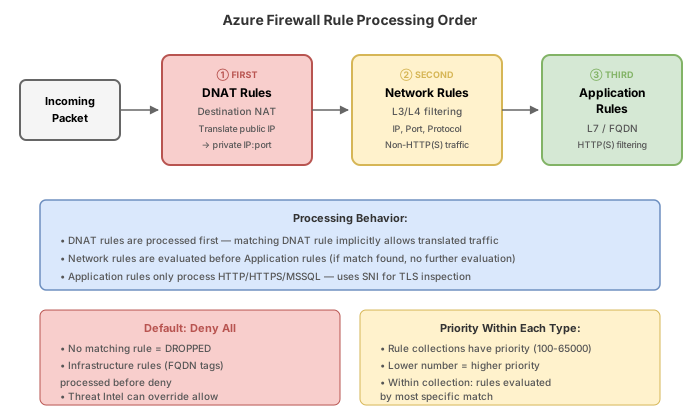
Rule processing order in Azure Firewall:
- DNAT rules (inbound, processed first)
- Network rules (IP/port-based, processed second)
- Application rules (FQDN-based, processed last)
Azure CLI
# Enable DNS proxy on the firewall policy (required for FQDN rules)
az network firewall policy update \
  --resource-group $RG \
  --name policy-hub-firewall \
  --dns-servers 168.63.129.16 \
  --enable-dns-proxy true

# Create a rule collection group
az network firewall policy rule-collection-group create \
  --resource-group $RG \
  --policy-name policy-hub-firewall \
  --name rcg-application \
  --priority 300

# Add application rule collection - Allow Microsoft domains
az network firewall policy rule-collection-group collection add-filter-collection \
  --resource-group $RG \
  --policy-name policy-hub-firewall \
  --rule-collection-group-name rcg-application \
  --name rc-allow-microsoft \
  --collection-priority 100 \
  --action Allow \
  --rule-name allow-microsoft-fqdns \
  --rule-type ApplicationRule \
  --source-addresses "10.1.0.0/16" \
  --protocols Https=443 Http=80 \
  --target-fqdns "*.microsoft.com" "*.azure.com" "*.windows.net"

# Add application rule - Allow Ubuntu updates
az network firewall policy rule-collection-group collection add-filter-collection \
  --resource-group $RG \
  --policy-name policy-hub-firewall \
  --rule-collection-group-name rcg-application \
  --name rc-allow-updates \
  --collection-priority 200 \
  --action Allow \
  --rule-name allow-ubuntu-updates \
  --rule-type ApplicationRule \
  --source-addresses "10.1.0.0/16" \
  --protocols Https=443 Http=80 \
  --target-fqdns "archive.ubuntu.com" "security.ubuntu.com" "*.ubuntu.com"

# Add application rule - Deny all other HTTP/HTTPS (catch-all)
az network firewall policy rule-collection-group collection add-filter-collection \
  --resource-group $RG \
  --policy-name policy-hub-firewall \
  --rule-collection-group-name rcg-application \
  --name rc-deny-all-web \
  --collection-priority 1000 \
  --action Deny \
  --rule-name deny-all-internet \
  --rule-type ApplicationRule \
  --source-addresses "*" \
  --protocols Https=443 Http=80 \
  --target-fqdns "*"
Azure PowerShell
# Enable DNS proxy
$fwPolicy = Get-AzFirewallPolicy -ResourceGroupName $rg -Name "policy-hub-firewall"
$fwPolicy.DnsSettings = New-AzFirewallPolicyDnsSetting -EnableProxy
$fwPolicy | Set-AzFirewallPolicy

# Create rule collection group
$rcg = New-AzFirewallPolicyRuleCollectionGroup `
  -ResourceGroupName $rg `
  -FirewallPolicyName "policy-hub-firewall" `
  -Name "rcg-application" `
  -Priority 300

# Create application rules
$allowMsRule = New-AzFirewallPolicyApplicationRule `
  -Name "allow-microsoft-fqdns" `
  -SourceAddress "10.1.0.0/16" `
  -TargetFqdn "*.microsoft.com", "*.azure.com", "*.windows.net" `
  -Protocol "Https:443", "Http:80"

$allowMsCollection = New-AzFirewallPolicyFilterRuleCollection `
  -Name "rc-allow-microsoft" `
  -Priority 100 `
  -ActionType Allow `
  -Rule $allowMsRule

$allowUbuntuRule = New-AzFirewallPolicyApplicationRule `
  -Name "allow-ubuntu-updates" `
  -SourceAddress "10.1.0.0/16" `
  -TargetFqdn "archive.ubuntu.com", "security.ubuntu.com", "*.ubuntu.com" `
  -Protocol "Https:443", "Http:80"

$allowUbuntuCollection = New-AzFirewallPolicyFilterRuleCollection `
  -Name "rc-allow-updates" `
  -Priority 200 `
  -ActionType Allow `
  -Rule $allowUbuntuRule

# Set rule collections on the group
$rcg = Get-AzFirewallPolicyRuleCollectionGroup `
  -ResourceGroupName $rg `
  -FirewallPolicyName "policy-hub-firewall" `
  -Name "rcg-application"
$rcg.Properties.RuleCollection = @($allowMsCollection, $allowUbuntuCollection)
Set-AzFirewallPolicyRuleCollectionGroup `
  -ResourceGroupName $rg `
  -FirewallPolicyName "policy-hub-firewall" `
  -InputObject $rcg
Task 4: Configure network rules (IP-based filtering)
Network rules operate at Layer 3/4 and filter based on IP addresses, ports, and protocols. Use these for non-HTTP/HTTPS traffic.
Azure CLI
# Create a rule collection group for network rules
az network firewall policy rule-collection-group create \
  --resource-group $RG \
  --policy-name policy-hub-firewall \
  --name rcg-network \
  --priority 200

# Allow DNS traffic (UDP/53) to Azure DNS
az network firewall policy rule-collection-group collection add-filter-collection \
  --resource-group $RG \
  --policy-name policy-hub-firewall \
  --rule-collection-group-name rcg-network \
  --name rc-allow-dns \
  --collection-priority 100 \
  --action Allow \
  --rule-name allow-dns \
  --rule-type NetworkRule \
  --source-addresses "10.1.0.0/16" \
  --destination-addresses "168.63.129.16" \
  --destination-ports 53 \
  --ip-protocols UDP TCP

# Allow NTP traffic (UDP/123)
az network firewall policy rule-collection-group collection add-filter-collection \
  --resource-group $RG \
  --policy-name policy-hub-firewall \
  --rule-collection-group-name rcg-network \
  --name rc-allow-ntp \
  --collection-priority 200 \
  --action Allow \
  --rule-name allow-ntp \
  --rule-type NetworkRule \
  --source-addresses "10.1.0.0/16" \
  --destination-addresses "*" \
  --destination-ports 123 \
  --ip-protocols UDP
Azure PowerShell
# Create network rule collection group
$rcgNet = New-AzFirewallPolicyRuleCollectionGroup `
  -ResourceGroupName $rg `
  -FirewallPolicyName "policy-hub-firewall" `
  -Name "rcg-network" `
  -Priority 200

# DNS rule
$dnsRule = New-AzFirewallPolicyNetworkRule `
  -Name "allow-dns" `
  -SourceAddress "10.1.0.0/16" `
  -DestinationAddress "168.63.129.16" `
  -DestinationPort "53" `
  -Protocol UDP, TCP

$dnsCollection = New-AzFirewallPolicyFilterRuleCollection `
  -Name "rc-allow-dns" `
  -Priority 100 `
  -ActionType Allow `
  -Rule $dnsRule

# NTP rule
$ntpRule = New-AzFirewallPolicyNetworkRule `
  -Name "allow-ntp" `
  -SourceAddress "10.1.0.0/16" `
  -DestinationAddress "*" `
  -DestinationPort "123" `
  -Protocol UDP

$ntpCollection = New-AzFirewallPolicyFilterRuleCollection `
  -Name "rc-allow-ntp" `
  -Priority 200 `
  -ActionType Allow `
  -Rule $ntpRule

# Apply
$rcgNet = Get-AzFirewallPolicyRuleCollectionGroup `
  -ResourceGroupName $rg `
  -FirewallPolicyName "policy-hub-firewall" `
  -Name "rcg-network"
$rcgNet.Properties.RuleCollection = @($dnsCollection, $ntpCollection)
Set-AzFirewallPolicyRuleCollectionGroup `
  -ResourceGroupName $rg `
  -FirewallPolicyName "policy-hub-firewall" `
  -InputObject $rcgNet
Task 5: Configure DNAT rules (inbound NAT)
DNAT rules translate inbound traffic from the firewall public IP to an internal server. This publishes internal services without giving them public IPs directly.
Azure CLI
# Create a rule collection group for DNAT rules
az network firewall policy rule-collection-group create \
  --resource-group $RG \
  --policy-name policy-hub-firewall \
  --name rcg-dnat \
  --priority 100

# Get the firewall public IP address
FW_PUBLIC_IP=$(az network public-ip show \
  --resource-group $RG \
  --name pip-firewall \
  --query "ipAddress" \
  --output tsv)

# Add DNAT rule: public IP port 80 -> internal web server 10.1.1.4 port 80
az network firewall policy rule-collection-group collection add-nat-collection \
  --resource-group $RG \
  --policy-name policy-hub-firewall \
  --rule-collection-group-name rcg-dnat \
  --name rc-dnat-web \
  --collection-priority 100 \
  --action DNAT \
  --rule-name dnat-to-webserver \
  --source-addresses "*" \
  --destination-addresses "$FW_PUBLIC_IP" \
  --destination-ports 80 \
  --translated-address 10.1.1.4 \
  --translated-port 80 \
  --ip-protocols TCP
Azure PowerShell
# Create DNAT rule collection group
$rcgDnat = New-AzFirewallPolicyRuleCollectionGroup `
  -ResourceGroupName $rg `
  -FirewallPolicyName "policy-hub-firewall" `
  -Name "rcg-dnat" `
  -Priority 100

# Get public IP
$fwPip = (Get-AzPublicIpAddress -ResourceGroupName $rg -Name "pip-firewall").IpAddress

# DNAT rule
$dnatRule = New-AzFirewallPolicyNatRule `
  -Name "dnat-to-webserver" `
  -SourceAddress "*" `
  -DestinationAddress $fwPip `
  -DestinationPort "80" `
  -Protocol TCP `
  -TranslatedAddress "10.1.1.4" `
  -TranslatedPort "80"

$dnatCollection = New-AzFirewallPolicyNatRuleCollection `
  -Name "rc-dnat-web" `
  -Priority 100 `
  -ActionType DNAT `
  -Rule $dnatRule

$rcgDnat = Get-AzFirewallPolicyRuleCollectionGroup `
  -ResourceGroupName $rg `
  -FirewallPolicyName "policy-hub-firewall" `
  -Name "rcg-dnat"
$rcgDnat.Properties.RuleCollection = @($dnatCollection)
Set-AzFirewallPolicyRuleCollectionGroup `
  -ResourceGroupName $rg `
  -FirewallPolicyName "policy-hub-firewall" `
  -InputObject $rcgDnat
Task 6: Enable threat intelligence (Alert and Deny mode)
Threat intelligence filters traffic against Microsoft's threat intelligence feed of known malicious IPs and domains.
| Mode | Behavior |
|---|---|
| Off | Disabled |
| Alert | Logs but allows traffic to/from known malicious IPs |
| Deny | Blocks and logs traffic to/from known malicious IPs |
Azure CLI
# Update policy to Alert and Deny mode
az network firewall policy update \
  --resource-group $RG \
  --name policy-hub-firewall \
  --threat-intel-mode Deny
Azure PowerShell
$fwPolicy = Get-AzFirewallPolicy -ResourceGroupName $rg -Name "policy-hub-firewall"
$fwPolicy.ThreatIntelMode = "Deny"
$fwPolicy | Set-AzFirewallPolicy
Task 7: Create UDR to route spoke traffic through the firewall
Without a User-Defined Route (UDR), spoke VMs use the default system route to reach the internet directly, bypassing the firewall entirely.
Azure CLI
# Create route table
az network route-table create \
  --resource-group $RG \
  --name rt-spoke-to-firewall \
  --location $LOCATION \
  --disable-bgp-route-propagation true

# Add default route pointing to firewall private IP
az network route-table route create \
  --resource-group $RG \
  --route-table-name rt-spoke-to-firewall \
  --name route-to-firewall \
  --address-prefix 0.0.0.0/0 \
  --next-hop-type VirtualAppliance \
  --next-hop-ip-address $FW_PRIVATE_IP

# Associate route table with the spoke workload subnet
az network vnet subnet update \
  --resource-group $RG \
  --vnet-name vnet-spoke \
  --name snet-workload \
  --route-table rt-spoke-to-firewall
Azure PowerShell
# Create route table
$rt = New-AzRouteTable `
  -ResourceGroupName $rg `
  -Name "rt-spoke-to-firewall" `
  -Location $location `
  -DisableBgpRoutePropagation

# Add default route to firewall
Add-AzRouteConfig `
  -RouteTable $rt `
  -Name "route-to-firewall" `
  -AddressPrefix "0.0.0.0/0" `
  -NextHopType VirtualAppliance `
  -NextHopIpAddress $fwPrivateIp
Set-AzRouteTable -RouteTable $rt

# Associate with spoke subnet
$spokeVnet = Get-AzVirtualNetwork -ResourceGroupName $rg -Name "vnet-spoke"
$workloadSubnet = Get-AzVirtualNetworkSubnetConfig -VirtualNetwork $spokeVnet -Name "snet-workload"
$workloadSubnet.RouteTable = $rt
$spokeVnet | Set-AzVirtualNetwork
Break & fix
Scenario 1: FQDN rules not matching (DNS proxy not enabled)
# Create a firewall policy without DNS proxy
az network firewall policy create \
  --resource-group $RG \
  --name policy-no-dns \
  --location $LOCATION \
  --sku Standard
Symptom: Application rules with FQDN targets do not match any traffic. VMs cannot reach approved FQDNs even though rules exist.
Root cause: Azure Firewall uses its DNS proxy to resolve FQDNs in application rules. Without DNS proxy enabled, the firewall cannot resolve domain names and FQDN-based rules fail silently. The client VMs must also use the firewall as their DNS server (or use Azure DNS which routes through the firewall).
Fix: Enable DNS proxy on the firewall policy:
az network firewall policy update \
  --resource-group $RG \
  --name policy-no-dns \
  --dns-servers 168.63.129.16 \
  --enable-dns-proxy true
Scenario 2: DNAT rule not working (missing network rule)
Symptom: DNAT rule translates the destination correctly, but the internal web server never receives the traffic. The connection times out.
Root cause: For DNAT traffic, Azure Firewall processes DNAT rules first (translating the destination), then applies network rules to the translated traffic. If no network rule allows the translated flow (source=original client, destination=translated internal IP, port=translated port), the traffic is dropped.
Fix: Add a network rule that allows the translated traffic:
az network firewall policy rule-collection-group collection add-filter-collection \
  --resource-group $RG \
  --policy-name policy-hub-firewall \
  --rule-collection-group-name rcg-network \
  --name rc-allow-dnat-translated \
  --collection-priority 50 \
  --action Allow \
  --rule-name allow-web-dnat \
  --rule-type NetworkRule \
  --source-addresses "*" \
  --destination-addresses "10.1.1.4" \
  --destination-ports 80 \
  --ip-protocols TCP
Scenario 3: Traffic bypassing the firewall (missing UDR)
Symptom: Spoke VMs can reach the internet directly (including blocked sites). Firewall logs show no traffic from spoke VMs.
Root cause: Without a UDR pointing 0.0.0.0/0 to the firewall private IP, spoke VMs use Azure's default system route for internet egress, which goes directly to the internet without traversing the firewall.
Fix: Create and associate a route table with the correct default route (see Task 7 above).
# Verify the effective routes on a spoke VM NIC
az network nic show-effective-route-table \
  --resource-group $RG \
  --name <spoke-vm-nic-name> \
  --output table
The output should show 0.0.0.0/0 with Next Hop Type = VirtualAppliance and the firewall private IP as the next hop address.
Knowledge check
1. In what order does Azure Firewall process rule types?
2. What is the minimum subnet size for AzureFirewallSubnet?
3. Why must DNS proxy be enabled for FQDN-based application rules to work?
4. A DNAT rule translates traffic from the firewall public IP to an internal web server. What additional configuration is needed?
5. What are the three threat intelligence modes available on Azure Firewall?
6. Spoke VMs can reach the internet directly, bypassing the Azure Firewall. What is the most likely cause?
Cleanup
Remove all resources immediately to avoid ongoing firewall charges.
Azure CLI
# Delete the entire resource group (stops billing for the firewall)
az group delete --name rg-firewall-challenge --yes --no-wait
Azure PowerShell
Remove-AzResourceGroup -Name "rg-firewall-challenge" -Force -AsJob
Azure Firewall charges by the hour even when idle. Verify deletion:
az group show --name rg-firewall-challenge 2>&1 | grep -q "not found" && echo "Deleted" || echo "Still exists - check immediately!"
Azure Firewall Standard: ~$1.25/hour ($912/month). The firewall charges begin as soon as it is provisioned, regardless of traffic. Always deallocate or delete after lab exercises. There is no "stopped" state for Azure Firewall in VNet mode; you must delete it entirely or use az network firewall delete to remove it while preserving other resources.