Challenge 25: Azure Load Balancer (Standard)
45-60 minutes | ~$0.03/h (Standard LB hourly + rules) | Exam weight: 15-20%
Scenario
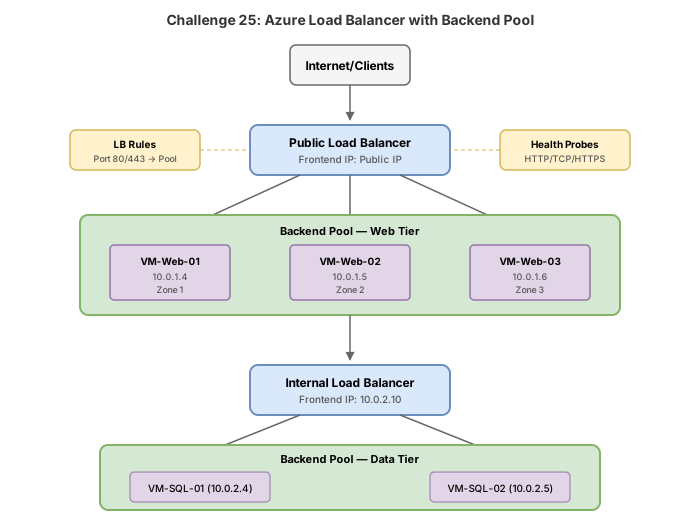
NorthWind Traders is an e-commerce company launching a new online storefront. The architecture requires a public-facing Standard Load Balancer for the web tier (two VMs running Nginx) and an internal Standard Load Balancer for the data tier (two VMs running PostgreSQL on port 5432). The web tier must support session persistence for shopping carts, and administrators need direct SSH access to individual backend VMs for troubleshooting via inbound NAT rules.
Your job is to deploy both load balancers, configure backend pools, health probes, load-balancing rules, inbound NAT rules for SSH, and verify end-to-end connectivity.
Exam skills covered
| Skill | Weight |
|---|---|
| Design and implement Azure Load Balancer (Standard SKU) | High |
| Configure backend pools (NIC-based and IP-based) | High |
| Configure health probes (TCP, HTTP, HTTPS) | High |
| Configure load-balancing rules | High |
| Configure inbound NAT rules | Medium |
| Configure session persistence (source IP affinity) | Medium |
| Configure floating IP | Low |
Prerequisites
- Azure subscription with Contributor role
- Azure CLI 2.60+ or Azure PowerShell Az 12.0+
- Basic understanding of TCP/IP, HTTP, and NSG concepts
Task 1: Create networking infrastructure
Set up the VNet, subnet, NSG, and prepare the environment for the load balancers.
Azure CLI
# Set variables
RG="rg-northwind-lb"
LOCATION="eastus2"

# Create resource group
az group create --name $RG --location $LOCATION

# Create VNet and subnets
az network vnet create \
  --resource-group $RG \
  --name vnet-northwind \
  --location $LOCATION \
  --address-prefixes 10.10.0.0/16 \
  --subnet-name snet-web \
  --subnet-prefixes 10.10.1.0/24

az network vnet subnet create \
  --resource-group $RG \
  --vnet-name vnet-northwind \
  --name snet-data \
  --address-prefixes 10.10.2.0/24

# Create NSG for web tier
az network nsg create \
  --resource-group $RG \
  --name nsg-web

# Allow HTTP and HTTPS inbound
az network nsg rule create \
  --resource-group $RG \
  --nsg-name nsg-web \
  --name AllowHTTP \
  --priority 100 \
  --direction Inbound \
  --access Allow \
  --protocol Tcp \
  --destination-port-ranges 80 443 \
  --source-address-prefixes "*"

# Critical: Allow Azure Load Balancer health probe source IP
az network nsg rule create \
  --resource-group $RG \
  --nsg-name nsg-web \
  --name AllowAzureLoadBalancer \
  --priority 110 \
  --direction Inbound \
  --access Allow \
  --protocol Tcp \
  --destination-port-ranges 80 \
  --source-address-prefixes 168.63.129.16

# Allow SSH for management
az network nsg rule create \
  --resource-group $RG \
  --nsg-name nsg-web \
  --name AllowSSH \
  --priority 120 \
  --direction Inbound \
  --access Allow \
  --protocol Tcp \
  --destination-port-ranges 22 \
  --source-address-prefixes "*"

# Associate NSG with web subnet
az network vnet subnet update \
  --resource-group $RG \
  --vnet-name vnet-northwind \
  --name snet-web \
  --network-security-group nsg-web
Azure PowerShell
# Set variables
$rg = "rg-northwind-lb"
$location = "eastus2"

# Create resource group
New-AzResourceGroup -Name $rg -Location $location

# Create NSG rules
$ruleHTTP = New-AzNetworkSecurityRuleConfig `
  -Name "AllowHTTP" `
  -Priority 100 `
  -Direction Inbound `
  -Access Allow `
  -Protocol Tcp `
  -DestinationPortRange 80,443 `
  -SourceAddressPrefix "*" `
  -SourcePortRange "*" `
  -DestinationAddressPrefix "*"

$ruleProbe = New-AzNetworkSecurityRuleConfig `
  -Name "AllowAzureLoadBalancer" `
  -Priority 110 `
  -Direction Inbound `
  -Access Allow `
  -Protocol Tcp `
  -DestinationPortRange 80 `
  -SourceAddressPrefix "168.63.129.16" `
  -SourcePortRange "*" `
  -DestinationAddressPrefix "*"

$ruleSSH = New-AzNetworkSecurityRuleConfig `
  -Name "AllowSSH" `
  -Priority 120 `
  -Direction Inbound `
  -Access Allow `
  -Protocol Tcp `
  -DestinationPortRange 22 `
  -SourceAddressPrefix "*" `
  -SourcePortRange "*" `
  -DestinationAddressPrefix "*"

# Create NSG
$nsg = New-AzNetworkSecurityGroup `
  -ResourceGroupName $rg `
  -Location $location `
  -Name "nsg-web" `
  -SecurityRules $ruleHTTP, $ruleProbe, $ruleSSH

# Create VNet with subnets
$snetWeb = New-AzVirtualNetworkSubnetConfig `
  -Name "snet-web" `
  -AddressPrefix "10.10.1.0/24" `
  -NetworkSecurityGroup $nsg

$snetData = New-AzVirtualNetworkSubnetConfig `
  -Name "snet-data" `
  -AddressPrefix "10.10.2.0/24"

New-AzVirtualNetwork `
  -ResourceGroupName $rg `
  -Name "vnet-northwind" `
  -Location $location `
  -AddressPrefix "10.10.0.0/16" `
  -Subnet $snetWeb, $snetData
Portal steps
- Navigate to Resource groups > Create > name
rg-northwind-lb, region East US 2. - Create a VNet named
vnet-northwindwith address space10.10.0.0/16. - Add subnets
snet-web(10.10.1.0/24) andsnet-data(10.10.2.0/24). - Create NSG
nsg-webwith inbound rules for HTTP (80/443), health probe source (168.63.129.16 on port 80), and SSH (22). - Associate the NSG with the
snet-websubnet.
Task 2: Create the public Standard Load Balancer
Deploy a public-facing Standard Load Balancer for the web tier with a zone-redundant static public IP.
Azure CLI
# Create a Standard SKU zone-redundant public IP for the LB frontend
az network public-ip create \
  --resource-group $RG \
  --name pip-lb-web \
  --sku Standard \
  --allocation-method Static \
  --zone 1 2 3

# Create the public Standard Load Balancer with frontend and backend pool
az network lb create \
  --resource-group $RG \
  --name lb-web-public \
  --sku Standard \
  --location $LOCATION \
  --frontend-ip-name fe-web-public \
  --public-ip-address pip-lb-web \
  --backend-pool-name bp-web-nic
Azure PowerShell
# Create public IP
$pip = New-AzPublicIpAddress `
  -ResourceGroupName $rg `
  -Name "pip-lb-web" `
  -Location $location `
  -Sku Standard `
  -AllocationMethod Static `
  -Zone 1, 2, 3

# Create frontend IP configuration
$feConfig = New-AzLoadBalancerFrontendIpConfig `
  -Name "fe-web-public" `
  -PublicIpAddress $pip

# Create backend address pool
$bePool = New-AzLoadBalancerBackendAddressPoolConfig `
  -Name "bp-web-nic"

# Create the load balancer
$lb = New-AzLoadBalancer `
  -ResourceGroupName $rg `
  -Name "lb-web-public" `
  -Location $location `
  -Sku Standard `
  -FrontendIpConfiguration $feConfig `
  -BackendAddressPool $bePool
Portal steps
- Navigate to Load balancers > Create.
- Set SKU to Standard, Type to Public, Tier to Regional.
- Create a new public IP
pip-lb-web(Standard, Static, Zone-redundant). - Name the frontend
fe-web-public, backend poolbp-web-nic. - Select Review + create > Create.
Task 3: Configure health probes
Create HTTP and TCP health probes. The HTTP probe checks the application health endpoint; the TCP probe validates port connectivity.
Azure CLI
# HTTP health probe for web tier (checks /health endpoint)
az network lb probe create \
  --resource-group $RG \
  --lb-name lb-web-public \
  --name probe-http-web \
  --protocol Http \
  --port 80 \
  --path "/health" \
  --interval 5 \
  --probe-threshold 2

# TCP health probe (alternative for non-HTTP workloads)
az network lb probe create \
  --resource-group $RG \
  --lb-name lb-web-public \
  --name probe-tcp-fallback \
  --protocol Tcp \
  --port 80 \
  --interval 10 \
  --probe-threshold 2
Azure PowerShell
# Get the load balancer
$lb = Get-AzLoadBalancer -ResourceGroupName $rg -Name "lb-web-public"

# Add HTTP health probe
$lb | Add-AzLoadBalancerProbeConfig `
  -Name "probe-http-web" `
  -Protocol Http `
  -Port 80 `
  -RequestPath "/health" `
  -IntervalInSeconds 5 `
  -ProbeCount 2

# Add TCP health probe
$lb | Add-AzLoadBalancerProbeConfig `
  -Name "probe-tcp-fallback" `
  -Protocol Tcp `
  -Port 80 `
  -IntervalInSeconds 10 `
  -ProbeCount 2

# Save the configuration
$lb | Set-AzLoadBalancer
Portal steps
- Open
lb-web-public> Health probes > Add. - Create
probe-http-web: Protocol HTTP, Port 80, Path/health, Interval 5s, Unhealthy threshold 2. - Create
probe-tcp-fallback: Protocol TCP, Port 80, Interval 10s, Unhealthy threshold 2.
Task 4: Configure load-balancing rules with session persistence
Create load-balancing rules that distribute HTTP traffic with source IP session persistence for shopping cart affinity.
Azure CLI
# LB rule with session persistence (SourceIP for shopping cart sessions)
az network lb rule create \
  --resource-group $RG \
  --lb-name lb-web-public \
  --name rule-http-web \
  --protocol Tcp \
  --frontend-port 80 \
  --backend-port 80 \
  --frontend-ip-name fe-web-public \
  --backend-pool-name bp-web-nic \
  --probe-name probe-http-web \
  --idle-timeout 15 \
  --load-distribution SourceIP \
  --enable-tcp-reset true

# HTTPS rule with default 5-tuple distribution (stateless API)
az network lb rule create \
  --resource-group $RG \
  --lb-name lb-web-public \
  --name rule-https-web \
  --protocol Tcp \
  --frontend-port 443 \
  --backend-port 443 \
  --frontend-ip-name fe-web-public \
  --backend-pool-name bp-web-nic \
  --probe-name probe-http-web \
  --idle-timeout 4 \
  --load-distribution Default \
  --enable-tcp-reset true
Azure PowerShell
$lb = Get-AzLoadBalancer -ResourceGroupName $rg -Name "lb-web-public"
$feConfig = $lb.FrontendIpConfigurations[0]
$bePool = $lb.BackendAddressPools[0]
$probe = $lb.Probes | Where-Object { $_.Name -eq "probe-http-web" }

# Add LB rule with SourceIP session persistence
$lb | Add-AzLoadBalancerRuleConfig `
  -Name "rule-http-web" `
  -Protocol Tcp `
  -FrontendPort 80 `
  -BackendPort 80 `
  -FrontendIpConfiguration $feConfig `
  -BackendAddressPool $bePool `
  -Probe $probe `
  -IdleTimeoutInMinutes 15 `
  -LoadDistribution SourceIP `
  -EnableTcpReset

# Add HTTPS rule with default (5-tuple) distribution
$lb | Add-AzLoadBalancerRuleConfig `
  -Name "rule-https-web" `
  -Protocol Tcp `
  -FrontendPort 443 `
  -BackendPort 443 `
  -FrontendIpConfiguration $feConfig `
  -BackendAddressPool $bePool `
  -Probe $probe `
  -IdleTimeoutInMinutes 4 `
  -LoadDistribution Default `
  -EnableTcpReset

$lb | Set-AzLoadBalancer
Portal steps
- Open
lb-web-public> Load balancing rules > Add. - Create
rule-http-web: Protocol TCP, Frontend port 80, Backend port 80, Backend poolbp-web-nic, Health probeprobe-http-web, Session persistence Client IP, Idle timeout 15 min, TCP reset Enabled. - Create
rule-https-web: Protocol TCP, ports 443/443, Session persistence None, Idle timeout 4 min.
Task 5: Configure inbound NAT rules for SSH access
Create inbound NAT rules to forward unique frontend ports to SSH (port 22) on individual backend VMs.
Azure CLI
# Inbound NAT rule for VM1 (frontend port 2201 -> backend port 22)
az network lb inbound-nat-rule create \
  --resource-group $RG \
  --lb-name lb-web-public \
  --name nat-ssh-vm1 \
  --protocol Tcp \
  --frontend-port 2201 \
  --backend-port 22 \
  --frontend-ip-name fe-web-public

# Inbound NAT rule for VM2 (frontend port 2202 -> backend port 22)
az network lb inbound-nat-rule create \
  --resource-group $RG \
  --lb-name lb-web-public \
  --name nat-ssh-vm2 \
  --protocol Tcp \
  --frontend-port 2202 \
  --backend-port 22 \
  --frontend-ip-name fe-web-public

# Associate NAT rule with VM1 NIC (after VMs are created)
az network nic ip-config inbound-nat-rule add \
  --resource-group $RG \
  --nic-name nic-web-vm1 \
  --ip-config-name ipconfig1 \
  --inbound-nat-rule nat-ssh-vm1 \
  --lb-name lb-web-public

# Associate NAT rule with VM2 NIC
az network nic ip-config inbound-nat-rule add \
  --resource-group $RG \
  --nic-name nic-web-vm2 \
  --ip-config-name ipconfig1 \
  --inbound-nat-rule nat-ssh-vm2 \
  --lb-name lb-web-public
Azure PowerShell
$lb = Get-AzLoadBalancer -ResourceGroupName $rg -Name "lb-web-public"
$feConfig = $lb.FrontendIpConfigurations[0]

# Add inbound NAT rules
$lb | Add-AzLoadBalancerInboundNatRuleConfig `
  -Name "nat-ssh-vm1" `
  -Protocol Tcp `
  -FrontendPort 2201 `
  -BackendPort 22 `
  -FrontendIpConfiguration $feConfig

$lb | Add-AzLoadBalancerInboundNatRuleConfig `
  -Name "nat-ssh-vm2" `
  -Protocol Tcp `
  -FrontendPort 2202 `
  -BackendPort 22 `
  -FrontendIpConfiguration $feConfig

$lb | Set-AzLoadBalancer

# Associate with VM1 NIC
$nic1 = Get-AzNetworkInterface -ResourceGroupName $rg -Name "nic-web-vm1"
$lb = Get-AzLoadBalancer -ResourceGroupName $rg -Name "lb-web-public"
$natRule1 = $lb.InboundNatRules | Where-Object { $_.Name -eq "nat-ssh-vm1" }
$nic1.IpConfigurations[0].LoadBalancerInboundNatRules.Add($natRule1)
Set-AzNetworkInterface -NetworkInterface $nic1
Portal steps
- Open
lb-web-public> Inbound NAT rules > Add. - Create
nat-ssh-vm1: Type Azure virtual machine, Target VMvm-web-1, Frontend IPfe-web-public, Frontend port 2201, Backend port 22, Protocol TCP. - Create
nat-ssh-vm2: Same settings but Frontend port 2202, Target VMvm-web-2.
Task 6: Create the internal Standard Load Balancer
Deploy an internal load balancer for the data tier (PostgreSQL) that is not exposed to the internet.
Azure CLI
# Create internal Standard Load Balancer
az network lb create \
  --resource-group $RG \
  --name lb-data-internal \
  --sku Standard \
  --location $LOCATION \
  --frontend-ip-name fe-data-internal \
  --vnet-name vnet-northwind \
  --subnet snet-data \
  --backend-pool-name bp-data-nic

# TCP health probe for PostgreSQL
az network lb probe create \
  --resource-group $RG \
  --lb-name lb-data-internal \
  --name probe-tcp-postgres \
  --protocol Tcp \
  --port 5432 \
  --interval 10 \
  --probe-threshold 2

# LB rule for PostgreSQL traffic
az network lb rule create \
  --resource-group $RG \
  --lb-name lb-data-internal \
  --name rule-postgres \
  --protocol Tcp \
  --frontend-port 5432 \
  --backend-port 5432 \
  --frontend-ip-name fe-data-internal \
  --backend-pool-name bp-data-nic \
  --probe-name probe-tcp-postgres \
  --idle-timeout 30 \
  --load-distribution Default \
  --enable-tcp-reset true

# LB rule with floating IP enabled (for cluster listener patterns)
az network lb rule create \
  --resource-group $RG \
  --lb-name lb-data-internal \
  --name rule-cluster-listener \
  --protocol Tcp \
  --frontend-port 5433 \
  --backend-port 5433 \
  --frontend-ip-name fe-data-internal \
  --backend-pool-name bp-data-nic \
  --probe-name probe-tcp-postgres \
  --floating-ip true \
  --enable-tcp-reset true
Azure PowerShell
# Get the VNet and subnet
$vnet = Get-AzVirtualNetwork -ResourceGroupName $rg -Name "vnet-northwind"
$snetData = $vnet.Subnets | Where-Object { $_.Name -eq "snet-data" }

# Create frontend IP config (internal, private IP)
$feInternal = New-AzLoadBalancerFrontendIpConfig `
  -Name "fe-data-internal" `
  -Subnet $snetData

# Create backend pool
$bePoolData = New-AzLoadBalancerBackendAddressPoolConfig `
  -Name "bp-data-nic"

# Create TCP probe for PostgreSQL
$probePostgres = New-AzLoadBalancerProbeConfig `
  -Name "probe-tcp-postgres" `
  -Protocol Tcp `
  -Port 5432 `
  -IntervalInSeconds 10 `
  -ProbeCount 2

# Create LB rule
$rulePostgres = New-AzLoadBalancerRuleConfig `
  -Name "rule-postgres" `
  -Protocol Tcp `
  -FrontendPort 5432 `
  -BackendPort 5432 `
  -FrontendIpConfiguration $feInternal `
  -BackendAddressPool $bePoolData `
  -Probe $probePostgres `
  -IdleTimeoutInMinutes 30 `
  -LoadDistribution Default `
  -EnableTcpReset

# Create the internal load balancer
New-AzLoadBalancer `
  -ResourceGroupName $rg `
  -Name "lb-data-internal" `
  -Location $location `
  -Sku Standard `
  -FrontendIpConfiguration $feInternal `
  -BackendAddressPool $bePoolData `
  -Probe $probePostgres `
  -LoadBalancingRule $rulePostgres
Portal steps
- Navigate to Load balancers > Create.
- Set SKU to Standard, Type to Internal, Tier to Regional.
- Select VNet
vnet-northwind, Subnetsnet-data. - Name frontend
fe-data-internal(dynamic private IP assignment). - Add backend pool
bp-data-nic. - Add health probe
probe-tcp-postgres(TCP, port 5432, interval 10s). - Add rule
rule-postgres(TCP 5432/5432, idle timeout 30 min).
Break & fix
These exercises simulate common misconfigurations. Diagnose and fix each one.
Scenario 1: Health probe failing due to wrong path
# Create a probe pointing to a non-existent path
az network lb probe create \
  --resource-group $RG \
  --lb-name lb-web-public \
  --name probe-broken-path \
  --protocol Http \
  --port 80 \
  --path "/healthcheck" \
  --interval 5 \
  --probe-threshold 2
Symptom: All backend VMs show as unhealthy. No traffic is distributed.
Root cause: The HTTP health probe path /healthcheck does not exist on the web servers. The application exposes its health endpoint at /health. The probe receives HTTP 404, which is outside the 200-399 success range, so all instances are marked down.
Fix: Update the probe to use the correct path:
az network lb probe update \
  --resource-group $RG \
  --lb-name lb-web-public \
  --name probe-broken-path \
  --path "/health"
Scenario 2: Backend port mismatch
# Rule forwards to wrong backend port
az network lb rule create \
  --resource-group $RG \
  --lb-name lb-web-public \
  --name rule-broken-port \
  --protocol Tcp \
  --frontend-port 80 \
  --backend-port 8080 \
  --frontend-ip-name fe-web-public \
  --backend-pool-name bp-web-nic \
  --probe-name probe-http-web
Symptom: Health probes pass (checking port 80) but client connections time out. The probe and the rule target different backend ports.
Root cause: The load-balancing rule forwards traffic to backend port 8080, but the web servers listen on port 80. Traffic arrives at the VM but no process listens on 8080.
Fix: Correct the backend port:
az network lb rule update \
  --resource-group $RG \
  --lb-name lb-web-public \
  --name rule-broken-port \
  --backend-port 80
Scenario 3: Missing NSG rule for health probe source (168.63.129.16)
# Remove the health probe allow rule
az network nsg rule delete \
  --resource-group $RG \
  --nsg-name nsg-web \
  --name AllowAzureLoadBalancer

# Add an overly restrictive deny rule
az network nsg rule create \
  --resource-group $RG \
  --nsg-name nsg-web \
  --name DenyAllInbound \
  --priority 4000 \
  --direction Inbound \
  --access Deny \
  --protocol "*" \
  --destination-port-ranges "*" \
  --source-address-prefixes "*"
Symptom: All backend instances show as unhealthy. The health probe never reaches the VMs.
Root cause: Azure Load Balancer health probes originate from IP address 168.63.129.16. If the NSG blocks this source, probes fail and all VMs appear down. The AzureLoadBalancer service tag covers this IP.
Fix: Re-add the allow rule for the probe source:
az network nsg rule create \
--resource-group $RG \
--nsg-name nsg-web \
--name AllowAzureLoadBalancer \
--priority 110 \
--direction Inbound \
--access Allow \
--protocol Tcp \
--destination-port-ranges 80 \
--source-address-prefixes 168.63.129.16
### Azure PowerShell
```powershell
# Delete the entire resource group
Remove-AzResourceGroup -Name "rg-northwind-lb" -Force -AsJob
Standard Load Balancer incurs approximately $0.025/hour plus $0.01/hour per rule, even with no traffic. The data processing charge is $0.005/GB. Always delete lab resources when done practicing.
After a few minutes, confirm deletion:
az group show --name rg-northwind-lb 2>&1 | grep -q "not found" && echo "Deleted" || echo "Still exists"