Challenge 31: Azure Front Door configuration
60-90 minutes | ~$35/mo base (Front Door Premium) | Exam weight: 15-20%
Scenario
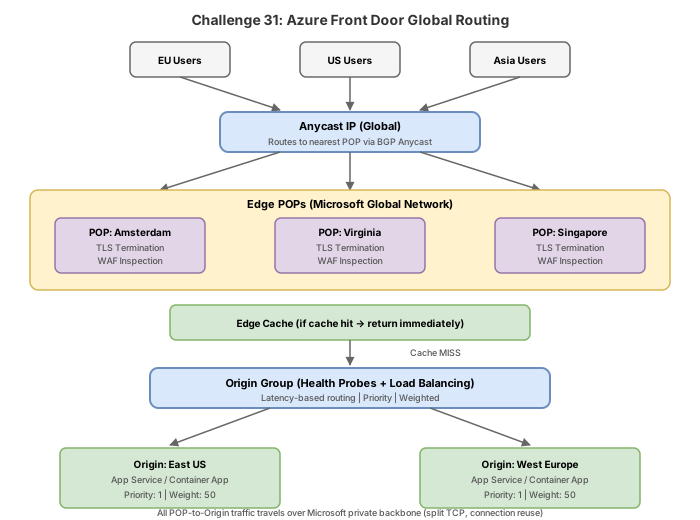
Globex Retail operates a global e-commerce platform hosted across multiple Azure regions. Peak traffic during sales events causes latency spikes for users far from the primary region. The platform team needs to deploy Azure Front Door Premium to accelerate traffic globally, distribute requests across primary and secondary backends, cache static content at the edge, and ensure automatic failover when an origin becomes unhealthy.
You will create a Front Door Premium profile with endpoints, origin groups configured with health probes, multiple weighted origins for load distribution, and routes with caching and compression enabled.
Exam skills covered
| Skill | Weight |
|---|---|
| Create and configure an Azure Front Door profile (Standard/Premium) | High |
| Configure endpoints, origin groups, and origins | High |
| Configure health probes for origin groups | High |
| Configure routes and caching policies | High |
| Configure content compression | Medium |
| Differentiate between Front Door Standard and Premium SKUs | Medium |
Prerequisites
- Azure subscription with Contributor role
- Azure CLI 2.60+ or Azure PowerShell Az 12.0+
- Two web apps or storage accounts deployed in different regions (or willingness to create them)
- Understanding of anycast networking concepts
Task 1: Create the Front Door Premium profile
Azure Front Door Standard/Premium uses the az afd command group. The Premium SKU adds Private Link support, enhanced WAF, and bot protection capabilities that Standard does not offer.
The az afd command group is for Front Door Standard/Premium (current). The legacy az network front-door command group is for Front Door Classic (deprecated). The exam focuses on Standard/Premium.
Azure CLI
# Set variables
RG="rg-globex-frontdoor"
LOCATION="eastus2"
FD_PROFILE="fd-globex-ecommerce"

# Create resource group
az group create --name $RG --location $LOCATION

# Create Front Door Premium profile
az afd profile create \
  --resource-group $RG \
  --profile-name $FD_PROFILE \
  --sku Premium_AzureFrontDoor \
  --origin-response-timeout-seconds 60

# Verify the profile was created
az afd profile show \
  --resource-group $RG \
  --profile-name $FD_PROFILE \
  --query "{name:name, sku:sku.name, state:resourceState}" \
  --output table
Azure PowerShell
# Set variables
$rg = "rg-globex-frontdoor"
$location = "eastus2"
$fdProfile = "fd-globex-ecommerce"

# Create resource group
New-AzResourceGroup -Name $rg -Location $location

# Create Front Door Premium profile
New-AzFrontDoorCdnProfile `
  -ResourceGroupName $rg `
  -ProfileName $fdProfile `
  -SkuName "Premium_AzureFrontDoor" `
  -OriginResponseTimeoutSecond 60

# Verify
Get-AzFrontDoorCdnProfile -ResourceGroupName $rg -ProfileName $fdProfile |
  Select-Object Name, SkuName, ResourceState
Portal steps
- Navigate to Front Door and CDN profiles > Create.
- Select Azure Front Door and click Continue.
- Choose Custom create for full control.
- Set Resource group to
rg-globex-frontdoor, Name tofd-globex-ecommerce, Tier to Premium. - Click Review + create > Create.
Task 2: Create an endpoint
An endpoint provides the public-facing hostname (e.g., fd-globex-ecommerce-xxxxxx.z01.azurefd.net) through which users access the application.
Azure CLI
# Create the endpoint
az afd endpoint create \
  --resource-group $RG \
  --profile-name $FD_PROFILE \
  --endpoint-name ep-globex-web \
  --enabled-state Enabled

# Retrieve the endpoint hostname
az afd endpoint show \
  --resource-group $RG \
  --profile-name $FD_PROFILE \
  --endpoint-name ep-globex-web \
  --query "hostName" \
  --output tsv
Azure PowerShell
# Create the endpoint
New-AzFrontDoorCdnEndpoint `
  -ResourceGroupName $rg `
  -ProfileName $fdProfile `
  -EndpointName "ep-globex-web" `
  -Location "Global" `
  -EnabledState "Enabled"

# Get the endpoint hostname
(Get-AzFrontDoorCdnEndpoint -ResourceGroupName $rg -ProfileName $fdProfile `
  -EndpointName "ep-globex-web").HostName
Task 3: Create an origin group with health probes
The origin group defines how Front Door health-checks and load-balances across your backends. The health probe configuration is critical for failover behavior.
Azure CLI
# Create origin group with health probe settings
az afd origin-group create \
  --resource-group $RG \
  --profile-name $FD_PROFILE \
  --origin-group-name og-globex-web \
  --probe-request-type GET \
  --probe-protocol Https \
  --probe-interval-in-seconds 30 \
  --probe-path "/health" \
  --sample-size 4 \
  --successful-samples-required 3 \
  --additional-latency-in-milliseconds 50

# Verify origin group settings
az afd origin-group show \
  --resource-group $RG \
  --profile-name $FD_PROFILE \
  --origin-group-name og-globex-web \
  --query "{name:name, probeSettings:healthProbeSettings, loadBalancing:loadBalancingSettings}" \
  --output json
Azure PowerShell
# Create health probe settings object
$healthProbe = New-AzFrontDoorCdnOriginGroupHealthProbeSettingObject `
  -ProbeIntervalInSecond 30 `
  -ProbePath "/health" `
  -ProbeProtocol "Https" `
  -ProbeRequestType "GET"

# Create load balancing settings object
$loadBalancing = New-AzFrontDoorCdnOriginGroupLoadBalancingSettingObject `
  -SampleSize 4 `
  -SuccessfulSamplesRequired 3 `
  -AdditionalLatencyInMillisecond 50

# Create origin group
New-AzFrontDoorCdnOriginGroup `
  -ResourceGroupName $rg `
  -ProfileName $fdProfile `
  -OriginGroupName "og-globex-web" `
  -HealthProbeSetting $healthProbe `
  -LoadBalancingSetting $loadBalancing
- Use a dedicated
/healthendpoint that checks application dependencies (database, cache) - Use GET instead of HEAD if your health endpoint returns meaningful status codes based on logic
- Set probe interval between 10-60 seconds; lower intervals detect failures faster but increase origin load
- A sample-size of 4 with successful-samples-required of 3 means one probe failure is tolerated before marking unhealthy
Task 4: Add primary and secondary origins
Origins represent the backend servers. Priority determines failover order (lower number = higher priority). Weight distributes traffic among same-priority origins.
Azure CLI
# Primary origin - East US 2 web app
az afd origin create \
  --resource-group $RG \
  --profile-name $FD_PROFILE \
  --origin-group-name og-globex-web \
  --origin-name origin-eastus2-primary \
  --host-name globex-web-eastus2.azurewebsites.net \
  --origin-host-header globex-web-eastus2.azurewebsites.net \
  --http-port 80 \
  --https-port 443 \
  --priority 1 \
  --weight 1000 \
  --enabled-state Enabled

# Secondary origin - West US 2 web app (failover)
az afd origin create \
  --resource-group $RG \
  --profile-name $FD_PROFILE \
  --origin-group-name og-globex-web \
  --origin-name origin-westus2-secondary \
  --host-name globex-web-westus2.azurewebsites.net \
  --origin-host-header globex-web-westus2.azurewebsites.net \
  --http-port 80 \
  --https-port 443 \
  --priority 2 \
  --weight 1000 \
  --enabled-state Enabled

# Verify origins
az afd origin list \
  --resource-group $RG \
  --profile-name $FD_PROFILE \
  --origin-group-name og-globex-web \
  --query "[].{name:name, host:hostName, priority:priority, weight:weight}" \
  --output table
Azure PowerShell
# Primary origin
New-AzFrontDoorCdnOrigin `
  -ResourceGroupName $rg `
  -ProfileName $fdProfile `
  -OriginGroupName "og-globex-web" `
  -OriginName "origin-eastus2-primary" `
  -HostName "globex-web-eastus2.azurewebsites.net" `
  -OriginHostHeader "globex-web-eastus2.azurewebsites.net" `
  -HttpPort 80 `
  -HttpsPort 443 `
  -Priority 1 `
  -Weight 1000 `
  -EnabledState "Enabled"

# Secondary origin (failover)
New-AzFrontDoorCdnOrigin `
  -ResourceGroupName $rg `
  -ProfileName $fdProfile `
  -OriginGroupName "og-globex-web" `
  -OriginName "origin-westus2-secondary" `
  -HostName "globex-web-westus2.azurewebsites.net" `
  -OriginHostHeader "globex-web-westus2.azurewebsites.net" `
  -HttpPort 80 `
  -HttpsPort 443 `
  -Priority 2 `
  -Weight 1000 `
  -EnabledState "Enabled"
- Priority: Determines failover order. All traffic goes to priority 1 origins while they are healthy. Only when all priority 1 origins fail does traffic shift to priority 2.
- Weight: Distributes traffic among origins with the same priority. An origin with weight 1000 gets twice the traffic of one with weight 500 (at the same priority level).
Task 5: Create a route with caching and compression
Routes connect the endpoint to the origin group and define URL patterns, forwarding protocols, and caching behavior.
Azure CLI
# Create route with caching enabled
az afd route create \
  --resource-group $RG \
  --profile-name $FD_PROFILE \
  --endpoint-name ep-globex-web \
  --route-name route-default \
  --origin-group og-globex-web \
  --patterns-to-match "/*" \
  --supported-protocols Http Https \
  --https-redirect Enabled \
  --forwarding-protocol HttpsOnly \
  --link-to-default-domain Enabled \
  --enable-caching true \
  --enable-compression true \
  --query-string-caching-behavior IncludeSpecifiedQueryStrings \
  --query-parameters "sku" "category" \
  --content-types-to-compress "text/html" "text/css" "application/javascript" "application/json" "image/svg+xml"

# Create a separate route for API (no caching)
az afd route create \
  --resource-group $RG \
  --profile-name $FD_PROFILE \
  --endpoint-name ep-globex-web \
  --route-name route-api \
  --origin-group og-globex-web \
  --patterns-to-match "/api/*" \
  --supported-protocols Https \
  --https-redirect Disabled \
  --forwarding-protocol HttpsOnly \
  --link-to-default-domain Enabled \
  --enable-caching false

# List all routes
az afd route list \
  --resource-group $RG \
  --profile-name $FD_PROFILE \
  --endpoint-name ep-globex-web \
  --query "[].{name:name, patterns:patternsToMatch, caching:cacheConfiguration}" \
  --output json
Azure PowerShell
# Create route with caching
New-AzFrontDoorCdnRoute `
  -ResourceGroupName $rg `
  -ProfileName $fdProfile `
  -EndpointName "ep-globex-web" `
  -RouteName "route-default" `
  -OriginGroupId (Get-AzFrontDoorCdnOriginGroup -ResourceGroupName $rg -ProfileName $fdProfile -OriginGroupName "og-globex-web").Id `
  -PatternsToMatch "/*" `
  -SupportedProtocol "Http","Https" `
  -HttpsRedirect "Enabled" `
  -ForwardingProtocol "HttpsOnly" `
  -LinkToDefaultDomain "Enabled" `
  -CacheConfigurationQueryStringCachingBehavior "IncludeSpecifiedQueryStrings" `
  -CacheConfigurationQueryParameter "sku","category" `
  -CompressionSettingIsCompressionEnabled `
  -CompressionSettingContentTypesToCompress "text/html","text/css","application/javascript","application/json","image/svg+xml"
Portal steps
- In the Front Door profile, navigate to Front Door manager > + Add a route.
- Set Route name to
route-default, link to your endpoint. - Set Patterns to match to
/*. - Select the origin group
og-globex-web. - Set Forwarding protocol to HTTPS only, enable HTTPS redirect.
- Under Caching, toggle Enable caching, select query string behavior, and check Enable compression.
- Click Add.
- IgnoreQueryString: Cache treats all query string variations as the same asset
- UseQueryString: Each unique query string creates a separate cache entry
- IncludeSpecifiedQueryStrings: Only listed parameters differentiate cache entries
- IgnoreSpecifiedQueryStrings: Listed parameters are stripped before cache lookup
For e-commerce, IncludeSpecifiedQueryStrings with product-identifying parameters (sku, category) balances cache efficiency with correctness.
Task 6: Validate traffic acceleration and caching
Test the deployment by accessing the endpoint and verifying response headers.
Azure CLI
# Get the endpoint hostname
ENDPOINT_HOST=$(az afd endpoint show \
  --resource-group $RG \
  --profile-name $FD_PROFILE \
  --endpoint-name ep-globex-web \
  --query "hostName" \
  --output tsv)

echo "Front Door endpoint: https://$ENDPOINT_HOST"

# Test the endpoint (look for X-Cache header)
curl -sI "https://$ENDPOINT_HOST/" | grep -i "x-cache\|x-azure-ref\|age"

# Purge the cache for a specific path
az afd endpoint purge \
  --resource-group $RG \
  --profile-name $FD_PROFILE \
  --endpoint-name ep-globex-web \
  --content-paths "/*"
Key response headers to verify:
- X-Cache: Shows
TCP_HIT(served from cache) orTCP_MISS(fetched from origin) - X-Azure-Ref: Unique reference for the Front Door transaction (useful for support tickets)
- Age: Seconds since the object was stored in the edge cache
Break & fix
These exercises simulate common Front Door misconfigurations.
Scenario 1: Origin not responding (health probe path wrong)
# Misconfigure the health probe path to a non-existent endpoint
az afd origin-group update \
  --resource-group $RG \
  --profile-name $FD_PROFILE \
  --origin-group-name og-globex-web \
  --probe-path "/nonexistent-health-check"
Symptom: All origins show as unhealthy in the Front Door health status. Requests to the endpoint return 503 Service Unavailable.
Root cause: The health probe path /nonexistent-health-check returns 404 on the origin. Front Door considers any response other than HTTP 200 as unhealthy. When all origins in the group are unhealthy, Front Door returns 503.
Fix: Correct the probe path to an endpoint that returns HTTP 200:
az afd origin-group update \
  --resource-group $RG \
  --profile-name $FD_PROFILE \
  --origin-group-name og-globex-web \
  --probe-path "/health"
Scenario 2: Cache not being populated (query string not forwarded)
# Set caching to ignore all query strings, but the app uses them for content
az afd route update \
  --resource-group $RG \
  --profile-name $FD_PROFILE \
  --endpoint-name ep-globex-web \
  --route-name route-default \
  --query-string-caching-behavior IgnoreQueryString
Symptom: Product pages show the wrong content. Users navigating to /products?sku=ABC123 and /products?sku=XYZ789 see the same cached page.
Root cause: IgnoreQueryString strips all query parameters before cache lookup, so both URLs map to the same cache key (/products). The backend relies on the sku parameter to serve different content.
Fix: Include the relevant query parameters in the cache key:
az afd route update \
  --resource-group $RG \
  --profile-name $FD_PROFILE \
  --endpoint-name ep-globex-web \
  --route-name route-default \
  --query-string-caching-behavior IncludeSpecifiedQueryStrings \
  --query-parameters "sku" "category"
Scenario 3: Route pattern mismatch
# Create an overly specific route that shadows the API route
az afd route create \
  --resource-group $RG \
  --profile-name $FD_PROFILE \
  --endpoint-name ep-globex-web \
  --route-name route-broken-pattern \
  --origin-group og-globex-web \
  --patterns-to-match "/api/v1/*" \
  --supported-protocols Https \
  --forwarding-protocol HttpsOnly \
  --link-to-default-domain Enabled \
  --enable-caching true
Symptom: API responses for /api/v1/orders are being cached when they should not be, causing stale data.
Root cause: The route route-broken-pattern with pattern /api/v1/* has caching enabled and matches before the broader /api/* route (which has caching disabled). Front Door evaluates the most specific pattern match first.
Fix: Delete the conflicting route or disable caching on it:
az afd route delete \
--resource-group $RG \
--profile-name $FD_PROFILE \
--endpoint-name ep-globex-web \
--route-name route-broken-pattern \
--yes
### Azure PowerShell
```powershell
# Delete the entire resource group and all resources within it
Remove-AzResourceGroup -Name "rg-globex-frontdoor" -Force -AsJob
Azure Front Door Premium costs approximately $35/month for the base profile fee alone, plus per-request and data transfer charges. Delete the profile promptly after completing this challenge to avoid unnecessary billing. The --no-wait flag returns immediately while deletion proceeds in the background.
After a few minutes, confirm deletion:
az group show --name rg-globex-frontdoor 2>&1 | grep -q "not found" && echo "Deleted" || echo "Still exists"