Challenge 30: Application Gateway scaling and health
60-90 minutes | ~$0.27/h (WAF_v2 SKU) | Exam weight: 15-20%
Application Gateway v2 is billed per hour even when idle. The WAF_v2 SKU costs approximately $0.443/gateway-hour plus $0.0144/capacity-unit-hour. Autoscaling configurations still incur the fixed gateway-hour charge even at zero instances. Delete the gateway immediately after completing this challenge to avoid unexpected charges.
Scenario
You are the platform engineer for Relecloud Media, a streaming company that experiences significant traffic variability. During live events, traffic can spike from 5,000 to 500,000 concurrent connections within minutes. The company also runs a live chat feature that requires WebSocket support and performs zero-downtime deployments using connection draining.
Your tasks are to:
- Configure autoscaling to handle traffic spikes without over-provisioning during quiet periods
- Implement custom health probes with match conditions to accurately detect unhealthy backends
- Enable connection draining to gracefully remove backends during deployments
- Configure diagnostic logging and identify key metrics for capacity planning
Architecture overview
[Traffic Spike]
      |
      v
[Application Gateway v2 - Autoscale: min 2, max 10]
      |
      +--> [Health Probe: /health (match: "status":"ok")]
      |
      +--> [Backend Pool - Streaming Servers]
      |         |--- Connection Draining (30s timeout)
      |
      +--> [Backend Pool - Chat WebSocket Servers]
      |
      +--> [Diagnostic Logs] --> Log Analytics Workspace
Prerequisites
- Azure subscription with Contributor access
- Azure CLI 2.50+ or Azure PowerShell Az module 10.0+
- Log Analytics workspace (created in this lab)
Task 1: Deploy Application Gateway with autoscaling
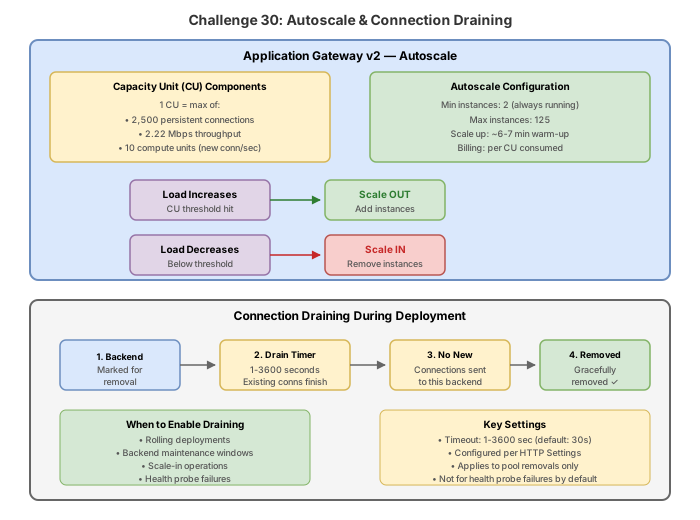
Autoscaling mode allows Application Gateway to scale out or in based on traffic load. You specify minimum and maximum instance counts. Each instance is roughly equivalent to 10 capacity units.
Azure CLI
# Create resource group
az group create \
  --name rg-appgw-scale-lab \
  --location eastus2

# Create VNet and subnet
az network vnet create \
  --resource-group rg-appgw-scale-lab \
  --name vnet-appgw-scale \
  --address-prefixes 10.0.0.0/16 \
  --subnet-name AppGwSubnet \
  --subnet-prefixes 10.0.0.0/24

# Create backend subnet
az network vnet subnet create \
  --resource-group rg-appgw-scale-lab \
  --vnet-name vnet-appgw-scale \
  --name BackendSubnet \
  --address-prefixes 10.0.1.0/24

# Create public IP
az network public-ip create \
  --resource-group rg-appgw-scale-lab \
  --name pip-appgw-scale \
  --sku Standard \
  --allocation-method Static \
  --zone 1 2 3

# Create Application Gateway with autoscaling (min 2, max 10)
az network application-gateway create \
  --resource-group rg-appgw-scale-lab \
  --name appgw-autoscale \
  --location eastus2 \
  --sku Standard_v2 \
  --min-capacity 2 \
  --max-capacity 10 \
  --vnet-name vnet-appgw-scale \
  --subnet AppGwSubnet \
  --public-ip-address pip-appgw-scale \
  --frontend-port 80 \
  --http-settings-port 80 \
  --http-settings-protocol Http \
  --priority 100
Azure PowerShell
# Create resource group
New-AzResourceGroup -Name "rg-appgw-scale-lab" -Location "eastus2"

# Create subnet configurations
$appgwSubnet = New-AzVirtualNetworkSubnetConfig `
  -Name "AppGwSubnet" `
  -AddressPrefix "10.0.0.0/24"

$backendSubnet = New-AzVirtualNetworkSubnetConfig `
  -Name "BackendSubnet" `
  -AddressPrefix "10.0.1.0/24"

# Create VNet
$vnet = New-AzVirtualNetwork `
  -ResourceGroupName "rg-appgw-scale-lab" `
  -Name "vnet-appgw-scale" `
  -Location "eastus2" `
  -AddressPrefix "10.0.0.0/16" `
  -Subnet $appgwSubnet, $backendSubnet

# Create public IP
$pip = New-AzPublicIpAddress `
  -ResourceGroupName "rg-appgw-scale-lab" `
  -Name "pip-appgw-scale" `
  -Location "eastus2" `
  -Sku Standard `
  -AllocationMethod Static `
  -Zone 1, 2, 3

# Configure autoscale
$autoscaleConfig = New-AzApplicationGatewayAutoscaleConfiguration `
  -MinCapacity 2 `
  -MaxCapacity 10

# Create SKU (no Capacity when using autoscale)
$sku = New-AzApplicationGatewaySku -Name Standard_v2 -Tier Standard_v2

# Configure gateway IP
$subnet = Get-AzVirtualNetworkSubnetConfig -Name "AppGwSubnet" -VirtualNetwork $vnet
$gipconfig = New-AzApplicationGatewayIPConfiguration -Name "appGwIPConfig" -Subnet $subnet

# Configure frontend
$fipconfig = New-AzApplicationGatewayFrontendIPConfig -Name "appGwFrontendIP" -PublicIPAddress $pip
$frontendPort = New-AzApplicationGatewayFrontendPort -Name "port80" -Port 80

# Configure backend
$pool = New-AzApplicationGatewayBackendAddressPool -Name "defaultPool"
$settings = New-AzApplicationGatewayBackendHttpSetting `
  -Name "defaultSettings" -Port 80 -Protocol Http -RequestTimeout 30

# Configure listener and rule
$listener = New-AzApplicationGatewayHttpListener `
  -Name "defaultListener" -Protocol Http `
  -FrontendIPConfiguration $fipconfig -FrontendPort $frontendPort

$rule = New-AzApplicationGatewayRequestRoutingRule `
  -Name "defaultRule" -RuleType Basic -Priority 100 `
  -HttpListener $listener -BackendAddressPool $pool -BackendHttpSettings $settings

# Create the gateway with autoscale
New-AzApplicationGateway `
  -ResourceGroupName "rg-appgw-scale-lab" `
  -Name "appgw-autoscale" `
  -Location "eastus2" `
  -Sku $sku `
  -AutoscaleConfiguration $autoscaleConfig `
  -GatewayIpConfigurations $gipconfig `
  -FrontendIpConfigurations $fipconfig `
  -FrontendPorts $frontendPort `
  -BackendAddressPools $pool `
  -BackendHttpSettingsCollection $settings `
  -HttpListeners $listener `
  -RequestRoutingRules $rule
Portal
- Navigate to Create a resource and select Application Gateway
- On the Basics tab, set the Tier to Standard V2
- Under Configure autoscaling, set Autoscale to Yes
- Set Minimum instance count to 2 and Maximum instance count to 10
- Complete the remaining tabs with your networking and backend configuration
Task 2: Create custom health probes with match conditions
Custom health probes allow you to specify a path, expected status codes, and a body match string. The probe evaluates the response against these criteria to determine backend health.
Azure CLI
# Create custom probe with body match condition
az network application-gateway probe create \
  --resource-group rg-appgw-scale-lab \
  --gateway-name appgw-autoscale \
  --name probe-streaming \
  --protocol Http \
  --host "localhost" \
  --path "/health" \
  --interval 15 \
  --timeout 10 \
  --threshold 3 \
  --match-status-codes "200" \
  --match-body "\"status\":\"ok\""

# Create probe for WebSocket servers (TCP-based for ws:// endpoints)
az network application-gateway probe create \
  --resource-group rg-appgw-scale-lab \
  --gateway-name appgw-autoscale \
  --name probe-chat \
  --protocol Http \
  --host "localhost" \
  --path "/ws/health" \
  --interval 10 \
  --timeout 5 \
  --threshold 2 \
  --match-status-codes "200-299"

# Associate probe with HTTP settings
az network application-gateway http-settings update \
  --resource-group rg-appgw-scale-lab \
  --gateway-name appgw-autoscale \
  --name defaultSettings \
  --probe probe-streaming
Azure PowerShell
$appgw = Get-AzApplicationGateway -ResourceGroupName "rg-appgw-scale-lab" -Name "appgw-autoscale"

# Create match condition for streaming probe
$match = New-AzApplicationGatewayProbeHealthResponseMatch `
  -StatusCode "200" `
  -Body '"status":"ok"'

# Add custom probe
$appgw = Add-AzApplicationGatewayProbeConfig `
  -ApplicationGateway $appgw `
  -Name "probe-streaming" `
  -Protocol Http `
  -HostName "localhost" `
  -Path "/health" `
  -Interval 15 `
  -Timeout 10 `
  -UnhealthyThreshold 3 `
  -Match $match

# Create match for chat probe
$matchChat = New-AzApplicationGatewayProbeHealthResponseMatch `
  -StatusCode "200-299"

$appgw = Add-AzApplicationGatewayProbeConfig `
  -ApplicationGateway $appgw `
  -Name "probe-chat" `
  -Protocol Http `
  -HostName "localhost" `
  -Path "/ws/health" `
  -Interval 10 `
  -Timeout 5 `
  -UnhealthyThreshold 2 `
  -Match $matchChat

# Update existing HTTP settings to use the probe
$probe = Get-AzApplicationGatewayProbeConfig -ApplicationGateway $appgw -Name "probe-streaming"
$appgw = Set-AzApplicationGatewayBackendHttpSetting `
  -ApplicationGateway $appgw `
  -Name "defaultSettings" `
  -Port 80 `
  -Protocol Http `
  -RequestTimeout 30 `
  -CookieBasedAffinity Disabled `
  -Probe $probe

$appgw = Set-AzApplicationGateway -ApplicationGateway $appgw
Task 3: Enable connection draining
Connection draining gracefully removes backend pool members during planned maintenance or deployments. Existing connections are allowed to complete within the configured timeout before the server is removed.
Azure CLI
# Enable connection draining on HTTP settings with 30-second timeout
az network application-gateway http-settings update \
  --resource-group rg-appgw-scale-lab \
  --gateway-name appgw-autoscale \
  --name defaultSettings \
  --connection-draining-enabled true \
  --connection-draining-timeout 30

# Create separate HTTP settings for chat with longer drain timeout
az network application-gateway http-settings create \
  --resource-group rg-appgw-scale-lab \
  --gateway-name appgw-autoscale \
  --name settings-chat \
  --port 80 \
  --protocol Http \
  --cookie-based-affinity Enabled \
  --timeout 120 \
  --connection-draining-enabled true \
  --connection-draining-timeout 60 \
  --probe probe-chat
Azure PowerShell
$appgw = Get-AzApplicationGateway -ResourceGroupName "rg-appgw-scale-lab" -Name "appgw-autoscale"

# Create connection draining configuration
$draining = New-AzApplicationGatewayConnectionDraining -Enabled $true -DrainTimeoutInSec 30

# Update HTTP settings with connection draining
$probe = Get-AzApplicationGatewayProbeConfig -ApplicationGateway $appgw -Name "probe-streaming"
$appgw = Set-AzApplicationGatewayBackendHttpSetting `
  -ApplicationGateway $appgw `
  -Name "defaultSettings" `
  -Port 80 `
  -Protocol Http `
  -RequestTimeout 30 `
  -CookieBasedAffinity Disabled `
  -ConnectionDraining $draining `
  -Probe $probe

# Create chat settings with longer drain timeout
$drainingChat = New-AzApplicationGatewayConnectionDraining -Enabled $true -DrainTimeoutInSec 60
$probeChat = Get-AzApplicationGatewayProbeConfig -ApplicationGateway $appgw -Name "probe-chat"

$appgw = Add-AzApplicationGatewayBackendHttpSetting `
  -ApplicationGateway $appgw `
  -Name "settings-chat" `
  -Port 80 `
  -Protocol Http `
  -CookieBasedAffinity Enabled `
  -RequestTimeout 120 `
  -ConnectionDraining $drainingChat `
  -Probe $probeChat

$appgw = Set-AzApplicationGateway -ApplicationGateway $appgw
Portal
- Navigate to your Application Gateway resource
- Select Backend settings in the left menu
- Select the HTTP settings you want to modify
- Scroll to Connection draining and toggle to Yes
- Set the Drain timeout value in seconds (1-3600)
- Select Save
Task 4: Enable WebSocket and HTTP/2 support
Application Gateway v2 supports WebSocket natively without additional configuration. HTTP/2 is supported on the frontend (client-to-gateway) connection.
Azure CLI
# Enable HTTP/2 on the Application Gateway
az network application-gateway update \
  --resource-group rg-appgw-scale-lab \
  --name appgw-autoscale \
  --set enableHttp2=true

# Verify HTTP/2 and WebSocket status
az network application-gateway show \
  --resource-group rg-appgw-scale-lab \
  --name appgw-autoscale \
  --query "{enableHttp2:enableHttp2}" \
  --output table
Azure PowerShell
$appgw = Get-AzApplicationGateway -ResourceGroupName "rg-appgw-scale-lab" -Name "appgw-autoscale"
# Enable HTTP/2
$appgw.EnableHttp2 = $true
$appgw = Set-AzApplicationGateway -ApplicationGateway $appgw
### Azure PowerShell
```powershell
# Create Log Analytics workspace
$workspace = New-AzOperationalInsightsWorkspace `
-ResourceGroupName "rg-appgw-scale-lab" `
-Name "law-appgw-diagnostics" `
-Location "eastus2"
# Get Application Gateway resource
$appgw = Get-AzApplicationGateway -ResourceGroupName "rg-appgw-scale-lab" -Name "appgw-autoscale"
# Enable diagnostic settings
Set-AzDiagnosticSetting `
-ResourceId $appgw.Id `
-Name "appgw-diagnostics" `
-WorkspaceId $workspace.ResourceId `
-Enabled $true `
-Category "ApplicationGatewayAccessLog", "ApplicationGatewayPerformanceLog", "ApplicationGatewayFirewallLog" `
-MetricCategory "AllMetrics"
Portal
- Navigate to your Application Gateway resource
- Select Diagnostic settings under Monitoring
- Select Add diagnostic setting
- Name:
appgw-diagnostics - Check all log categories: Access log, Performance log, Firewall log
- Check AllMetrics
- Under Destination details, select Send to Log Analytics workspace
- Choose your workspace and select Save
Task 6: Monitor key metrics
The following metrics are critical for capacity planning and troubleshooting:
| Metric | Description | Use case |
|---|---|---|
| Healthy Host Count | Number of healthy backends per pool | Detect backend failures |
| Unhealthy Host Count | Number of unhealthy backends | Alert on degradation |
| Current Capacity Units | Current CU consumption | Autoscale monitoring |
| Estimated Billed Capacity Units | Minimum CUs billed | Cost monitoring |
| Compute Units | CPU-driven capacity | Identify compute bottleneck |
| Connection Count | Active connections | Capacity planning |
| Response Status | 2xx/3xx/4xx/5xx breakdown | Error rate monitoring |
| Backend Response Status | Status codes from backends | Backend health |
| Throughput | Bytes/second served | Bandwidth monitoring |
Azure CLI
# Query current capacity units (last 1 hour, 5-minute intervals)
az monitor metrics list \
  --resource "$APPGW_ID" \
  --metric "CapacityUnits" \
  --interval PT5M \
  --start-time "$(date -u -d '1 hour ago' +%Y-%m-%dT%H:%M:%SZ)" \
  --output table

# Query healthy host count
az monitor metrics list \
  --resource "$APPGW_ID" \
  --metric "HealthyHostCount" \
  --interval PT1M \
  --output table

# Query response status breakdown
az monitor metrics list \
  --resource "$APPGW_ID" \
  --metric "ResponseStatus" \
  --interval PT5M \
  --output table
Azure PowerShell
$appgw = Get-AzApplicationGateway -ResourceGroupName "rg-appgw-scale-lab" -Name "appgw-autoscale"

# Get capacity units metric
Get-AzMetric `
  -ResourceId $appgw.Id `
  -MetricName "CapacityUnits" `
  -TimeGrain 00:05:00 `
  -StartTime (Get-Date).AddHours(-1) `
  -EndTime (Get-Date)

# Get healthy host count
Get-AzMetric `
  -ResourceId $appgw.Id `
  -MetricName "HealthyHostCount" `
  -TimeGrain 00:01:00 `
  -StartTime (Get-Date).AddHours(-1) `
  -EndTime (Get-Date)
Understanding capacity units
A capacity unit measures the combined resource consumption of an Application Gateway instance. One capacity unit is the maximum of:
- 2,500 persistent connections (connection capacity)
- 2.22 Mbps throughput (throughput capacity)
- 1 compute unit = 10 new connections/sec for non-TLS, or 50 TLS connections/sec with 2048-bit RSA key (compute capacity)
The highest of these three dimensions determines the actual capacity units consumed.
Break & fix
Issue 1: Health probe returning non-matching body
Symptom: All backend servers show as unhealthy in the backend health view. The servers are running and responding to direct HTTP requests correctly.
Root cause: The custom health probe is configured with --match-body "\"status\":\"ok\"" but the backend application recently changed its health endpoint response from {"status":"ok"} to {"status":"healthy","version":"2.1"}. The response no longer contains the exact string the probe is looking for.
Fix: Update the probe match body to reflect the new response format:
az network application-gateway probe update \
  --resource-group rg-appgw-scale-lab \
  --gateway-name appgw-autoscale \
  --name probe-streaming \
  --match-body "\"status\":\"healthy\""
Alternatively, use a broader match string that is less likely to break:
az network application-gateway probe update \
  --resource-group rg-appgw-scale-lab \
  --gateway-name appgw-autoscale \
  --name probe-streaming \
  --match-body "status"
Issue 2: Autoscale not triggering (capacity units misconfigured)
Symptom: During a load test, response times increase significantly and some requests time out, but the Application Gateway remains at 2 instances (minimum) and does not scale out.
Root cause: The autoscale configuration was accidentally set with --max-capacity 2, making it equal to the minimum. The gateway cannot scale beyond 2 instances regardless of load.
Fix: Update the maximum capacity to allow scaling:
az network application-gateway update \
  --resource-group rg-appgw-scale-lab \
  --name appgw-autoscale \
  --max-capacity 10
$appgw = Get-AzApplicationGateway -ResourceGroupName "rg-appgw-scale-lab" -Name "appgw-autoscale"
$appgw.AutoscaleConfiguration.MaxCapacity = 10
$appgw = Set-AzApplicationGateway -ApplicationGateway $appgw
Verify the configuration:
az network application-gateway show \
  --resource-group rg-appgw-scale-lab \
  --name appgw-autoscale \
  --query "autoscaleConfiguration" \
  --output table
Issue 3: Connection draining timeout too short causing dropped connections
Symptom: During a deployment, some active streaming connections are terminated abruptly. Users report brief interruptions in their video streams lasting 1-2 seconds.
Root cause: Connection draining is enabled with a 5-second timeout. Video streaming connections often take longer than 5 seconds to complete their current segment download. When a backend is removed from the pool, connections that have not completed within 5 seconds are forcibly terminated.
Fix: Increase the connection draining timeout to accommodate long-lived streaming connections:
az network application-gateway http-settings update \
  --resource-group rg-appgw-scale-lab \
  --gateway-name appgw-autoscale \
  --name defaultSettings \
  --connection-draining-enabled true \
  --connection-draining-timeout 60
For streaming workloads, a timeout of 30-60 seconds is typically appropriate. For WebSocket connections that may persist indefinitely, consider using a longer timeout (up to 3600 seconds maximum) or implementing graceful shutdown signals in your application.
Knowledge check
1. An Application Gateway is configured with min-capacity 2 and max-capacity 10. During a traffic spike, what determines the number of instances that scale out?
2. A custom health probe is configured with --interval 30 and --threshold 3. How long does it take to mark a backend as unhealthy after it stops responding?
3. What happens to in-flight requests when connection draining is enabled and a backend server is removed from the pool?
4. Which protocol does Application Gateway use between the gateway and backend servers when HTTP/2 is enabled?
5. What is the maximum connection draining timeout value supported by Application Gateway?
6. Which diagnostic log category captures information about individual requests processed by Application Gateway?
Cleanup
# Delete the entire resource group and all resources within it
az group delete --name rg-appgw-scale-lab --yes --no-wait
Remove-AzResourceGroup -Name "rg-appgw-scale-lab" -Force
Application Gateway v2 charges approximately $0.27/hour while deployed. Autoscaling configurations still incur the base gateway-hour fee even at minimum capacity. Always delete your lab resources immediately after completing the exercises.
Key takeaways
- Autoscaling uses capacity units as the scaling metric; each CU is the max of compute, connection, and throughput dimensions
- Minimum instance count guarantees baseline capacity; maximum prevents runaway scaling costs
- Each instance provides approximately 10 capacity units of capacity
- Custom health probes support match conditions for both HTTP status codes and response body strings (substring match)
- Connection draining prevents service disruption during deployments by allowing existing connections to complete (max 3600s timeout)
- WebSocket support is native and requires no special configuration; increase the backend HTTP settings timeout for long-lived connections
- HTTP/2 is frontend-only; gateway-to-backend communication always uses HTTP/1.1
- Key metrics for capacity planning: Current Capacity Units, Healthy Host Count, Response Status, and Throughput
- Diagnostic logs must be explicitly enabled; the Access Log provides per-request details for troubleshooting
- Autoscale decisions take 1-2 minutes to apply; set minimum capacity to handle expected baseline traffic without scaling delay