Challenge 24: Hybrid connectivity troubleshooting
60–90 minutes | ~$0.19/h (VPN Gateway) + ~$1.20/h (ER Circuit) | Exam weight: 20–25%
Scenario
Contoso's network operations team has received three escalation tickets this morning:
-
Ticket 1 -- S2S VPN flapping: The site-to-site VPN tunnel between headquarters (on-premises) and Azure keeps disconnecting every 5-10 minutes. Users report intermittent connectivity to Azure-hosted applications.
-
Ticket 2 -- P2S authentication failures: Remote workers using the point-to-site VPN client are receiving authentication errors. Some users get "certificate validation failed" while others see "tunnel type mismatch" errors.
-
Ticket 3 -- ExpressRoute not provisioned: A newly ordered ExpressRoute circuit shows "Provider Provisioning State: NotProvisioned" even though the service provider claims they have completed their side of the configuration.
The team must use Azure diagnostic tools to systematically identify root causes and resolve each issue.
Exam skills measured
| Skill | Description |
|---|---|
| Diagnose and resolve virtual network gateway connectivity issues | Troubleshoot S2S VPN connections, gateway health, and IKE failures |
| Diagnose and resolve client-side and authentication issues (P2S) | Troubleshoot certificate problems, tunnel types, and address pool issues |
| Diagnose and resolve ExpressRoute connection issues | Verify circuit state, peering configuration, ARP tables, and route tables |
Prerequisites
This challenge assumes the following resources exist (from previous challenges or a lab setup):
- Resource group with VPN Gateway (VpnGw1 or higher)
- Active S2S VPN connection
- P2S VPN configuration with certificate authentication
- ExpressRoute circuit (can use a mock/test circuit)
Task 1: Troubleshoot S2S VPN -- check connection status
Start by examining the VPN connection object to determine the current state and gather metrics.
Azure CLI
RG="rg-hybrid-challenge24"
GW_NAME="vpngw-contoso"
CONNECTION_NAME="conn-onprem-hq"

# Check VPN connection status and traffic counters
az network vpn-connection show \
  --name $CONNECTION_NAME \
  --resource-group $RG \
  --query "{
    connectionStatus: connectionStatus,
    ingressBytes: ingressBytesTransferred,
    egressBytes: egressBytesTransferred,
    connectionType: connectionType,
    sharedKey: sharedKey,
    provisioningState: provisioningState,
    ipsecPolicies: ipsecPolicies
  }"

# List all connections on the gateway
az network vpn-connection list \
  --resource-group $RG \
  --vnet-gateway $GW_NAME \
  --output table
Azure PowerShell
$RG = "rg-hybrid-challenge24"
$GwName = "vpngw-contoso"
$ConnName = "conn-onprem-hq"

# Get connection details
$conn = Get-AzVirtualNetworkGatewayConnection `
  -ResourceGroupName $RG `
  -Name $ConnName

# Display key diagnostic properties
$conn | Select-Object `
  Name,
  ConnectionStatus,
  IngressBytesTransferred,
  EgressBytesTransferred,
  ConnectionProtocol,
  ProvisioningState

# Check if the connection has custom IPsec policies
$conn.IpsecPolicies
Connection status values
| Status | Meaning |
|---|---|
| Connected | Tunnel is up and passing traffic |
| Connecting | IKE negotiation in progress |
| NotConnected | Tunnel is down, no negotiation active |
| Unknown | Gateway cannot determine state (often during updates) |
Task 2: Analyze VPN diagnostics with Network Watcher
Use Network Watcher VPN troubleshooting to run automated diagnostics that analyze IKE logs, packet drops, and gateway health.
Azure CLI
STORAGE_ACCOUNT="stdiagcontoso"
CONTAINER_NAME="vpn-diagnostics"
STORAGE_PATH="https://${STORAGE_ACCOUNT}.blob.core.windows.net/${CONTAINER_NAME}"

# Start VPN troubleshooting on the connection
az network watcher troubleshooting start \
  --resource $CONNECTION_NAME \
  --resource-group $RG \
  --resource-type vpnConnection \
  --storage-account $STORAGE_ACCOUNT \
  --storage-path $STORAGE_PATH

# Alternatively, troubleshoot the gateway itself
az network watcher troubleshooting start \
  --resource $GW_NAME \
  --resource-group $RG \
  --resource-type vnetGateway \
  --storage-account $STORAGE_ACCOUNT \
  --storage-path $STORAGE_PATH

# Check results of the last troubleshooting operation
az network watcher troubleshooting show \
  --resource $GW_NAME \
  --resource-group $RG \
  --resource-type vnetGateway
Azure PowerShell
$StorageAccount = Get-AzStorageAccount -ResourceGroupName $RG -Name "stdiagcontoso"
# Start gateway troubleshooting
$gw = Get-AzVirtualNetworkGateway -ResourceGroupName $RG -Name $GwName
Start-AzNetworkWatcherResourceTroubleshooting `
-NetworkWatcher (Get-AzNetworkWatcher -ResourceGroupName "NetworkWatcherRG" -Name "NetworkWatcher_eastus") `
-TargetResourceId $gw.Id `
-StorageId $StorageAccount.Id `
-StoragePath "https://stdiagcontoso.blob.core.windows.net/vpn-diagnostics"
#### Azure PowerShell
```powershell
$gw = Get-AzVirtualNetworkGateway -ResourceGroupName $RG -Name $GwName
# Inspect P2S configuration
$gw.VpnClientConfiguration | Select-Object `
VpnClientProtocols,
VpnClientAddressPool,
VpnAuthenticationTypes
# List root certificates
$gw.VpnClientConfiguration.VpnClientRootCertificates |
Select-Object Name, ProvisioningState
Common P2S issues and resolution
Issue 1: Certificate validation failed
The client certificate was not issued by a root CA that is uploaded to the gateway.
# List uploaded root certificates
az network vnet-gateway root-cert list \
  --gateway-name $GW_NAME \
  --resource-group $RG \
  --output table

# Upload a missing root certificate (base64-encoded .cer without header/footer)
az network vnet-gateway root-cert create \
  --gateway-name $GW_NAME \
  --resource-group $RG \
  --name "ContosoRootCA" \
  --public-cert-data "MIIDuzCCAqO..."
Issue 2: Tunnel type mismatch
The client is configured for IKEv2 but the gateway only supports SSTP, or vice versa.
# Update gateway to support both IKEv2 and OpenVPN
az network vnet-gateway update \
  --name $GW_NAME \
  --resource-group $RG \
  --client-protocol IkeV2 OpenVPN
Issue 3: Address pool exhaustion
All P2S client IPs are allocated. No new clients can connect.
# Check current address pool size
az network vnet-gateway show \
  --name $GW_NAME \
  --resource-group $RG \
  --query "vpnClientConfiguration.vpnClientAddressPool.addressPrefixes"

# Expand the address pool
az network vnet-gateway update \
  --name $GW_NAME \
  --resource-group $RG \
  --address-prefixes "172.16.0.0/16"
A /24 prefix provides approximately 251 usable client addresses. For larger deployments, use /16 or multiple prefixes. The address pool must not overlap with any VNet address space or on-premises ranges.
Task 4: Troubleshoot ExpressRoute circuit and peering
Examine the ExpressRoute circuit provisioning state, peering configuration, and verify layer 2/3 connectivity.
Azure CLI
ER_NAME="er-contoso-equinix"

# Check circuit provisioning state
az network express-route show \
  --name $ER_NAME \
  --resource-group $RG \
  --query "{
    circuitProvisioningState: circuitProvisioningState,
    serviceProviderProvisioningState: serviceProviderProvisioningState,
    serviceProviderProperties: serviceProviderProperties,
    sku: sku,
    bandwidthInMbps: bandwidthInMbps
  }"

# Check peering configuration
az network express-route peering show \
  --circuit-name $ER_NAME \
  --resource-group $RG \
  --name "AzurePrivatePeering" \
  --query "{
    peeringType: peeringType,
    state: state,
    azureASN: azureASN,
    peerASN: peerASN,
    primaryPeerAddressPrefix: primaryPeerAddressPrefix,
    secondaryPeerAddressPrefix: secondaryPeerAddressPrefix,
    vlanId: vlanId
  }"

# Get circuit statistics (bytes in/out)
az network express-route get-stats \
  --name $ER_NAME \
  --resource-group $RG

# Get ARP table to verify layer 2 connectivity
az network express-route list-arp-tables \
  --name $ER_NAME \
  --resource-group $RG \
  --peering-name "AzurePrivatePeering" \
  --device-path "primary"

# Get route table to verify BGP route exchange
az network express-route list-route-tables \
  --name $ER_NAME \
  --resource-group $RG \
  --peering-name "AzurePrivatePeering" \
  --device-path "primary"
Azure PowerShell
$ErName = "er-contoso-equinix"

# Get circuit details
$circuit = Get-AzExpressRouteCircuit -ResourceGroupName $RG -Name $ErName

# Check provisioning states
$circuit | Select-Object `
  CircuitProvisioningState,
  ServiceProviderProvisioningState,
  @{N='Bandwidth';E={$_.ServiceProviderProperties.BandwidthInMbps}}

# Get peering details
$peering = Get-AzExpressRouteCircuitPeeringConfig `
  -ExpressRouteCircuit $circuit `
  -Name "AzurePrivatePeering"

$peering | Select-Object `
  PeeringType,
  State,
  AzureASN,
  PeerASN,
  PrimaryPeerAddressPrefix,
  SecondaryPeerAddressPrefix,
  VlanId

# Get ARP table
Get-AzExpressRouteCircuitARPTable `
  -ResourceGroupName $RG `
  -ExpressRouteCircuitName $ErName `
  -PeeringType "AzurePrivatePeering" `
  -DevicePath "Primary"

# Get route table
Get-AzExpressRouteCircuitRouteTable `
  -ResourceGroupName $RG `
  -ExpressRouteCircuitName $ErName `
  -PeeringType "AzurePrivatePeering" `
  -DevicePath "Primary"
ExpressRoute state matrix
| Circuit Provisioning State | Service Provider State | Meaning |
|---|---|---|
| Enabled | NotProvisioned | Circuit created in Azure; waiting for provider |
| Enabled | Provisioning | Provider is configuring their side |
| Enabled | Provisioned | Provider done; ready for peering config |
| Deprovisioning | Deprovisioning | Circuit being deleted |
Task 5: Use VPN gateway reset as last resort
When a gateway becomes unresponsive or tunnels are stuck in a bad state, resetting the gateway restarts the active instance and forces IKE renegotiation.
Azure CLI
# Reset the VPN gateway (affects all connections on this gateway)
az network vnet-gateway reset \
  --name $GW_NAME \
  --resource-group $RG

# Wait for the gateway to come back online
az network vnet-gateway wait \
  --name $GW_NAME \
  --resource-group $RG \
  --created

# Verify gateway status after reset
az network vnet-gateway show \
  --name $GW_NAME \
  --resource-group $RG \
  --query "{provisioningState:provisioningState, gatewayType:gatewayType, vpnType:vpnType}"
Azure PowerShell
# Reset the gateway
Reset-AzVirtualNetworkGateway `
  -VirtualNetworkGateway (Get-AzVirtualNetworkGateway -ResourceGroupName $RG -Name $GwName)

# Check gateway health after reset
Get-AzVirtualNetworkGateway -ResourceGroupName $RG -Name $GwName |
  Select-Object Name, ProvisioningState, GatewayType, VpnType
Resetting a gateway:
- Disrupts ALL connections on that gateway (S2S, P2S, and VNet-to-VNet)
- Takes 5-15 minutes to complete
- Does not change the gateway configuration -- only restarts the active instance
- For active-active gateways, you can reset each instance separately using the
--gateway-vipparameter
Task 6: Advanced troubleshooting with packet capture
For persistent issues, capture packets on the VPN gateway to analyze the IKE handshake and data plane traffic.
Azure CLI
# Start packet capture on the gateway (captures IKE and ESP traffic)
az network vnet-gateway packet-capture start \
  --name $GW_NAME \
  --resource-group $RG

# After reproducing the issue, stop and save the capture
# The SAS URL points to a blob where the capture is stored
az network vnet-gateway packet-capture stop \
  --name $GW_NAME \
  --resource-group $RG \
  --sas-url "https://stdiagcontoso.blob.core.windows.net/captures?sv=2023-01-01&st=..."
Azure PowerShell
$gw = Get-AzVirtualNetworkGateway -ResourceGroupName $RG -Name $GwName

# Start capture
Start-AzVirtualNetworkGatewayPacketCapture `
  -ResourceGroupName $RG `
  -Name $GwName

# Stop capture and download
Stop-AzVirtualNetworkGatewayPacketCapture `
  -ResourceGroupName $RG `
  -Name $GwName `
  -SasUrl "https://stdiagcontoso.blob.core.windows.net/captures?sv=2023-01-01&st=..."
Break & fix
Scenario 1: VPN connection flapping (DPD timeout)
Symptom: The S2S tunnel disconnects every 5-10 minutes, reconnects automatically, then drops again. Bytes transferred counters reset each time.
Root cause: Dead Peer Detection (DPD) timeout is set too aggressively on the on-premises device. Azure uses a DPD timeout of 45 seconds by default. If the on-premises device has a lower timeout (e.g., 10 seconds) and there are brief latency spikes, it tears down the tunnel.
Diagnosis:
# Check the connection for custom IPsec/IKE policies
az network vpn-connection show \
  --name $CONNECTION_NAME \
  --resource-group $RG \
  --query "ipsecPolicies"

# Look for DPD-related failures in troubleshooting output
az network watcher troubleshooting start \
  --resource $CONNECTION_NAME \
  --resource-group $RG \
  --resource-type vpnConnection \
  --storage-account $STORAGE_ACCOUNT \
  --storage-path $STORAGE_PATH
Fix: Set a custom IPsec policy with appropriate DPD timeout (Azure minimum is 9 seconds, recommended is 45 seconds). Also ensure the on-premises device matches:
az network vpn-connection ipsec-policy add \
  --connection-name $CONNECTION_NAME \
  --resource-group $RG \
  --ike-encryption AES256 \
  --ike-integrity SHA256 \
  --dh-group DHGroup14 \
  --ipsec-encryption AES256 \
  --ipsec-integrity SHA256 \
  --pfs-group PFS14 \
  --sa-lifetime 28800 \
  --sa-data-size 102400000
Scenario 2: P2S address pool full
Symptom: New P2S VPN clients receive an error "no available IP addresses" or fail to connect while existing clients remain connected.
Root cause: The P2S address pool was configured with a /28 (14 usable IPs) and all addresses are allocated to existing sessions.
Diagnosis:
# Check current pool size
az network vnet-gateway show \
  --name $GW_NAME \
  --resource-group $RG \
  --query "vpnClientConfiguration.vpnClientAddressPool"

# Count connected clients (approximate)
az network vnet-gateway vpn-client show-health \
  --name $GW_NAME \
  --resource-group $RG 2>/dev/null || echo "Use Azure Portal > VPN Gateway > Point-to-site configuration > Connected clients"
Fix: Expand the address pool to accommodate more clients:
az network vnet-gateway update \
  --name $GW_NAME \
  --resource-group $RG \
  --address-prefixes "172.16.0.0/16"
Changing the address pool requires existing P2S clients to reconnect. Plan this change during a maintenance window.
Scenario 3: ExpressRoute ARP failure (wrong VLAN)
Symptom: ExpressRoute peering state shows "Enabled" but the ARP table returns empty results. No routes are learned.
Root cause: The VLAN ID configured in the Azure peering does not match the VLAN ID configured by the service provider on their edge router.
Diagnosis:
# Check the VLAN ID in peering configuration
az network express-route peering show \
  --circuit-name $ER_NAME \
  --resource-group $RG \
  --name "AzurePrivatePeering" \
  --query "vlanId"

# Verify ARP table is empty (no layer 2 adjacency)
az network express-route list-arp-tables \
  --name $ER_NAME \
  --resource-group $RG \
  --peering-name "AzurePrivatePeering" \
  --device-path "primary"
Fix: Coordinate with the service provider to confirm the correct VLAN ID, then update the peering:
# Update peering with correct VLAN ID (example: provider confirms VLAN 200)
az network express-route peering update \
  --circuit-name $ER_NAME \
  --resource-group $RG \
  --name "AzurePrivatePeering" \
  --vlan-id 200
After updating, verify ARP resolves within 1-2 minutes and BGP routes begin appearing in the route table.
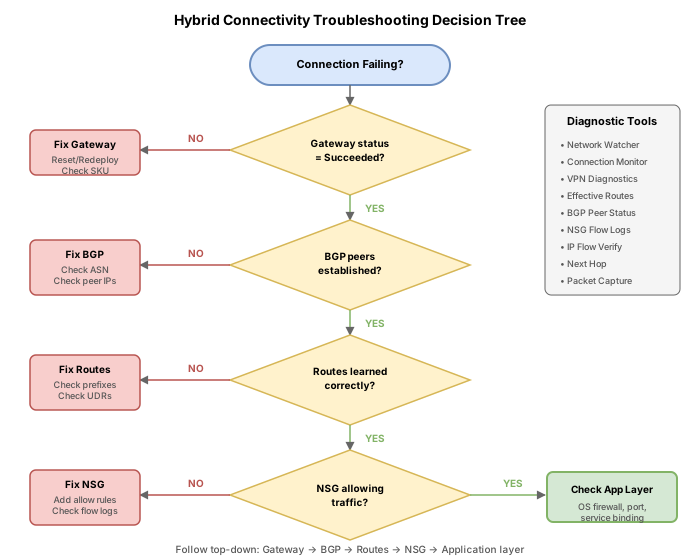
Troubleshooting decision tree
Cleanup
# Delete resources if they were created for this challenge
az group delete --name $RG --yes --no-wait
Remove-AzResourceGroup -Name "rg-hybrid-challenge24" -Force -AsJob
Knowledge check
1. A VPN connection shows connectionStatus 'Connecting' for over 10 minutes. The on-premises device log shows 'no proposal chosen'. What is the most likely cause?
2. Which command starts automated VPN troubleshooting that analyzes IKE logs and produces a diagnostic report?
3. An ExpressRoute circuit shows circuitProvisioningState 'Enabled' and serviceProviderProvisioningState 'NotProvisioned'. What does this indicate?
4. P2S VPN clients fail to connect with 'certificate validation failed'. The root CA certificate was recently renewed. What action resolves this?
5. After resetting a VPN gateway, what is the expected impact?
6. An ExpressRoute peering shows state 'Enabled' but the ARP table returns empty results on both primary and secondary paths. What is the most likely layer 2 issue?