Challenge 17: Point-to-site VPN and client configuration
60-90 minutes | ~$0.19/h (VPN Gateway) | Exam weight: 20-25%
Scenario
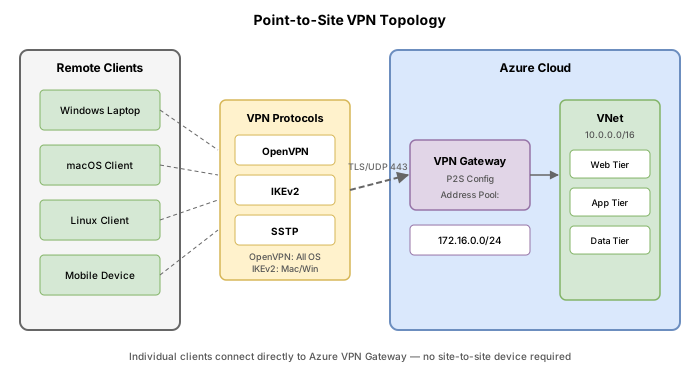
Contoso's remote workforce needs secure access to Azure virtual networks from their personal and corporate laptops. The networking team must configure point-to-site (P2S) VPN connectivity on an existing VPN gateway, supporting multiple tunnel types to accommodate Windows, macOS, and Linux clients. They need to generate and distribute VPN client configuration packages and understand when to recommend each tunnel type based on organizational requirements.
Exam skills covered
| Skill | Description |
|---|---|
| Select an appropriate virtual network gateway SKU | Choose a SKU that supports P2S and required tunnel types |
| Select and configure a tunnel type | Configure OpenVPN, IKEv2, or SSTP based on client OS requirements |
| Implement a VPN client configuration file | Generate and distribute VPN client packages |
| Specify Azure requirements for Azure Network Adapter | Understand simplified P2S via Windows Admin Center |
Architecture overview
Prerequisites
This challenge builds on a VPN gateway deployed in a previous challenge. If you do not have one, deploy the gateway first using the setup commands in Task 1.
Task 1: Deploy the base VPN gateway (if not already deployed)
If you already have a VPN gateway from Challenge 14, skip to Task 2.
Azure CLI
# Variables
RG="rg-p2s-lab"
LOCATION="eastus"
VNET_NAME="vnet-contoso-p2s"
GW_SUBNET_PREFIX="10.60.255.0/27"
VNET_PREFIX="10.60.0.0/16"
GW_NAME="vpngw-contoso-p2s"
GW_PIP="pip-vpngw-p2s"

# Create resource group and VNet
az group create --name $RG --location $LOCATION

az network vnet create \
  --resource-group $RG \
  --name $VNET_NAME \
  --address-prefixes $VNET_PREFIX \
  --subnet-name GatewaySubnet \
  --subnet-prefixes $GW_SUBNET_PREFIX

# Create public IP for VPN gateway
az network public-ip create \
  --resource-group $RG \
  --name $GW_PIP \
  --allocation-method Static \
  --sku Standard

# Create VPN gateway (takes 30-45 minutes)
az network vnet-gateway create \
  --resource-group $RG \
  --name $GW_NAME \
  --vnet $VNET_NAME \
  --gateway-type Vpn \
  --vpn-type RouteBased \
  --sku VpnGw1 \
  --vpn-gateway-generation Generation1 \
  --public-ip-addresses $GW_PIP \
  --no-wait
Azure PowerShell
# Variables
$rg = "rg-p2s-lab"
$location = "eastus"
$vnetName = "vnet-contoso-p2s"
$gwSubnetPrefix = "10.60.255.0/27"
$vnetPrefix = "10.60.0.0/16"
$gwName = "vpngw-contoso-p2s"
$gwPipName = "pip-vpngw-p2s"

# Create resource group
New-AzResourceGroup -Name $rg -Location $location

# Create VNet with GatewaySubnet
$gwSubnet = New-AzVirtualNetworkSubnetConfig -Name "GatewaySubnet" -AddressPrefix $gwSubnetPrefix
$vnet = New-AzVirtualNetwork -Name $vnetName -ResourceGroupName $rg `
  -Location $location -AddressPrefix $vnetPrefix -Subnet $gwSubnet

# Create public IP
$gwPip = New-AzPublicIpAddress -Name $gwPipName -ResourceGroupName $rg `
  -Location $location -AllocationMethod Static -Sku Standard

# Get subnet reference
$gwSubnetRef = Get-AzVirtualNetworkSubnetConfig -Name "GatewaySubnet" -VirtualNetwork $vnet

# Create IP configuration
$gwIpConfig = New-AzVirtualNetworkGatewayIpConfig -Name "gwIpConfig" `
  -SubnetId $gwSubnetRef.Id -PublicIpAddressId $gwPip.Id

# Create VPN gateway (takes 30-45 minutes)
New-AzVirtualNetworkGateway -Name $gwName -ResourceGroupName $rg `
  -Location $location -IpConfigurations $gwIpConfig `
  -GatewayType Vpn -VpnType RouteBased `
  -GatewaySku VpnGw1 -VpnGatewayGeneration Generation1 -AsJob
Task 2: Configure P2S with OpenVPN tunnel type
OpenVPN is the recommended tunnel type for cross-platform support (Windows, macOS, Linux). It uses TLS and operates on port 443.
Azure CLI
# Configure P2S address pool and OpenVPN protocol
az network vnet-gateway update \
  --resource-group $RG \
  --name $GW_NAME \
  --address-prefixes "172.16.201.0/24" \
  --client-protocol OpenVPN

# Verify P2S configuration
az network vnet-gateway show \
  --resource-group $RG \
  --name $GW_NAME \
  --query "vpnClientConfiguration" \
  --output json
Azure PowerShell
# Get the gateway
$gw = Get-AzVirtualNetworkGateway -Name $gwName -ResourceGroupName $rg

# Configure P2S with OpenVPN
Set-AzVirtualNetworkGateway -VirtualNetworkGateway $gw `
  -VpnClientAddressPool "172.16.201.0/24" `
  -VpnClientProtocol "OpenVPN"

# Verify configuration
$gw = Get-AzVirtualNetworkGateway -Name $gwName -ResourceGroupName $rg
$gw.VpnClientConfiguration | Format-List
OpenVPN is the only tunnel type that supports all three major authentication methods: certificates, Microsoft Entra ID, and RADIUS. It also works across Windows, macOS, Linux, iOS, and Android.
Task 3: Configure IKEv2 tunnel type
IKEv2 is a standards-based IPsec VPN solution natively supported on Windows 10+ and macOS without additional client software.
Azure CLI
# Configure P2S with both IKEv2 and OpenVPN protocols
az network vnet-gateway update \
  --resource-group $RG \
  --name $GW_NAME \
  --address-prefixes "172.16.201.0/24" \
  --client-protocol IkeV2 OpenVPN

# Verify the updated configuration
az network vnet-gateway show \
  --resource-group $RG \
  --name $GW_NAME \
  --query "vpnClientConfiguration.vpnClientProtocols" \
  --output tsv
Azure PowerShell
$gw = Get-AzVirtualNetworkGateway -Name $gwName -ResourceGroupName $rg

# Configure both IKEv2 and OpenVPN
Set-AzVirtualNetworkGateway -VirtualNetworkGateway $gw `
  -VpnClientAddressPool "172.16.201.0/24" `
  -VpnClientProtocol "IkeV2", "OpenVPN"
- IKEv2 uses UDP ports 500 and 4500, which may be blocked by some corporate firewalls
- Supports a maximum of 128 concurrent connections per gateway instance
- Required for Always On VPN configuration with machine-level tunnels
- Native client support on Windows 10/11 and macOS (no third-party app needed)
Task 4: Configure SSTP tunnel type
SSTP (Secure Socket Tunneling Protocol) is a Windows-only protocol that uses TCP port 443, making it ideal for connections from behind restrictive firewalls.
Azure CLI
# Configure P2S with IKEv2 + OpenVPN (cross-platform, recommended)
az network vnet-gateway update \
  --resource-group $RG \
  --name $GW_NAME \
  --address-prefixes "172.16.201.0/24" \
  --client-protocol IkeV2 OpenVPN

# Alternative: IKEv2 + SSTP (Windows-only fallback with firewall traversal)
# az network vnet-gateway update \
#   --resource-group $RG \
#   --name $GW_NAME \
#   --address-prefixes "172.16.201.0/24" \
#   --client-protocol IkeV2 SSTP
Azure PowerShell
$gw = Get-AzVirtualNetworkGateway -Name $gwName -ResourceGroupName $rg

# IKEv2 + OpenVPN (cross-platform, recommended)
Set-AzVirtualNetworkGateway -VirtualNetworkGateway $gw `
  -VpnClientAddressPool "172.16.201.0/24" `
  -VpnClientProtocol "IkeV2", "OpenVPN"

# Alternative: IKEv2 + SSTP (Windows-only fallback with firewall traversal)
# Set-AzVirtualNetworkGateway -VirtualNetworkGateway $gw `
#   -VpnClientAddressPool "172.16.201.0/24" `
#   -VpnClientProtocol "IkeV2", "SSTP"
SSTP characteristics
| Property | Detail |
|---|---|
| Supported OS | Windows only |
| Port | TCP 443 (same as HTTPS) |
| Firewall friendliness | Excellent - traverses most firewalls and proxies |
| Max connections | 128 per gateway instance |
| Protocol limitation | Cannot be combined with OpenVPN on the same gateway (both use TLS; IKEv2+SSTP is valid) |
SSTP and OpenVPN cannot coexist on the same gateway because both use TLS-based tunneling on TCP 443. Valid combinations are: IKEv2+OpenVPN (cross-platform), IKEv2+SSTP (Windows with firewall traversal), or IKEv2 alone. If you need both macOS/Linux support and firewall traversal, choose IKEv2+OpenVPN.
Task 5: Generate and download VPN client configuration package
The VPN client configuration package contains the settings needed for client devices to connect via P2S.
Azure CLI
# Generate VPN client configuration (returns a URL to download the zip file)
az network vnet-gateway vpn-client generate \
  --resource-group $RG \
  --name $GW_NAME \
  --processor-architecture Amd64

# Retrieve the pre-generated VPN client URL
az network vnet-gateway vpn-client show-url \
  --resource-group $RG \
  --name $GW_NAME
Azure PowerShell
# Generate the VPN client configuration package
$profile = New-AzVpnClientConfiguration -ResourceGroupName $rg `
  -Name $gwName -AuthenticationMethod "EapTls"

# The URL to download the client package
$profile.VPNProfileSASUrl
What is in the client package
The downloaded ZIP file contains folders for each configured protocol:
| Client | Protocol used | Configuration file |
|---|---|---|
| Azure VPN Client (Windows/macOS) | OpenVPN | AzureVPN/azurevpnconfig.xml |
| OpenVPN Connect | OpenVPN | OpenVPN/vpnconfig.ovpn |
| Windows native VPN | IKEv2/SSTP | WindowsAmd64/ installer |
| macOS native VPN | IKEv2 | Generic/ mobileconfig |
| strongSwan (Linux) | IKEv2 | Generic/ profile |
Task 6: Understand Azure Network Adapter
Azure Network Adapter is a feature in Windows Admin Center that provides a simplified point-to-site VPN setup experience for Windows Server machines.
Key characteristics
| Feature | Description |
|---|---|
| Purpose | Connect on-premises Windows Server to Azure VNet without complex VPN setup |
| Interface | Windows Admin Center plugin |
| Protocol used | IKEv2 P2S VPN |
| Authentication | Certificate-based (auto-generated) |
| Gateway requirement | Requires existing VPN gateway with P2S configured |
| Use case | Hybrid management, single-server connectivity |
Requirements for Azure Network Adapter
- Windows Admin Center installed and registered with Azure
- An existing VPN gateway with a P2S-capable SKU (VpnGw1 or higher)
- The gateway must have P2S address pool configured
- Azure subscription permissions to manage the VPN gateway
- Windows Server 2012 R2 or later on the on-premises machine
Azure Network Adapter automates certificate generation, gateway configuration, and client installation. You do not need to manually generate certificates or download client packages when using this feature. It is a "wizard-based" experience through Windows Admin Center.
Task 7: Understand VPN gateway SKU capabilities for P2S
SKU comparison for P2S
| SKU | Max P2S connections | Supported tunnels | Throughput |
|---|---|---|---|
| Basic | 128 | SSTP only | 100 Mbps |
| VpnGw1 | 250 | SSTP, IKEv2, OpenVPN | 650 Mbps |
| VpnGw2 | 500 | SSTP, IKEv2, OpenVPN | 1.0 Gbps |
| VpnGw3 | 1,000 | SSTP, IKEv2, OpenVPN | 1.25 Gbps |
| VpnGw4 | 5,000 | SSTP, IKEv2, OpenVPN | 5.0 Gbps |
| VpnGw5 | 10,000 | SSTP, IKEv2, OpenVPN | 10.0 Gbps |
The Basic SKU only supports SSTP tunnel type (Windows only). It does not support IKEv2 or OpenVPN. For cross-platform P2S connectivity, use VpnGw1 or higher.
Break & fix
Scenario 1: Address pool overlap
Symptom: Clients connect to VPN but cannot reach resources in the VNet.
Root cause: The P2S address pool (172.16.201.0/24) overlaps with an on-premises subnet or another VNet address space.
Fix: Choose a P2S address pool that does not overlap with any connected network:
az network vnet-gateway update \
  --resource-group $RG \
  --name $GW_NAME \
  --address-prefixes "192.168.100.0/24"
Scenario 2: macOS client cannot connect (wrong tunnel type)
Symptom: macOS users report connection failures. The gateway is configured with SSTP only.
Root cause: SSTP is Windows-only. macOS requires IKEv2 or OpenVPN.
Fix: Add IKEv2 or OpenVPN to the gateway configuration:
az network vnet-gateway update \
  --resource-group $RG \
  --name $GW_NAME \
  --client-protocol OpenVPN IkeV2
Scenario 3: Client configuration package is outdated
Symptom: Client connects with old settings after gateway reconfiguration.
Root cause: The client is using a VPN profile generated before the gateway was updated.
Fix: Regenerate the VPN client configuration and redistribute:
az network vnet-gateway vpn-client generate \
  --resource-group $RG \
  --name $GW_NAME \
  --processor-architecture Amd64
Scenario 4: OpenVPN client fails on port 443
Symptom: OpenVPN client reports timeout connecting on port 443.
Root cause: An intermediate proxy or firewall is intercepting TLS traffic and breaking the OpenVPN handshake.
Fix: Ensure the proxy or firewall allows direct TLS connections to the gateway public IP. Consider adding an exclusion for the gateway IP in the proxy configuration, or switch to IKEv2 (UDP 500/4500) if UDP is permitted.
Cleanup
# Delete the resource group and all resources within it
az group delete --name $RG --yes --no-wait
# PowerShell cleanup
Remove-AzResourceGroup -Name "rg-p2s-lab" -Force -AsJob