Challenge 44: Secured virtual hub (Firewall in vWAN)
90-120 minutes | ~$1.50/hour (Virtual WAN hub + Azure Firewall) | Exam weight: 15-20%
This challenge deploys a Virtual WAN hub ($0.25/hr) and Azure Firewall Standard ($1.25/hr). Combined cost is approximately $1.50/hour. Delete resources immediately after completing the exercises. Do not leave these resources running overnight.
Scenario
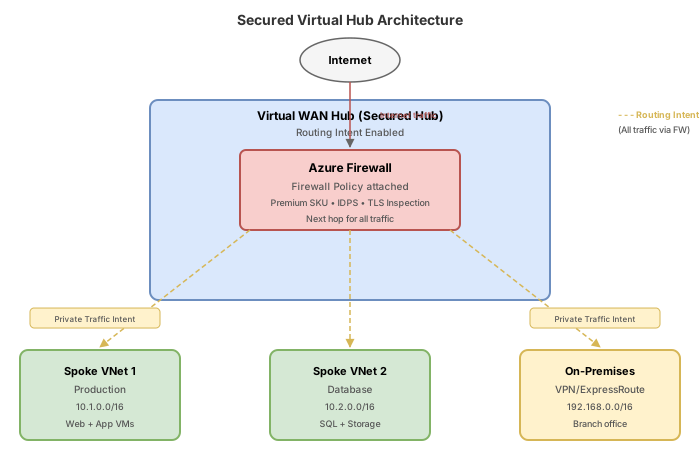
Northwind Traders operates a globally distributed environment with multiple spoke VNets connected via Azure Virtual WAN. The security team requires all internet-bound traffic and inter-spoke (private) traffic to be inspected by a centralized firewall. Rather than managing complex route tables manually across dozens of spokes, the team has decided to convert the Virtual WAN hub into a secured virtual hub by deploying Azure Firewall directly within the hub and configuring routing intent.
Your job is to deploy a secured virtual hub with Azure Firewall, create a firewall policy with application and network rules, configure routing intent policies to force both internet and private traffic through the firewall, and integrate the deployment with Azure Firewall Manager for centralized management.
Exam skills covered
| Skill | Weight |
|---|---|
| Secure network connectivity with Azure Firewall in Virtual WAN | High |
| Configure routing intent and routing policies | High |
| Create and associate firewall policies | Medium |
| Integrate with Azure Firewall Manager | Medium |
| Monitor secured virtual hub traffic | Medium |
Prerequisites
- Azure subscription with Contributor role
- Azure CLI 2.55+ with the
virtual-wanandazure-firewallextensions - Azure PowerShell Az 12.0+
- Understanding of Virtual WAN architecture and hub-spoke networking
Task 1: Create the Virtual WAN and hub
A Virtual WAN provides a unified networking framework. The hub is the central managed router. You must use Standard type (not Basic) to support Azure Firewall integration.
Azure CLI
# Set variables
RG="rg-northwind-vwan"
LOCATION="eastus2"
VWAN_NAME="vwan-northwind"
HUB_NAME="hub-eastus2"

# Create resource group
az group create --name $RG --location $LOCATION

# Create Virtual WAN (Standard type required for firewall support)
az network vwan create \
  --name $VWAN_NAME \
  --resource-group $RG \
  --type Standard \
  --branch-to-branch-traffic true \
  --location $LOCATION

# Create Virtual Hub (this takes 10-20 minutes)
az network vhub create \
  --name $HUB_NAME \
  --resource-group $RG \
  --vwan $VWAN_NAME \
  --location $LOCATION \
  --address-prefix 10.100.0.0/23 \
  --sku Standard
Azure PowerShell
# Set variables
$rg = "rg-northwind-vwan"
$location = "eastus2"
$vwanName = "vwan-northwind"
$hubName = "hub-eastus2"

# Create resource group
New-AzResourceGroup -Name $rg -Location $location

# Create Virtual WAN
$vwan = New-AzVirtualWan `
  -ResourceGroupName $rg `
  -Name $vwanName `
  -Location $location `
  -VirtualWANType Standard `
  -AllowBranchToBranchTraffic

# Create Virtual Hub
New-AzVirtualHub `
  -ResourceGroupName $rg `
  -Name $hubName `
  -VirtualWan $vwan `
  -Location $location `
  -AddressPrefix "10.100.0.0/23" `
  -Sku Standard
Azure portal
- Search for Virtual WANs and select Create.
- Select your subscription, resource group, region East US 2, name vwan-northwind, type Standard.
- Select Review + create, then Create.
- Open the Virtual WAN resource, select Hubs under Connectivity, then New Hub.
- Set region to East US 2, name hub-eastus2, address space 10.100.0.0/23.
- Select Review + create, then Create. Wait for provisioning (10-20 minutes).
Task 2: Create spoke VNets and connect to the hub
Create two spoke VNets representing production and development workloads, then connect them to the hub.
Azure CLI
# Create spoke VNets
az network vnet create \
  --resource-group $RG \
  --name vnet-spoke-prod \
  --location $LOCATION \
  --address-prefixes 10.10.0.0/16 \
  --subnet-name snet-workload \
  --subnet-prefixes 10.10.1.0/24

az network vnet create \
  --resource-group $RG \
  --name vnet-spoke-dev \
  --location $LOCATION \
  --address-prefixes 10.20.0.0/16 \
  --subnet-name snet-workload \
  --subnet-prefixes 10.20.1.0/24

# Get VNet resource IDs
PROD_VNET_ID=$(az network vnet show --resource-group $RG --name vnet-spoke-prod --query id -o tsv)
DEV_VNET_ID=$(az network vnet show --resource-group $RG --name vnet-spoke-dev --query id -o tsv)

# Connect spoke VNets to the hub
az network vhub connection create \
  --resource-group $RG \
  --vhub-name $HUB_NAME \
  --name conn-spoke-prod \
  --remote-vnet $PROD_VNET_ID

az network vhub connection create \
  --resource-group $RG \
  --vhub-name $HUB_NAME \
  --name conn-spoke-dev \
  --remote-vnet $DEV_VNET_ID
Azure PowerShell
# Create spoke VNets
$subnetProd = New-AzVirtualNetworkSubnetConfig -Name "snet-workload" -AddressPrefix "10.10.1.0/24"
$vnetProd = New-AzVirtualNetwork `
  -ResourceGroupName $rg `
  -Name "vnet-spoke-prod" `
  -Location $location `
  -AddressPrefix "10.10.0.0/16" `
  -Subnet $subnetProd

$subnetDev = New-AzVirtualNetworkSubnetConfig -Name "snet-workload" -AddressPrefix "10.20.1.0/24"
$vnetDev = New-AzVirtualNetwork `
  -ResourceGroupName $rg `
  -Name "vnet-spoke-dev" `
  -Location $location `
  -AddressPrefix "10.20.0.0/16" `
  -Subnet $subnetDev

# Connect spoke VNets to the hub
$hub = Get-AzVirtualHub -ResourceGroupName $rg -Name $hubName
New-AzVirtualHubVnetConnection `
  -ResourceGroupName $rg `
  -VirtualHubName $hubName `
  -Name "conn-spoke-prod" `
  -RemoteVirtualNetwork $vnetProd

New-AzVirtualHubVnetConnection `
  -ResourceGroupName $rg `
  -VirtualHubName $hubName `
  -Name "conn-spoke-dev" `
  -RemoteVirtualNetwork $vnetDev
Task 3: Deploy Azure Firewall in the hub (convert to secured hub)
Deploying Azure Firewall inside a Virtual WAN hub converts it to a secured virtual hub. You must use the AZFW_Hub SKU (not AZFW_VNet which is for standalone VNet deployments).
Azure CLI
# Create a firewall policy first
az network firewall policy create \
  --name fw-policy-northwind \
  --resource-group $RG \
  --location $LOCATION \
  --sku Standard \
  --threat-intel-mode Alert

# Deploy Azure Firewall in the hub (AZFW_Hub SKU)
# This takes 10-15 minutes
az network firewall create \
  --name fw-hub-eastus2 \
  --resource-group $RG \
  --location $LOCATION \
  --sku AZFW_Hub \
  --tier Standard \
  --virtual-hub $HUB_NAME \
  --firewall-policy fw-policy-northwind \
  --public-ip-count 1

# Retrieve the firewall resource ID (needed for routing intent)
FW_ID=$(az network firewall show \
  --name fw-hub-eastus2 \
  --resource-group $RG \
  --query id -o tsv)
echo "Firewall ID: $FW_ID"
Azure PowerShell
# Create firewall policy
$fwPolicy = New-AzFirewallPolicy `
  -ResourceGroupName $rg `
  -Name "fw-policy-northwind" `
  -Location $location `
  -SkuTier Standard `
  -ThreatIntelMode Alert

# Get hub reference
$hub = Get-AzVirtualHub -ResourceGroupName $rg -Name $hubName

# Deploy Azure Firewall in the hub
$fw = New-AzFirewall `
  -ResourceGroupName $rg `
  -Name "fw-hub-eastus2" `
  -Location $location `
  -SkuName AZFW_Hub `
  -SkuTier Standard `
  -VirtualHubId $hub.Id `
  -FirewallPolicyId $fwPolicy.Id `
  -HubIPAddress @{PublicIPCount = 1}

$fwId = $fw.Id
Azure portal
- Open your Virtual WAN, navigate to Hubs, select hub-eastus2.
- Under Security, select Azure Firewall and Firewall Manager.
- Set Azure Firewall status to Enabled, tier to Standard.
- Under Firewall policy, select Create new or select the existing policy.
- Set public IP count to 1.
- Select Save. Wait for deployment (10-15 minutes).
The AZFW_Hub SKU is exclusively for Virtual WAN secured hubs. It does not require you to create subnets or public IPs manually; these are managed by the platform. The AZFW_VNet SKU is for traditional standalone VNet deployments where you manage the AzureFirewallSubnet yourself. Using the wrong SKU will fail deployment.
Task 4: Configure firewall policy rules
Add application and network rule collection groups to allow controlled traffic while inspecting everything.
Azure CLI
# Create a network rule collection group
az network firewall policy rule-collection-group create \
  --name DefaultNetworkRuleCollectionGroup \
  --policy-name fw-policy-northwind \
  --resource-group $RG \
  --priority 200

# Add a network rule collection allowing inter-spoke traffic
az network firewall policy rule-collection-group collection add-filter-collection \
  --resource-group $RG \
  --policy-name fw-policy-northwind \
  --rule-collection-group-name DefaultNetworkRuleCollectionGroup \
  --name AllowInterSpoke \
  --collection-priority 100 \
  --action Allow \
  --rule-name AllowSpokeToSpoke \
  --rule-type NetworkRule \
  --source-addresses "10.10.0.0/16" "10.20.0.0/16" \
  --destination-addresses "10.10.0.0/16" "10.20.0.0/16" \
  --ip-protocols TCP UDP ICMP \
  --destination-ports "*"

# Create an application rule collection group
az network firewall policy rule-collection-group create \
  --name DefaultApplicationRuleCollectionGroup \
  --policy-name fw-policy-northwind \
  --resource-group $RG \
  --priority 300

# Add application rule allowing web browsing
az network firewall policy rule-collection-group collection add-filter-collection \
  --resource-group $RG \
  --policy-name fw-policy-northwind \
  --rule-collection-group-name DefaultApplicationRuleCollectionGroup \
  --name AllowWeb \
  --collection-priority 100 \
  --action Allow \
  --rule-name AllowHTTPS \
  --rule-type ApplicationRule \
  --source-addresses "10.10.0.0/16" "10.20.0.0/16" \
  --protocols Https=443 Http=80 \
  --target-fqdns "*.microsoft.com" "*.azure.com" "*.windows.net"
Azure PowerShell
# Create network rule
$networkRule = New-AzFirewallPolicyFilterRuleCollection `
-Name "AllowInterSpoke" `
-Priority 100 `
-ActionType Allow `
-Rule (New-AzFirewallPolicyNetworkRule `
-Name "AllowSpokeToSpoke" `
-SourceAddress @("10.10.0.0/16", "10.20.0.0/16") `
-DestinationAddress @("10.10.0.0/16", "10.20.0.0/16") `
-Protocol @("TCP", "UDP", "ICMP") `
-DestinationPort @("*"))
# Create network rule collection group
$networkRCG = New-AzFirewallPolicyRuleCollectionGroup `
-ResourceGroupName $rg `
-FirewallPolicyName "fw-policy-northwind" `
-Name "DefaultNetworkRuleCollectionGroup" `
-Priority 200 `
-RuleCollection $networkRule
# Create application rule
$appRule = New-AzFirewallPolicyFilterRuleCollection `
-Name "AllowWeb" `
-Priority 100 `
-ActionType Allow `
-Rule (New-AzFirewallPolicyApplicationRule `
-Name "AllowHTTPS" `
-SourceAddress @("10.10.0.0/16", "10.20.0.0/16") `
-Protocol @("Https:443", "Http:80") `
-TargetFqdn @("*.microsoft.com", "*.azure.com", "*.windows.net"))
# Create application rule collection group
$appRCG = New-AzFirewallPolicyRuleCollectionGroup `
-ResourceGroupName $rg `
-FirewallPolicyName "fw-policy-northwind" `
-Name "DefaultApplicationRuleCollectionGroup" `
-Priority 300 `
-RuleCollection $appRule
### Azure PowerShell
```powershell
# Get firewall resource
$fw = Get-AzFirewall -ResourceGroupName $rg -Name "fw-hub-eastus2"
# Create routing policies
$internetPolicy = New-AzRoutingPolicy `
-Name "InternetTraffic" `
-Destination @("Internet") `
-NextHop $fw.Id
$privatePolicy = New-AzRoutingPolicy `
-Name "PrivateTrafficPolicy" `
-Destination @("PrivateTraffic") `
-NextHop $fw.Id
# Create routing intent
New-AzRoutingIntent `
-ResourceGroupName $rg `
-VirtualHubName $hubName `
-Name "ri-hub-eastus2" `
-RoutingPolicy @($internetPolicy, $privatePolicy)
Azure portal
- Open the Virtual WAN, navigate to Hubs, select hub-eastus2.
- Under Routing, select Routing Intent and Policies.
- Set Internet Traffic to Azure Firewall and select your firewall resource.
- Set Private Traffic to Azure Firewall and select your firewall resource.
- Select Save.
Before routing intent, you had to create custom route tables with 0.0.0.0/0 pointing to the firewall for each hub connection. Routing intent automates this entirely. When enabled, the hub automatically programs the effective routes on all connections (VNet, VPN, ExpressRoute) without manual intervention.
Task 6: Enable diagnostic logging and verify traffic flow
Azure CLI
# Enable diagnostic settings for the firewall
FW_RESOURCE_ID=$(az network firewall show \
  --name fw-hub-eastus2 \
  --resource-group $RG \
  --query id -o tsv)

# Create a Log Analytics workspace
az monitor log-analytics workspace create \
  --resource-group $RG \
  --workspace-name law-northwind-fw \
  --location $LOCATION

LAW_ID=$(az monitor log-analytics workspace show \
  --resource-group $RG \
  --workspace-name law-northwind-fw \
  --query id -o tsv)

# Enable diagnostic settings
az monitor diagnostic-settings create \
  --name fw-diagnostics \
  --resource $FW_RESOURCE_ID \
  --workspace $LAW_ID \
  --logs '[{"category":"AZFWNetworkRule","enabled":true},{"category":"AZFWApplicationRule","enabled":true},{"category":"AZFWThreatIntel","enabled":true}]' \
  --metrics '[{"category":"AllMetrics","enabled":true}]'

# Verify effective routes on a spoke connection
az network vhub connection show \
  --resource-group $RG \
  --vhub-name $HUB_NAME \
  --name conn-spoke-prod \
  --query routingConfiguration
Azure PowerShell
# Create Log Analytics workspace
$law = New-AzOperationalInsightsWorkspace `
  -ResourceGroupName $rg `
  -Name "law-northwind-fw" `
  -Location $location

# Enable diagnostic settings
$fw = Get-AzFirewall -ResourceGroupName $rg -Name "fw-hub-eastus2"

$logCategories = @(
  New-AzDiagnosticSettingLogSettingsObject -Category "AZFWNetworkRule" -Enabled $true
  New-AzDiagnosticSettingLogSettingsObject -Category "AZFWApplicationRule" -Enabled $true
  New-AzDiagnosticSettingLogSettingsObject -Category "AZFWThreatIntel" -Enabled $true
)

New-AzDiagnosticSetting `
  -ResourceId $fw.Id `
  -Name "fw-diagnostics" `
  -WorkspaceId $law.ResourceId `
  -Log $logCategories `
  -Metric (New-AzDiagnosticSettingMetricSettingsObject -Category "AllMetrics" -Enabled $true)
Task 7: Integrate with Azure Firewall Manager
Azure Firewall Manager provides a centralized view of all secured virtual hubs and standalone firewall deployments. When you deploy Azure Firewall inside a Virtual WAN hub, it automatically registers with Firewall Manager.
Azure portal
- Search for Firewall Manager in the portal.
- Select Azure Firewall Policies to view all policies across secured hubs.
- Select Virtual Hubs to see hub-eastus2 listed as a secured virtual hub.
- Under Security Configuration, verify that routing intent policies show internet and private traffic routed through the firewall.
- From Firewall Manager, you can create new policies, associate policies across hubs, and monitor security posture from a single pane.
Azure CLI
# List all firewall policies (Firewall Manager view)
az network firewall policy list --resource-group $RG -o table

# Show the policy association with the secured hub
az network firewall show \
  --name fw-hub-eastus2 \
  --resource-group $RG \
  --query "{name:name, sku:sku.name, hub:virtualHub.id, policy:firewallPolicy.id}" \
  -o json
Break & fix
These exercises simulate common misconfigurations in secured virtual hub deployments.
Scenario 1: Routing intent not applied (hub not properly converted)
# Symptom: inter-spoke traffic is not being inspected by the firewall
# Check routing intent status
az network vhub routing-intent list \
  --resource-group $RG \
  --vhub $HUB_NAME \
  -o table
Symptom: Traffic between spoke VNets flows directly without firewall inspection. Running az network vhub routing-intent list returns an empty result.
Root cause: Routing intent was never created, or the hub provisioning state is not "Succeeded". The firewall was deployed but routing intent must be configured separately to actually redirect traffic.
Fix: Create the routing intent as shown in Task 5. Ensure the hub provisioning state is "Succeeded" before creating routing intent:
# Verify hub state
az network vhub show --name $HUB_NAME --resource-group $RG --query provisioningState

# Create routing intent if missing
az network vhub routing-intent create \
  --name ri-hub-eastus2 \
  --resource-group $RG \
  --vhub $HUB_NAME \
  --routing-policies "[{name:InternetTraffic,destinations:[Internet],next-hop:$FW_ID},{name:PrivateTrafficPolicy,destinations:[PrivateTraffic],next-hop:$FW_ID}]"
Scenario 2: Inter-spoke traffic bypassing firewall
# Symptom: production VM can reach dev VM directly, firewall logs show no inter-spoke traffic
# Check if PrivateTraffic policy is configured
az network vhub routing-intent show \
  --name ri-hub-eastus2 \
  --resource-group $RG \
  --vhub $HUB_NAME \
  --query "routingPolicies[?destinations[0]=='PrivateTraffic']"
Symptom: Internet traffic is going through the firewall but inter-spoke (private) traffic is flowing directly between spokes without inspection.
Root cause: The routing intent was created with only the InternetTraffic policy. The PrivateTraffic policy was not included, so the hub does not inject a 0.0.0.0/0 route for RFC 1918 traffic pointing to the firewall.
Fix: Update the routing intent to include both policies:
az network vhub routing-intent update \
  --name ri-hub-eastus2 \
  --resource-group $RG \
  --vhub $HUB_NAME \
  --routing-policies "[{name:InternetTraffic,destinations:[Internet],next-hop:$FW_ID},{name:PrivateTrafficPolicy,destinations:[PrivateTraffic],next-hop:$FW_ID}]"
Scenario 3: Firewall logs not showing traffic
Symptom: You have confirmed via routing intent that traffic should flow through the firewall, but the Log Analytics workspace shows no firewall log entries.
Root cause: Diagnostic settings were never configured on the Azure Firewall resource. By default, Azure Firewall does not send logs anywhere. You must explicitly create diagnostic settings pointing to a Log Analytics workspace, Storage Account, or Event Hub.
Fix: Create diagnostic settings as shown in Task 6. After enabling, wait 5-10 minutes for logs to appear. Verify with a KQL query:
# Query firewall logs (run in Log Analytics)
# AZFWNetworkRule
# | where TimeGenerated > ago(1h)
# | project TimeGenerated, SourceIP, DestinationIP, Action, Protocol

az monitor diagnostic-settings show \
  --name fw-diagnostics \
  --resource $FW_RESOURCE_ID
Knowledge check
1. Which SKU must be used when deploying Azure Firewall inside a Virtual WAN hub?
2. What are the two routing policy types available in Virtual WAN routing intent?
3. What distinguishes a secured virtual hub from a standard Virtual WAN hub?
4. When routing intent with PrivateTraffic policy is enabled, what happens to inter-spoke traffic?
5. Which Virtual WAN type is required to deploy Azure Firewall in a hub?
6. You deployed Azure Firewall in a Virtual WAN hub but inter-spoke traffic is not being inspected. What is the most likely cause?
Cleanup
Remove all resources created in this challenge to stop incurring charges immediately.
Azure CLI
# Delete the entire resource group (includes vWAN, hub, firewall, VNets)
az group delete --name rg-northwind-vwan --yes --no-wait
Azure PowerShell
# Delete the entire resource group
Remove-AzResourceGroup -Name "rg-northwind-vwan" -Force -AsJob
Virtual WAN hubs take 10-20 minutes to fully delete. Confirm deletion with:
az group show --name rg-northwind-vwan 2>&1 | grep -q "not found" && echo "Deleted" || echo "Still exists"
If the resource group still exists, you are being billed approximately $1.50/hour. Run the cleanup commands above immediately after finishing.