Challenge 46: WAF on Azure Front Door
60-90 minutes | ~$35/month base (Front Door Standard/Premium) | Exam weight: 15-20%
Azure Front Door Premium (required for WAF managed rules) has a base cost of approximately $46/month. Standard tier costs approximately $35/month. Delete the profile after completing exercises. Even with no traffic, the base fee applies.
Scenario
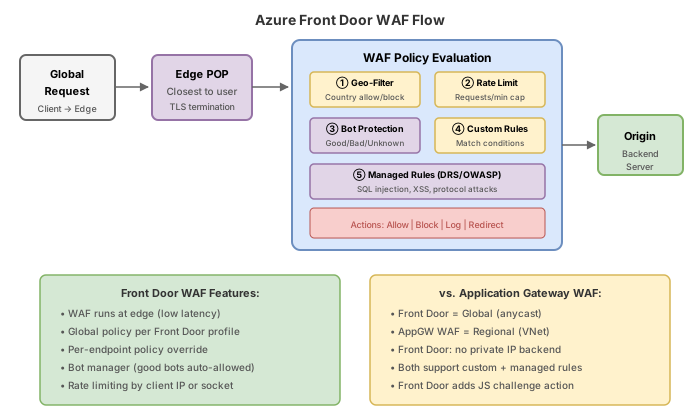
Woodgrove Bank operates a global SaaS platform served via Azure Front Door. The security team has identified several requirements:
- Block access from embargoed countries (geo-filtering).
- Protect API endpoints from abuse with rate limiting (100 requests per minute per IP for /api/* paths).
- Enable bot protection to block known malicious bots while allowing legitimate crawlers.
- Create custom rules with multiple match conditions to block suspicious request patterns.
Your job is to create a Front Door WAF policy, configure geo-filtering and rate limiting custom rules, enable the managed bot protection ruleset, associate the policy with a Front Door endpoint, and analyze WAF logs in Log Analytics.
Exam skills covered
| Skill | Weight |
|---|---|
| Create a WAF policy for Azure Front Door | High |
| Configure geo-filtering rules | High |
| Configure rate limiting rules | High |
| Enable bot protection managed ruleset | Medium |
| Create custom rules with multiple match conditions | Medium |
| Analyze WAF logs with Log Analytics | Medium |
Prerequisites
- Azure subscription with Contributor role
- Azure CLI 2.75+ with the
front-doorextension - Azure PowerShell Az 12.0+
- Understanding of HTTP request anatomy, ISO country codes, and rate limiting concepts
Task 1: Create a Front Door WAF policy
Front Door WAF policies are standalone resources. For the Premium tier (required for managed rulesets including bot protection), use --sku Premium_AzureFrontDoor.
Azure CLI
# Set variables
RG="rg-woodgrove-frontdoor"
LOCATION="global"
WAF_POLICY="wafpolicywoodgrove"

# Create resource group
az group create --name $RG --location eastus2

# Create Front Door WAF policy (Premium SKU for managed rules)
az network front-door waf-policy create \
  --name $WAF_POLICY \
  --resource-group $RG \
  --sku Premium_AzureFrontDoor \
  --mode Prevention \
  --enabled-state Enabled \
  --redirect-url "https://www.woodgrovebank.com/blocked"
Azure PowerShell
# Set variables
$rg = "rg-woodgrove-frontdoor"
$wafPolicyName = "wafpolicywoodgrove"
# Create resource group
New-AzResourceGroup -Name $rg -Location "eastus2"
# Create Front Door WAF policy
$wafPolicy = New-AzFrontDoorWafPolicy `
-ResourceGroupName $rg `
-Name $wafPolicyName `
-Sku Premium_AzureFrontDoor `
-Mode Prevention `
-EnabledState Enabled `
-RedirectUrl "https://www.woodgrovebank.com/blocked"
### Azure PowerShell
```powershell
# Create geo-filtering match condition
$geoCondition = New-AzFrontDoorWafMatchConditionObject `
-MatchVariable RemoteAddr `
-OperatorProperty GeoMatch `
-MatchValue @("KP", "IR", "CU", "SY", "RU")
# Create the custom rule
$geoRule = New-AzFrontDoorWafCustomRuleObject `
-Name "BlockEmbargoedCountries" `
-RuleType MatchRule `
-MatchCondition $geoCondition `
-Action Block `
-Priority 100 `
-EnabledState Enabled
# Add rule to policy
$wafPolicy = Get-AzFrontDoorWafPolicy -ResourceGroupName $rg -Name $wafPolicyName
$wafPolicy.CustomRules.Add($geoRule)
Set-AzFrontDoorWafPolicy -InputObject $wafPolicy
Azure portal
- Open wafpolicywoodgrove, select Custom rules under Settings.
- Select Add custom rule, name BlockEmbargoedCountries, priority 100, status Enabled.
- Under Conditions, set match type to Geo-location, operation to Is, select countries KP, IR, CU, SY, RU.
- Set action to Deny traffic (Block).
- Select Add, then Save.
Common codes for embargoed countries: KP (North Korea), IR (Iran), CU (Cuba), SY (Syria), RU (Russia). Front Door uses the IANA GeoIP database for IP-to-country resolution. VPN users may bypass geo-filtering if their exit node is in a non-blocked country.
Task 3: Configure rate limiting rule
Rate limiting on Front Door allows you to restrict the number of requests from a single IP address over a time window. When the threshold is exceeded, subsequent requests are blocked (or redirected).
Azure CLI
# Create rate limit rule for API endpoints (100 requests per minute per IP)
az network front-door waf-policy rule create \
  --policy-name $WAF_POLICY \
  --resource-group $RG \
  --name RateLimitAPI \
  --priority 200 \
  --rule-type RateLimitRule \
  --rate-limit-threshold 100 \
  --rate-limit-duration 1 \
  --action Block \
  --match-condition "{match-variable:RequestUri,operator:Contains,match-value:[/api/]}"

# Create a more permissive rate limit for general pages
az network front-door waf-policy rule create \
  --policy-name $WAF_POLICY \
  --resource-group $RG \
  --name RateLimitGeneral \
  --priority 210 \
  --rule-type RateLimitRule \
  --rate-limit-threshold 1000 \
  --rate-limit-duration 1 \
  --action Block \
  --match-condition "{match-variable:RequestUri,operator:Contains,match-value:[/]}"
Azure PowerShell
# Create rate limit condition (match /api/ paths)
$apiCondition = New-AzFrontDoorWafMatchConditionObject `
  -MatchVariable RequestUri `
  -OperatorProperty Contains `
  -MatchValue @("/api/")

# Create rate limit rule
$rateLimitRule = New-AzFrontDoorWafCustomRuleObject `
  -Name "RateLimitAPI" `
  -RuleType RateLimitRule `
  -MatchCondition $apiCondition `
  -Action Block `
  -Priority 200 `
  -EnabledState Enabled `
  -RateLimitThreshold 100 `
  -RateLimitDurationInMinutes 1

# Add to policy
$wafPolicy = Get-AzFrontDoorWafPolicy -ResourceGroupName $rg -Name $wafPolicyName
$wafPolicy.CustomRules.Add($rateLimitRule)
Set-AzFrontDoorWafPolicy -InputObject $wafPolicy
Azure portal
- Open wafpolicywoodgrove, select Custom rules.
- Select Add custom rule, name RateLimitAPI, priority 200, rule type Rate limit.
- Set rate limit threshold to 100, duration to 1 minute.
- Under Conditions, set match type to Request URI, operation to Contains, value /api/.
- Set action to Deny traffic (Block).
- Select Add, then Save.
Front Door WAF rate limit duration is specified in minutes (1 or 5 minutes). The --rate-limit-duration parameter in CLI accepts the value in minutes. A threshold of 100 with duration 1 means: if a single IP sends more than 100 requests to matching URLs within any 1-minute window, subsequent requests are blocked for the remainder of that window.
Task 4: Enable bot protection managed ruleset
The Microsoft Bot Manager Rule Set identifies and classifies bots into good bots (search engine crawlers), bad bots (scrapers, vulnerability scanners), and unknown bots. It requires the Premium tier.
Azure CLI
# Add Microsoft Default Rule Set 2.1 (protection against OWASP top 10)
az network front-door waf-policy managed-rules add \
  --policy-name $WAF_POLICY \
  --resource-group $RG \
  --type Microsoft_DefaultRuleSet \
  --version 2.1 \
  --action Block

# Add Bot Manager Rule Set 1.1
az network front-door waf-policy managed-rules add \
  --policy-name $WAF_POLICY \
  --resource-group $RG \
  --type Microsoft_BotManagerRuleSet \
  --version 1.1

# List available managed rule set definitions
az network front-door waf-policy managed-rule-definition list \
  --query "[].{Type:ruleSetType, Version:ruleSetVersion}" \
  -o table

# List currently configured managed rules on the policy
az network front-door waf-policy managed-rules list \
  --policy-name $WAF_POLICY \
  --resource-group $RG
Azure PowerShell
# Create managed rule set objects
$drsRuleSet = New-AzFrontDoorWafManagedRuleObject `
  -Type Microsoft_DefaultRuleSet `
  -Version 2.1 `
  -Action Block

$botRuleSet = New-AzFrontDoorWafManagedRuleObject `
  -Type Microsoft_BotManagerRuleSet `
  -Version 1.1

# Apply managed rules to policy
$wafPolicy = Get-AzFrontDoorWafPolicy -ResourceGroupName $rg -Name $wafPolicyName
$wafPolicy.ManagedRules = @($drsRuleSet, $botRuleSet)
Set-AzFrontDoorWafPolicy -InputObject $wafPolicy
Azure portal
- Open wafpolicywoodgrove, select Managed rules.
- Select Add, choose Microsoft_DefaultRuleSet version 2.1.
- Select Add again, choose Microsoft_BotManagerRuleSet version 1.1.
- Select Save.
Task 5: Create custom rule with multiple match conditions
Custom rules can combine multiple conditions that must ALL be true (logical AND) for the rule to trigger. This enables precise targeting of specific request patterns.
Azure CLI
# Block requests that match BOTH: specific URI pattern AND suspicious header
az network front-door waf-policy rule create \
  --policy-name $WAF_POLICY \
  --resource-group $RG \
  --name BlockSuspiciousAPIAccess \
  --priority 150 \
  --rule-type MatchRule \
  --action Block \
  --match-condition "{match-variable:RequestUri,operator:Contains,match-value:[/api/admin]}" "{match-variable:RequestHeader,operator:Contains,selector:User-Agent,match-value:[python-requests,curl,wget],transforms:[Lowercase]}"
Azure PowerShell
# Condition 1: Request targets admin API
$uriCondition = New-AzFrontDoorWafMatchConditionObject `
  -MatchVariable RequestUri `
  -OperatorProperty Contains `
  -MatchValue @("/api/admin")

# Condition 2: User-Agent indicates automated tool
$uaCondition = New-AzFrontDoorWafMatchConditionObject `
  -MatchVariable RequestHeader `
  -Selector "User-Agent" `
  -OperatorProperty Contains `
  -MatchValue @("python-requests", "curl", "wget") `
  -Transform Lowercase

# Create rule with both conditions (AND logic)
$suspiciousRule = New-AzFrontDoorWafCustomRuleObject `
  -Name "BlockSuspiciousAPIAccess" `
  -RuleType MatchRule `
  -MatchCondition @($uriCondition, $uaCondition) `
  -Action Block `
  -Priority 150 `
  -EnabledState Enabled

# Add to policy
$wafPolicy = Get-AzFrontDoorWafPolicy -ResourceGroupName $rg -Name $wafPolicyName
$wafPolicy.CustomRules.Add($suspiciousRule)
Set-AzFrontDoorWafPolicy -InputObject $wafPolicy
Task 6: Associate policy with Front Door endpoint and analyze logs
Azure CLI
# Create a Front Door profile (Premium tier)
az afd profile create \
  --profile-name fd-woodgrove \
  --resource-group $RG \
  --sku Premium_AzureFrontDoor

# Create an endpoint
az afd endpoint create \
  --endpoint-name woodgrove-endpoint \
  --profile-name fd-woodgrove \
  --resource-group $RG \
  --enabled-state Enabled

# Get WAF policy resource ID
WAF_POLICY_ID=$(az network front-door waf-policy show \
  --name $WAF_POLICY \
  --resource-group $RG \
  --query id -o tsv)

# Create a security policy to associate WAF with the endpoint
az afd security-policy create \
  --security-policy-name sp-waf-woodgrove \
  --profile-name fd-woodgrove \
  --resource-group $RG \
  --waf-policy $WAF_POLICY_ID \
  --domains "/subscriptions/{sub-id}/resourceGroups/$RG/providers/Microsoft.Cdn/profiles/fd-woodgrove/afdEndpoints/woodgrove-endpoint"

# Create Log Analytics workspace for WAF logs
az monitor log-analytics workspace create \
  --resource-group $RG \
  --workspace-name law-woodgrove-waf \
  --location eastus2

LAW_ID=$(az monitor log-analytics workspace show \
  --resource-group $RG \
  --workspace-name law-woodgrove-waf \
  --query id -o tsv)

# Get Front Door profile resource ID
FD_ID=$(az afd profile show \
  --profile-name fd-woodgrove \
  --resource-group $RG \
  --query id -o tsv)

# Enable diagnostic settings for WAF logs
az monitor diagnostic-settings create \
  --name fd-waf-diagnostics \
  --resource $FD_ID \
  --workspace $LAW_ID \
  --logs '[{"category":"FrontDoorWebApplicationFirewallLog","enabled":true},{"category":"FrontDoorAccessLog","enabled":true}]' \
  --metrics '[{"category":"AllMetrics","enabled":true}]'
Azure PowerShell
# Create Front Door profile
$fdProfile = New-AzFrontDoorCdnProfile `
  -ResourceGroupName $rg `
  -ProfileName "fd-woodgrove" `
  -SkuName Premium_AzureFrontDoor `
  -Location "Global"

# Create endpoint
$endpoint = New-AzFrontDoorCdnEndpoint `
  -ResourceGroupName $rg `
  -ProfileName "fd-woodgrove" `
  -EndpointName "woodgrove-endpoint" `
  -Location "Global"

# Associate WAF policy via security policy
$wafPolicy = Get-AzFrontDoorWafPolicy -ResourceGroupName $rg -Name $wafPolicyName

$association = New-AzFrontDoorCdnSecurityPolicyWebApplicationFirewallAssociationObject `
  -Domain @(@{Id = $endpoint.Id}) `
  -PatternsToMatch @("/*")

$parameter = New-AzFrontDoorCdnSecurityPolicyWebApplicationFirewallParametersObject `
  -Association $association `
  -WafPolicyId $wafPolicy.Id

New-AzFrontDoorCdnSecurityPolicy `
  -ResourceGroupName $rg `
  -ProfileName "fd-woodgrove" `
  -Name "sp-waf-woodgrove" `
  -Parameter $parameter

# Create Log Analytics workspace
$law = New-AzOperationalInsightsWorkspace `
  -ResourceGroupName $rg `
  -Name "law-woodgrove-waf" `
  -Location "eastus2"
KQL queries for WAF log analysis
After logs are flowing (allow 5-10 minutes), use these KQL queries in Log Analytics:
AzureDiagnostics
| where Category == "FrontDoorWebApplicationFirewallLog"
| project TimeGenerated, clientIP_s, host_s, requestUri_s,
    ruleName_s, action_s, policy_s, trackingReference_s
| order by TimeGenerated desc
| take 100

// Count blocks by country
AzureDiagnostics
| where Category == "FrontDoorWebApplicationFirewallLog"
| where action_s == "Block"
| summarize BlockCount = count() by clientCountry_s
| order by BlockCount desc

// Rate limit triggers over time
AzureDiagnostics
| where Category == "FrontDoorWebApplicationFirewallLog"
| where ruleName_s contains "RateLimit"
| summarize Triggers = count() by bin(TimeGenerated, 5m), clientIP_s
| order by Triggers desc

// Bot detection events
AzureDiagnostics
| where Category == "FrontDoorWebApplicationFirewallLog"
| where ruleName_s contains "Bot"
| summarize count() by ruleName_s, action_s
| order by count_ desc
Break & fix
These exercises simulate common Front Door WAF misconfigurations.
Scenario 1: Rate limit not triggering
Symptom: You configured a rate limit of 100 requests per minute for /api/ endpoints, but during load testing you sent 200 requests in 30 seconds and none were blocked.
Root cause: The rate limit threshold was set too high (1000 instead of 100) or the match condition does not match the actual request URI pattern. Additionally, Front Door WAF evaluates rate limits at the edge POP level, not globally. If your test traffic hits multiple POPs, the count is distributed.
Fix: Verify the rule configuration and lower the threshold if needed:
# Check current rule configuration
az network front-door waf-policy rule list \
  --policy-name $WAF_POLICY \
  --resource-group $RG \
  -o json | jq '.[] | select(.name=="RateLimitAPI")'

# Update threshold if incorrect
az network front-door waf-policy rule update \
  --policy-name $WAF_POLICY \
  --resource-group $RG \
  --name RateLimitAPI \
  --rate-limit-threshold 100 \
  --rate-limit-duration 1
Also verify the match condition targets the correct URI pattern. The rate limit count applies per source IP per Front Door POP. During testing, ensure requests are routed to the same POP by using a single client location.
Scenario 2: Geo-filter blocking legitimate traffic
Symptom: Users in Germany (DE) report being blocked, but your geo-filtering rule only targets KP, IR, CU, SY, RU.
Root cause: The match condition was accidentally configured with negation (NOT operator), inverting the logic so it blocks all countries EXCEPT the listed ones. Alternatively, a VPN or proxy service in a blocked country is being used.
Fix: Verify the rule does not use negation:
# Inspect the rule configuration
az network front-door waf-policy rule list \
  --policy-name $WAF_POLICY \
  --resource-group $RG \
  -o json | jq '.[] | select(.name=="BlockEmbargoedCountries")'

# If negation is set, recreate the rule without it
az network front-door waf-policy rule delete \
  --policy-name $WAF_POLICY \
  --resource-group $RG \
  --name BlockEmbargoedCountries

az network front-door waf-policy rule create \
  --policy-name $WAF_POLICY \
  --resource-group $RG \
  --name BlockEmbargoedCountries \
  --priority 100 \
  --rule-type MatchRule \
  --action Block \
  --match-condition "{match-variable:RemoteAddr,operator:GeoMatch,match-value:[KP,IR,CU,SY,RU]}"
Scenario 3: Bot protection blocking legitimate crawler
Symptom: Google Search Console reports that Googlebot cannot access your site. WAF logs show the Bot Manager Rule Set blocking requests with User-Agent containing "Googlebot".
Root cause: The Bot Manager Rule Set classifies bots into categories. By default, good bots like Googlebot should be allowed, but if the rule set action was set to Block for all categories, or if an override was applied, legitimate crawlers may be denied.
Fix: Add a managed rule override to allow the GoodBots rule group:
# Add an override to allow good bots
az network front-door waf-policy managed-rules override add \
  --policy-name $WAF_POLICY \
  --resource-group $RG \
  --type Microsoft_BotManagerRuleSet \
  --rule-group-id GoodBots \
  --action Allow
Alternatively, create a custom rule with a lower priority number to allow Googlebot before the managed rules evaluate:
az network front-door waf-policy rule create \
  --policy-name $WAF_POLICY \
  --resource-group $RG \
  --name AllowGooglebot \
  --priority 5 \
  --rule-type MatchRule \
  --action Allow \
  --match-condition "{match-variable:RequestHeader,operator:Contains,selector:User-Agent,match-value:[Googlebot]}"
Knowledge check
1. What is the key difference between Front Door WAF and Application Gateway WAF?
2. You configure a Front Door WAF rate limit with threshold 100 and duration 1 minute. A single IP sends 150 requests in 60 seconds. How many requests are blocked?
3. Which Front Door SKU is required to use managed rule sets including bot protection?
4. In a Front Door WAF custom rule with multiple match conditions, what is the logical relationship between conditions?
5. Which ISO country code format does Front Door WAF geo-filtering use?
6. You need to allow Googlebot while blocking other bots. Custom rules evaluate before managed rules. What is the correct approach?
Cleanup
Remove all resources created in this challenge to stop incurring charges.
Azure CLI
# Delete the entire resource group
az group delete --name rg-woodgrove-frontdoor --yes --no-wait
Azure PowerShell
# Delete the entire resource group
Remove-AzResourceGroup -Name "rg-woodgrove-frontdoor" -Force -AsJob
az group show --name rg-woodgrove-frontdoor 2>&1 | grep -q "not found" && echo "Deleted" || echo "Still exists"
Azure Front Door Premium charges a base fee of approximately $46/month even with zero traffic. The WAF policy itself is free when not associated, but the Front Door profile incurs cost as long as it exists. Delete promptly.