Challenge 03: Azure DNS public zones & delegation
60-90 minutes | ~$0.50/zone/month (first 25 zones) | Exam weight: 15-20%
Scenario
Contoso is migrating their DNS hosting from an on-premises BIND server to Azure DNS. They need to create public DNS zones for their domains, configure various record types (A, AAAA, CNAME, MX, TXT, SRV, CAA), set up alias records pointing to Azure resources, and delegate child zones to separate teams. Your job is to implement the complete DNS migration using Azure CLI.
Learning objectives
After completing this challenge you will be able to:
- Create and configure Azure DNS public zones
- Manage DNS record sets of all major types
- Configure alias records pointing to Azure public IPs, Traffic Manager profiles, and Front Door
- Set up child zone delegation for subdomain management
- Configure VNet DNS settings for custom name resolution
- Verify DNS resolution using command-line tools
Prerequisites
- An Azure subscription with Contributor access
- Azure CLI installed and authenticated (
az login) - A resource group for this lab (or permission to create one)
- Basic understanding of DNS concepts (zones, records, delegation)
Task 1: Create a public DNS zone and examine NS records
Create a public DNS zone in Azure DNS and review the automatically assigned name servers.
Step 1: Create the resource group
az group create \
    --name rg-dns-lab \
    --location eastus2
Step 2: Create the public DNS zone
az network dns zone create \
    --resource-group rg-dns-lab \
    --name contoso.com
Step 3: Retrieve the assigned name servers
az network dns zone show \
    --resource-group rg-dns-lab \
    --name contoso.com \
    --query nameServers \
    --output tsv
Azure DNS assigns four name servers from a pool (for example, ns1-04.azure-dns.com, ns2-04.azure-dns.net, ns3-04.azure-dns.org, ns4-04.azure-dns.info). To complete delegation, you would configure these as the NS records at your domain registrar.
Step 4: View the auto-created SOA and NS records
az network dns record-set list \
    --resource-group rg-dns-lab \
    --zone-name contoso.com \
    --output table
Every new zone gets an SOA record and an NS record set at the apex (@) automatically.
At your registrar, you must configure all four Azure DNS name servers. Using fewer than four reduces redundancy. The name servers do not need to share the same top-level domain as your zone.
Task 2: Create DNS records of various types
Add standard DNS records to the zone covering the most common record types tested on the exam.
A record (IPv4 address mapping)
az network dns record-set a add-record \
    --resource-group rg-dns-lab \
    --zone-name contoso.com \
    --record-set-name www \
    --ipv4-address 203.0.113.10
AAAA record (IPv6 address mapping)
az network dns record-set aaaa add-record \
    --resource-group rg-dns-lab \
    --zone-name contoso.com \
    --record-set-name www \
    --ipv6-address "2001:db8:85a3::8a2e:370:7334"
CNAME record (canonical name alias)
CNAME records use set-record rather than add-record because the DNS standard permits only one CNAME per record set name.
az network dns record-set cname set-record \
    --resource-group rg-dns-lab \
    --zone-name contoso.com \
    --record-set-name portal \
    --cname contoso.azurewebsites.net
MX record (mail exchange)
az network dns record-set mx add-record \
    --resource-group rg-dns-lab \
    --zone-name contoso.com \
    --record-set-name "@" \
    --exchange mail.contoso.com \
    --preference 10
Add a secondary mail server with higher preference (lower priority):
az network dns record-set mx add-record \
    --resource-group rg-dns-lab \
    --zone-name contoso.com \
    --record-set-name "@" \
    --exchange mail2.contoso.com \
    --preference 20
TXT record (text verification / SPF)
az network dns record-set txt add-record \
    --resource-group rg-dns-lab \
    --zone-name contoso.com \
    --record-set-name "@" \
    --value "v=spf1 include:spf.protection.outlook.com -all"
TXT record values have a maximum string length of 255 characters per segment. Longer values must be split into multiple quoted strings within a single TXT record, which Azure DNS handles automatically when the value exceeds 255 characters.
SRV record (service location)
az network dns record-set srv add-record \
    --resource-group rg-dns-lab \
    --zone-name contoso.com \
    --record-set-name _sip._tcp \
    --priority 10 \
    --weight 60 \
    --port 5060 \
    --target sipserver.contoso.com
CAA record (certificate authority authorization)
az network dns record-set caa add-record \
    --resource-group rg-dns-lab \
    --zone-name contoso.com \
    --record-set-name "@" \
    --flags 0 \
    --tag "issue" \
    --value "letsencrypt.org"
Task 3: Create alias records pointing to Azure resources
Alias records dynamically track the IP of an Azure resource, preventing dangling DNS entries when a resource's IP changes or is deleted.
Step 1: Create a Standard SKU public IP to use as a target
az network public-ip create \
    --resource-group rg-dns-lab \
    --name pip-web-prod \
    --sku Standard \
    --allocation-method Static \
    --location eastus2
Step 2: Get the resource ID of the public IP
PIP_ID=$(az network public-ip show \
    --resource-group rg-dns-lab \
    --name pip-web-prod \
    --query id \
    --output tsv)
Step 3: Create an alias A record pointing to the public IP
az network dns record-set a create \
    --resource-group rg-dns-lab \
    --zone-name contoso.com \
    --name web \
    --target-resource "$PIP_ID"
The --target-resource parameter makes this an alias record. When the public IP changes, the DNS response updates automatically.
Step 4: Create an alias record at the zone apex for Traffic Manager
Alias records solve the "CNAME at apex" limitation. You cannot create a CNAME at @, but you can create an alias A/AAAA record pointing to a Traffic Manager profile or Front Door.
# Example: creating an alias A record at the apex pointing to a Traffic Manager profile
# Replace <traffic-manager-profile-resource-id> with the actual resource ID
az network dns record-set a create \
    --resource-group rg-dns-lab \
    --zone-name contoso.com \
    --name "@" \
    --target-resource "<traffic-manager-profile-resource-id>"
Alias records are supported for A, AAAA, and CNAME record types. They can point to: Azure Public IP (Standard SKU only), Azure Traffic Manager profiles, Azure CDN endpoints, and Azure Front Door endpoints. The target resource and DNS zone can be in different subscriptions, but both must have the Microsoft.Network provider registered.
Task 4: Configure child zone delegation
Contoso wants to delegate dev.contoso.com to a separate team so they can manage their own DNS records independently.
Step 1: Create the child DNS zone
az network dns zone create \
    --resource-group rg-dns-lab \
    --name dev.contoso.com
Step 2: Retrieve the child zone name servers
az network dns zone show \
    --resource-group rg-dns-lab \
    --name dev.contoso.com \
    --query nameServers \
    --output tsv
Note the four name servers returned (for example, ns1-09.azure-dns.com).
Step 3: Create NS delegation records in the parent zone
Add NS records in the parent zone (contoso.com) pointing to the child zone's name servers. You must add one NS record for each of the four name servers:
az network dns record-set ns add-record \
    --resource-group rg-dns-lab \
    --zone-name contoso.com \
    --record-set-name dev \
    --nsdname ns1-09.azure-dns.com

az network dns record-set ns add-record \
    --resource-group rg-dns-lab \
    --zone-name contoso.com \
    --record-set-name dev \
    --nsdname ns2-09.azure-dns.net

az network dns record-set ns add-record \
    --resource-group rg-dns-lab \
    --zone-name contoso.com \
    --record-set-name dev \
    --nsdname ns3-09.azure-dns.org

az network dns record-set ns add-record \
    --resource-group rg-dns-lab \
    --zone-name contoso.com \
    --record-set-name dev \
    --nsdname ns4-09.azure-dns.info
Replace the nsdname values with the actual name servers returned in Step 2.
Step 4: Add a test record in the child zone
az network dns record-set a add-record \
    --resource-group rg-dns-lab \
    --zone-name dev.contoso.com \
    --record-set-name app1 \
    --ipv4-address 10.1.0.4
Task 5: Configure TTL values and verify resolution
Step 1: Create a record set with a custom TTL
az network dns record-set a create \
    --resource-group rg-dns-lab \
    --zone-name contoso.com \
    --name api \
    --ttl 300
az network dns record-set a add-record \
    --resource-group rg-dns-lab \
    --zone-name contoso.com \
    --record-set-name api \
    --ipv4-address 203.0.113.20
Step 2: Update the TTL on an existing record set
az network dns record-set a update \
    --resource-group rg-dns-lab \
    --zone-name contoso.com \
    --name www \
    --set ttl=60
Step 3: Verify resolution using nslookup
Query Azure DNS name servers directly to confirm records resolve:
# Query A record
nslookup www.contoso.com ns1-04.azure-dns.com

# Query MX record
nslookup -type=MX contoso.com ns1-04.azure-dns.com

# Query TXT record
nslookup -type=TXT contoso.com ns1-04.azure-dns.com
Step 4: Verify using dig (Linux/macOS)
# Query the A record directly from Azure DNS
dig @ns1-04.azure-dns.com www.contoso.com A

# Query the child zone delegation
dig @ns1-04.azure-dns.com dev.contoso.com NS

# Verify SOA record
dig @ns1-04.azure-dns.com contoso.com SOA
TTL values affect caching behavior. A low TTL (such as 60 seconds) causes more frequent queries to the authoritative server, which is useful during migrations. A high TTL (such as 86400 seconds / 24 hours) reduces query load but delays propagation of changes. The minimum TTL in Azure DNS is 1 second.
Task 6: Configure VNet DNS settings
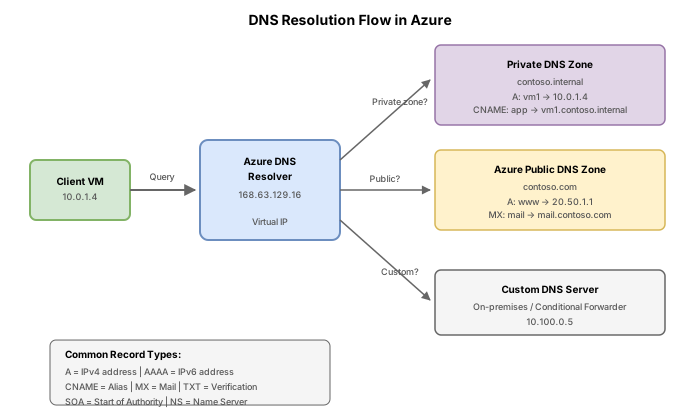
Configure a virtual network to use custom DNS servers instead of the Azure-provided default (168.63.129.16).
Step 1: Create a VNet with default DNS (Azure-provided)
az network vnet create \
    --resource-group rg-dns-lab \
    --name vnet-contoso \
    --address-prefixes 10.0.0.0/16 \
    --subnet-name subnet-default \
    --subnet-prefixes 10.0.1.0/24 \
    --location eastus2
Step 2: Update the VNet to use custom DNS servers
az network vnet update \
    --resource-group rg-dns-lab \
    --name vnet-contoso \
    --dns-servers 10.0.1.4 10.0.1.5
This configures VMs in the VNet to use the specified IP addresses (such as domain controllers or DNS forwarders) for name resolution instead of the Azure recursive resolver.
Step 3: Revert to Azure-provided DNS
az network vnet update \
    --resource-group rg-dns-lab \
    --name vnet-contoso \
    --dns-servers ""
Passing an empty string resets the VNet to use Azure-provided DNS (168.63.129.16).
Step 4: Verify current DNS configuration
az network vnet show \
    --resource-group rg-dns-lab \
    --name vnet-contoso \
    --query "dhcpOptions.dnsServers" \
    --output tsv
After changing VNet DNS settings, VMs must be restarted (or their DHCP lease renewed) to pick up the new DNS server addresses. This is a common troubleshooting point on the exam.
Break & fix
Scenario 1: Conflicting record types
A team member tries to add a CNAME record for www which already has an A record:
# This will FAIL because www already has an A record set
az network dns record-set cname set-record \
    --resource-group rg-dns-lab \
    --zone-name contoso.com \
    --record-set-name www \
    --cname contoso.azurewebsites.net
Root cause: The DNS standard prohibits a CNAME from coexisting with any other record type at the same name. Azure DNS enforces this constraint.
Fix: Either remove the existing A record set first, or use a different name for the CNAME (such as www2). Alternatively, use an alias A record that points to the Azure resource, which does not conflict with other record types.
Scenario 2: Missing NS delegation
The child zone dev.contoso.com exists in Azure DNS, but queries for app1.dev.contoso.com return NXDOMAIN from external resolvers.
Root cause: The NS delegation records were never added in the parent zone. Without NS records in contoso.com pointing to the dev.contoso.com name servers, recursive resolvers have no way to find the child zone.
Fix: Create the NS record set in the parent zone pointing to the child zone's name servers (as shown in Task 4, Step 3). If the parent zone is hosted externally (not in Azure DNS), configure the delegation there.
Scenario 3: TTL too high during migration
After updating an A record from the old IP to the new IP, users still reach the old server for hours.
Root cause: The original record had a TTL of 86400 (24 hours). Recursive resolvers cached the old response and will not re-query until the TTL expires.
Fix: Before making DNS changes, lower the TTL well in advance (at least one full TTL period before the change). A common migration pattern is:
- Lower TTL to 60-300 seconds
- Wait for the old TTL period to expire (so caches refresh)
- Make the record change
- After verifying, raise the TTL back to the desired value
Clean up resources
az group delete --name rg-dns-lab --yes --no-wait