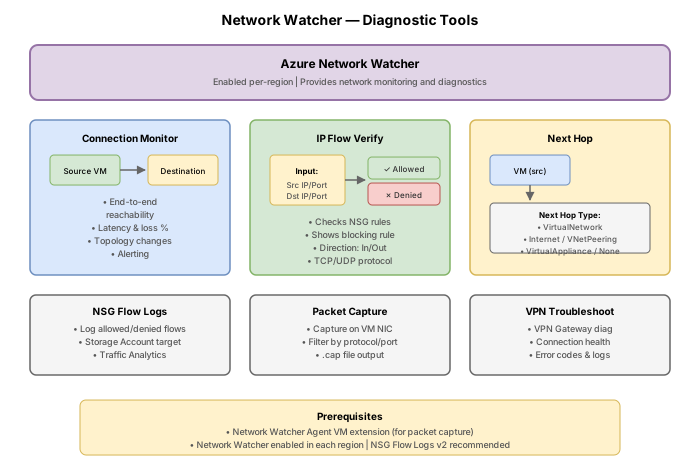
Challenge 11: Network Watcher diagnostics
60-90 minutes | ~$1-2/hour (two B1s VMs running) | Exam weight: 10-15%
Scenario
Contoso's operations team receives tickets about VMs that cannot connect to services. They need to use Azure Network Watcher's diagnostic tools to systematically identify and resolve network connectivity issues -- from NSG misconfigurations to routing problems and DNS failures. In this challenge you will use IP flow verify, next hop, connection troubleshoot, packet capture, and NSG diagnostics to diagnose and fix common network problems.
Network topology:
Learning objectives
After completing this challenge you will be able to:
- Verify Network Watcher is enabled for a region
- Use IP flow verify to determine whether NSG rules allow or deny specific traffic
- Use next hop to determine where traffic is routed for a given destination
- Use connection troubleshoot to test end-to-end connectivity between resources
- Capture packets using Network Watcher packet capture
- Use NSG diagnostics to see all rules evaluated for a specific traffic flow
Prerequisites
- An Azure subscription with Contributor access
- Azure CLI installed and authenticated (
az login) - Basic understanding of NSGs and routing (from earlier challenges)
Key concepts for AZ-700
| Concept | Detail |
|---|---|
| Network Watcher | Automatically enabled per region in the NetworkWatcherRG resource group |
| IP flow verify | Tests a single 5-tuple flow against NSG rules; returns Allow or Deny plus the rule name |
| Next hop | Returns the next hop type and IP for traffic from a VM to a given destination |
| Connection troubleshoot | End-to-end reachability test with hop-by-hop path analysis |
| Packet capture | Requires the Network Watcher Agent VM extension on the target VM |
| NSG diagnostics | Shows ALL rules evaluated (not just the winner) for a given flow |
Task 1: Create the lab environment
Set up the VNet, subnets, NSGs, and VMs for diagnostic testing.
Step 1: Create the resource group
az group create \
    --name rg-nw-diag-lab \
    --location eastus
Step 2: Create the virtual network and subnets
az network vnet create \
    --resource-group rg-nw-diag-lab \
    --name vnet-diag \
    --location eastus \
    --address-prefixes 10.0.0.0/16 \
    --subnet-name snet-web \
    --subnet-prefixes 10.0.1.0/24

az network vnet subnet create \
    --resource-group rg-nw-diag-lab \
    --vnet-name vnet-diag \
    --name snet-app \
    --address-prefixes 10.0.2.0/24
Step 3: Create NSGs with intentional restrictions
# NSG for web subnet: allows HTTP/HTTPS inbound, denies SSH from app subnet
az network nsg create \
    --resource-group rg-nw-diag-lab \
    --name nsg-web

az network nsg rule create \
    --resource-group rg-nw-diag-lab \
    --nsg-name nsg-web \
    --name AllowHTTP \
    --priority 100 \
    --direction Inbound \
    --access Allow \
    --protocol TCP \
    --source-address-prefixes '*' \
    --destination-address-prefixes '10.0.1.0/24' \
    --destination-port-ranges 80 443

az network nsg rule create \
    --resource-group rg-nw-diag-lab \
    --nsg-name nsg-web \
    --name DenySSHFromApp \
    --priority 200 \
    --direction Inbound \
    --access Deny \
    --protocol TCP \
    --source-address-prefixes '10.0.2.0/24' \
    --destination-address-prefixes '10.0.1.0/24' \
    --destination-port-ranges 22

# NSG for app subnet: denies all outbound internet
az network nsg create \
    --resource-group rg-nw-diag-lab \
    --name nsg-app

az network nsg rule create \
    --resource-group rg-nw-diag-lab \
    --nsg-name nsg-app \
    --name DenyInternetOutbound \
    --priority 100 \
    --direction Outbound \
    --access Deny \
    --protocol '*' \
    --source-address-prefixes '10.0.2.0/24' \
    --destination-address-prefixes 'Internet' \
    --destination-port-ranges '*'
Step 4: Associate NSGs to subnets
az network vnet subnet update \
    --resource-group rg-nw-diag-lab \
    --vnet-name vnet-diag \
    --name snet-web \
    --network-security-group nsg-web

az network vnet subnet update \
    --resource-group rg-nw-diag-lab \
    --vnet-name vnet-diag \
    --name snet-app \
    --network-security-group nsg-app
Step 5: Deploy test VMs
az vm create \
    --resource-group rg-nw-diag-lab \
    --name vm-web \
    --image Ubuntu2204 \
    --size Standard_B1s \
    --vnet-name vnet-diag \
    --subnet snet-web \
    --private-ip-address 10.0.1.4 \
    --public-ip-address pip-web \
    --admin-username azureuser \
    --generate-ssh-keys \
    --no-wait

az vm create \
    --resource-group rg-nw-diag-lab \
    --name vm-app \
    --image Ubuntu2204 \
    --size Standard_B1s \
    --vnet-name vnet-diag \
    --subnet snet-app \
    --private-ip-address 10.0.2.4 \
    --public-ip-address pip-app \
    --admin-username azureuser \
    --generate-ssh-keys
Step 6: Create a route table with a blackhole route (for next-hop testing)
az network route-table create \
    --resource-group rg-nw-diag-lab \
    --name rt-app \
    --location eastus

az network route-table route create \
    --resource-group rg-nw-diag-lab \
    --route-table-name rt-app \
    --name drop-172-16 \
    --address-prefix 172.16.0.0/12 \
    --next-hop-type None

az network vnet subnet update \
    --resource-group rg-nw-diag-lab \
    --vnet-name vnet-diag \
    --name snet-app \
    --route-table rt-app
Task 2: Verify Network Watcher is enabled
Network Watcher is automatically enabled for each Azure region when you create or update a virtual network. Verify it exists.
Step 1: List Network Watcher instances
az network watcher list \
    --output table
You should see an entry for eastus in the NetworkWatcherRG resource group.
Step 2: If not present, enable Network Watcher manually
az network watcher configure \
    --resource-group NetworkWatcherRG \
    --locations eastus \
    --enabled true
Network Watcher is auto-enabled per region when you deploy networking resources. It lives in the NetworkWatcherRG resource group. You do not need to create it manually in most cases, but you should know the az network watcher configure command for scenarios where it was disabled.
Task 3: Use IP flow verify to check NSG rules
IP flow verify tests whether a specific packet (defined by a 5-tuple) is allowed or denied by NSG rules on a given VM.
Step 1: Test inbound HTTP to vm-web (should be allowed)
az network watcher test-ip-flow \
    --resource-group rg-nw-diag-lab \
    --vm vm-web \
    --direction Inbound \
    --protocol TCP \
    --local 10.0.1.4:80 \
    --remote 203.0.113.50:60000
Expected output: Access: Allow with the rule name AllowHTTP.
Step 2: Test inbound SSH from app subnet to vm-web (should be denied)
az network watcher test-ip-flow \
    --resource-group rg-nw-diag-lab \
    --vm vm-web \
    --direction Inbound \
    --protocol TCP \
    --local 10.0.1.4:22 \
    --remote 10.0.2.4:50000
Expected output: Access: Deny with the rule name DenySSHFromApp.
Step 3: Test outbound internet from vm-app (should be denied)
az network watcher test-ip-flow \
    --resource-group rg-nw-diag-lab \
    --vm vm-app \
    --direction Outbound \
    --protocol TCP \
    --local 10.0.2.4:* \
    --remote 8.8.8.8:443
Expected output: Access: Deny with rule name DenyInternetOutbound.
Step 4: Test inbound traffic on a port with no explicit rule
az network watcher test-ip-flow \
    --resource-group rg-nw-diag-lab \
    --vm vm-web \
    --direction Inbound \
    --protocol TCP \
    --local 10.0.1.4:3389 \
    --remote 203.0.113.50:60000
Expected output: Access: Deny with rule name defaultSecurityRules/DenyAllInBound -- the default deny-all catches traffic not matched by any explicit rule.
The --local and --remote parameters use the format IP:PORT. Use * for port when the direction makes the port irrelevant (e.g., * for the local port on outbound tests, or * for the remote port on inbound tests).
Task 4: Use next hop to determine routing
Next hop evaluates the effective routes for a VM and returns where traffic to a specific destination will be sent.
Step 1: Check next hop for internet-bound traffic from vm-app
az network watcher show-next-hop \
    --resource-group rg-nw-diag-lab \
    --vm vm-app \
    --source-ip 10.0.2.4 \
    --dest-ip 8.8.8.8
Expected result: nextHopType: Internet -- the default system route directs internet traffic even though the NSG blocks it at Layer 4.
Step 2: Check next hop for traffic to 172.16.1.10 (blackhole route)
az network watcher show-next-hop \
    --resource-group rg-nw-diag-lab \
    --vm vm-app \
    --source-ip 10.0.2.4 \
    --dest-ip 172.16.1.10
Expected result: nextHopType: None -- the UDR with next-hop-type None drops this traffic at the routing layer.
Step 3: Check next hop for traffic within the VNet
az network watcher show-next-hop \
    --resource-group rg-nw-diag-lab \
    --vm vm-app \
    --source-ip 10.0.2.4 \
    --dest-ip 10.0.1.4
Expected result: nextHopType: VnetLocal -- intra-VNet traffic uses the VNet local route.
Next hop evaluates routing independent of NSGs. A next hop of Internet does not mean traffic will reach the internet -- NSG rules may still block it. Use next hop to diagnose routing issues and IP flow verify to diagnose NSG issues.
Task 5: Use connection troubleshoot for end-to-end testing
Connection troubleshoot performs a real connectivity test from a source VM, showing the path taken and any issues encountered.
Step 1: Test connectivity from vm-app to vm-web on port 80
az network watcher test-connectivity \
    --resource-group rg-nw-diag-lab \
    --source-resource vm-app \
    --dest-resource vm-web \
    --protocol TCP \
    --dest-port 80
This tests whether vm-app can reach vm-web on port 80 (TCP). The output includes connection status, latency, and hop details.
Step 2: Test connectivity from vm-app to an internet address
az network watcher test-connectivity \
    --resource-group rg-nw-diag-lab \
    --source-resource vm-app \
    --dest-address www.bing.com \
    --protocol TCP \
    --dest-port 443
Expected result: connectionStatus: Unreachable because the NSG DenyInternetOutbound blocks outbound internet traffic from vm-app.
Step 3: Test connectivity from vm-web to an internet address
az network watcher test-connectivity \
    --resource-group rg-nw-diag-lab \
    --source-resource vm-web \
    --dest-address www.bing.com \
    --protocol TCP \
    --dest-port 443
Expected result: connectionStatus: Reachable -- vm-web has no outbound deny rule, so internet access works.
Connection troubleshoot requires the Network Watcher Agent VM extension on the source VM. Azure installs it automatically when you run the command for the first time. If the extension is missing and cannot be installed, the command fails.
Task 6: Capture packets with Network Watcher
Packet capture records network traffic on a VM for offline analysis. It requires the Network Watcher Agent extension.
Step 1: Install the Network Watcher Agent extension on vm-web
az vm extension set \
    --resource-group rg-nw-diag-lab \
    --vm-name vm-web \
    --name NetworkWatcherAgentLinux \
    --publisher Microsoft.Azure.NetworkWatcher
Step 2: Create a storage account for captures
az storage account create \
    --resource-group rg-nw-diag-lab \
    --name stnwdiagcaptures$RANDOM \
    --location eastus \
    --sku Standard_LRS
Save the storage account name from the output -- you will need it in the next step.
Step 3: Start a packet capture session
az network watcher packet-capture create \
    --resource-group rg-nw-diag-lab \
    --vm vm-web \
    --name capture-web-traffic \
    --storage-account <storage-account-name> \
    --time-limit 60
Replace <storage-account-name> with the name from Step 2. This captures traffic for 60 seconds maximum.
Step 4: Check the status of the packet capture
az network watcher packet-capture show \
    --name capture-web-traffic \
    --location eastus
The output shows the provisioning state and capture status (Running, Stopped, or Failed).
Step 5: Stop the packet capture
az network watcher packet-capture stop \
    --name capture-web-traffic \
    --location eastus
Step 6: Start a filtered packet capture (TCP port 80 only)
az network watcher packet-capture create \
    --resource-group rg-nw-diag-lab \
    --vm vm-web \
    --name capture-http-only \
    --storage-account <storage-account-name> \
    --time-limit 30 \
    --filters '[{"protocol":"TCP","localPort":"80"}]'
Filters reduce capture size by recording only traffic matching specified criteria.
Packet capture requires the Network Watcher Agent VM extension installed on the target VM. For Linux it is NetworkWatcherAgentLinux; for Windows it is NetworkWatcherAgentWindows. Without it, the capture creation fails with an extension error.
Task 7: Use NSG diagnostics to see all evaluated rules
NSG diagnostics shows every rule that was evaluated for a given flow, not just the final result. This is useful for understanding rule precedence.
Step 1: Run NSG diagnostics for inbound HTTP to vm-web
az network watcher run-configuration-diagnostic \
    --resource vm-web \
    --resource-group rg-nw-diag-lab \
    --resource-type virtualMachines \
    --direction Inbound \
    --protocol TCP \
    --source 203.0.113.50 \
    --destination 10.0.1.4 \
    --port 80
The output shows all NSG rules evaluated in order, indicating which rule matched and whether traffic was allowed or denied.
Step 2: Run NSG diagnostics for SSH from app subnet to vm-web
az network watcher run-configuration-diagnostic \
    --resource vm-web \
    --resource-group rg-nw-diag-lab \
    --resource-type virtualMachines \
    --direction Inbound \
    --protocol TCP \
    --source 10.0.2.4 \
    --destination 10.0.1.4 \
    --port 22
Expected: the output shows the DenySSHFromApp rule matched at priority 200, denying the traffic.
Step 3: View network topology for the resource group
az network watcher show-topology \
    --resource-group rg-nw-diag-lab
This returns a JSON representation of all networking resources and their relationships (VNets, subnets, NICs, NSGs, VMs).
NSG diagnostics (run-configuration-diagnostic) differs from IP flow verify. IP flow verify tells you the final Allow/Deny result. NSG diagnostics shows the complete rule evaluation chain, which is useful for understanding why a higher-priority rule did not match or for auditing all rules applied to a flow.
Break & fix
These scenarios represent common diagnostic failures you will encounter in production and on the exam.
Scenario 1: IP flow verify shows Deny but user expects traffic to flow
Symptom: A developer reports that vm-web cannot receive traffic on port 8080 from the internet, even though they believe an allow rule exists.
Diagnosis:
az network watcher test-ip-flow \
    --resource-group rg-nw-diag-lab \
    --vm vm-web \
    --direction Inbound \
    --protocol TCP \
    --local 10.0.1.4:8080 \
    --remote 203.0.113.50:60000
Result: Access: Deny, rule: defaultSecurityRules/DenyAllInBound.
Root cause: The AllowHTTP rule only permits ports 80 and 443. Port 8080 was never added.
Fix:
az network nsg rule create \
    --resource-group rg-nw-diag-lab \
    --nsg-name nsg-web \
    --name AllowPort8080 \
    --priority 110 \
    --direction Inbound \
    --access Allow \
    --protocol TCP \
    --source-address-prefixes '*' \
    --destination-address-prefixes '10.0.1.0/24' \
    --destination-port-ranges 8080
Scenario 2: Next hop shows None (traffic is being dropped)
Symptom: vm-app cannot reach a partner network at 172.16.5.10. Connection troubleshoot reports Unreachable.
Diagnosis:
az network watcher show-next-hop \
    --resource-group rg-nw-diag-lab \
    --vm vm-app \
    --source-ip 10.0.2.4 \
    --dest-ip 172.16.5.10
Result: nextHopType: None -- the route table has a None route for 172.16.0.0/12.
Root cause: A blackhole UDR was applied for the entire 172.16.0.0/12 range, which drops all traffic to that CIDR including the legitimate partner network.
Fix: Remove the overly broad blackhole route and add a specific route for the partner network:
az network route-table route delete \
    --resource-group rg-nw-diag-lab \
    --route-table-name rt-app \
    --name drop-172-16

az network route-table route create \
    --resource-group rg-nw-diag-lab \
    --route-table-name rt-app \
    --name route-to-partner \
    --address-prefix 172.16.5.0/24 \
    --next-hop-type VirtualAppliance \
    --next-hop-ip-address 10.0.1.4
Scenario 3: Packet capture fails because VM extension is not installed
Symptom: Running az network watcher packet-capture create against vm-app fails with an error about the missing extension.
Diagnosis:
az vm extension list \
    --resource-group rg-nw-diag-lab \
    --vm-name vm-app \
    --output table
Result: No NetworkWatcherAgentLinux extension is present.
Fix:
az vm extension set \
    --resource-group rg-nw-diag-lab \
    --vm-name vm-app \
    --name NetworkWatcherAgentLinux \
    --publisher Microsoft.Azure.NetworkWatcher
After installing the extension, retry the packet capture command.
Cleanup
Remove all resources created in this challenge:
az group delete \
--name rg-nw-diag-lab \
--yes \
--no-wait