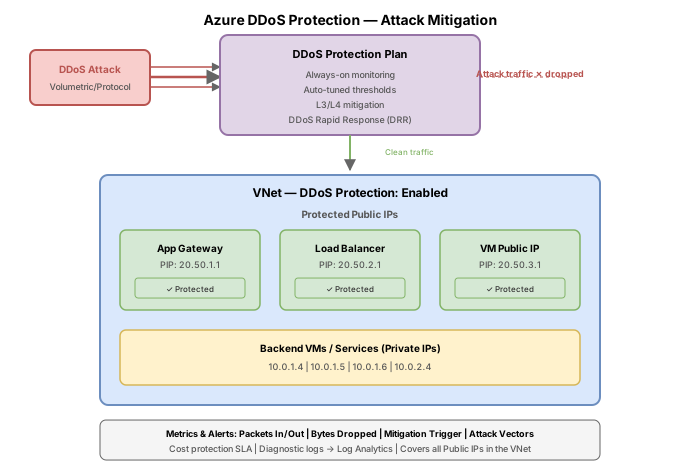
Challenge 13: DDoS Protection & network security recommendations
60-90 minutes | ~$0.50-1/hour (DDoS IP Protection on a single public IP) | Exam weight: 10-15%
DDoS Network Protection costs $2,944/month (flat rate per plan). Do NOT deploy a DDoS Protection plan in a lab subscription. This challenge uses DDoS IP Protection ($199/resource/month) as the affordable alternative and shows Network Protection commands for reference only.
Scenario
Contoso's public-facing web applications have been targeted by volumetric DDoS attacks that saturated bandwidth and exhausted application resources. The security team needs to evaluate DDoS protection options, configure appropriate protection for public-facing IPs, set up monitoring and alerting for attack detection, and use Microsoft Defender for Cloud to identify additional network security gaps across the environment.
Architecture:
Learning objectives
After completing this challenge you will be able to:
- Compare DDoS Infrastructure, IP Protection, and Network Protection tiers
- Create a DDoS Protection plan (Network Protection) and associate it with a VNet
- Enable DDoS IP Protection on a specific public IP address
- Configure diagnostic logs and metric alerts for DDoS attack detection
- Review network security recommendations in Defender for Cloud Secure Score
- Use Azure Resource Graph to query security assessments for network resources
Prerequisites
- An Azure subscription with Contributor access
- Azure CLI installed and authenticated (
az login) - A Standard SKU public IP address (required for DDoS protection features)
- Microsoft Defender for Cloud enabled (free tier is sufficient for assessments)
Key concepts for AZ-700
| Concept | Detail |
|---|---|
| DDoS Infrastructure Protection | Free, always-on, basic L3/L4 protection for all Azure public IPs |
| DDoS IP Protection | $199/resource/month, per-IP, includes metrics, alerts, mitigation reports |
| DDoS Network Protection | $2,944/month flat, per-VNet plan, adds cost protection, DDoS Rapid Response team, WAF discount |
| Key metrics | IfUnderDDoSAttack (0 or 1), PacketsDroppedDDoS, BytesDroppedDDoS |
| Metric namespace | Microsoft.Network/publicIPAddresses |
| Diagnostic log categories | DDoSProtectionNotifications, DDoSMitigationFlowLogs, DDoSMitigationReports |
| Mitigation trigger | Automatic; thresholds are learned from normal traffic patterns |
| Standard SKU requirement | DDoS IP Protection requires Standard SKU public IPs (Basic SKU is not supported) |
Task 1: Understand DDoS protection tiers
Before deploying any protection, understand the three tiers available in Azure.
| Feature | Infrastructure Protection | IP Protection | Network Protection |
|---|---|---|---|
| Cost | Free | $199/resource/month | $2,944/month (flat) |
| Scope | All Azure resources | Per public IP | Per VNet (all IPs in VNet) |
| L3/L4 mitigation | Yes | Yes | Yes |
| DDoS metrics and alerts | No | Yes | Yes |
| Mitigation flow logs | No | Yes | Yes |
| Mitigation reports | No | Yes | Yes |
| Adaptive tuning policies | No | Yes | Yes |
| Cost protection (overage credits) | No | No | Yes |
| DDoS Rapid Response (DRR) team | No | No | Yes |
| WAF discount | No | No | Yes |
| Protection for up to 100 public IPs | No | No (per-IP billing) | Yes (included) |
The exam tests whether you can identify which tier provides a specific feature. Key differentiators: only Network Protection includes cost protection guarantees and access to the DDoS Rapid Response team. IP Protection is ideal for small deployments (fewer than 15 public IPs where the per-IP cost is less than the flat Network Protection fee).
Task 2: Create a DDoS Protection plan (Network Protection reference)
The following commands create a DDoS Network Protection plan that costs $2,944/month immediately upon creation. These commands are provided for exam preparation reference only.
Step 1: Create a DDoS Protection plan (reference only)
# REFERENCE ONLY — costs $2,944/month
az network ddos-protection create \
    --resource-group rg-ddos-lab \
    --name ddos-plan-contoso \
    --location eastus
Step 2: Associate the plan with a VNet (reference only)
# REFERENCE ONLY — associates the paid plan with a VNet
az network vnet update \
    --resource-group rg-ddos-lab \
    --name vnet-contoso \
    --ddos-protection-plan ddos-plan-contoso \
    --ddos-protection true
Step 3: Verify protection status (reference only)
az network vnet show \
    --resource-group rg-ddos-lab \
    --name vnet-contoso \
    --query "{ddosPlan:ddosProtectionPlan.id, enabled:enableDdosProtection}" \
    --output table
Step 4: Disable DDoS Network Protection on a VNet (reference only)
# Disassociate to stop billing
az network vnet update \
    --resource-group rg-ddos-lab \
    --name vnet-contoso \
    --ddos-protection false
Task 3: Enable DDoS IP Protection (lab-friendly)
DDoS IP Protection is the cost-effective option for labs. It provides the same metrics, alerts, and mitigation features as Network Protection but billed per public IP at $199/month.
Step 1: Create the resource group and VNet
az group create \
    --name rg-ddos-lab \
    --location eastus

az network vnet create \
    --resource-group rg-ddos-lab \
    --name vnet-contoso \
    --location eastus \
    --address-prefixes 10.0.0.0/16 \
    --subnet-name snet-frontend \
    --subnet-prefixes 10.0.1.0/24
Step 2: Create a Standard SKU public IP with DDoS IP Protection enabled
az network public-ip create \
    --resource-group rg-ddos-lab \
    --name pip-web-frontend \
    --location eastus \
    --allocation-method Static \
    --sku Standard \
    --ddos-protection-mode Enabled
The --ddos-protection-mode parameter accepts three values:
- Enabled — DDoS IP Protection is active on this public IP ($199/month)
- Disabled — only free Infrastructure Protection (default for new IPs)
- VirtualNetworkInherited — inherits protection from a DDoS Network Protection plan on the VNet
Step 3: Enable DDoS IP Protection on an existing public IP
If you already have a public IP without DDoS protection:
az network public-ip update \
    --resource-group rg-ddos-lab \
    --name pip-web-frontend \
    --ddos-protection-mode Enabled
Step 4: Verify the DDoS protection status
az network public-ip show \
    --resource-group rg-ddos-lab \
    --name pip-web-frontend \
    --query "{name:name, ddosSettings:ddosSettings}" \
    --output json
Expected output should show "protectionMode": "Enabled" under ddosSettings.
Step 5: Disable DDoS IP Protection (to stop billing)
az network public-ip update \
    --resource-group rg-ddos-lab \
    --name pip-web-frontend \
    --ddos-protection-mode Disabled
Task 4: Configure diagnostic logs and metric alerts
DDoS protection exposes telemetry through Azure Monitor. You need diagnostic settings to capture attack logs, and metric alerts to notify your team when an attack is detected.
Step 1: Create a Log Analytics workspace
az monitor log-analytics workspace create \
    --resource-group rg-ddos-lab \
    --workspace-name law-ddos-contoso \
    --location eastus
Step 2: Get the public IP resource ID
PIP_ID=$(az network public-ip show \
    --resource-group rg-ddos-lab \
    --name pip-web-frontend \
    --query "id" \
    --output tsv)
Step 3: Create diagnostic settings for DDoS logs
WORKSPACE_ID=$(az monitor log-analytics workspace show \
    --resource-group rg-ddos-lab \
    --workspace-name law-ddos-contoso \
    --query "id" \
    --output tsv)

az monitor diagnostic-settings create \
    --name diag-ddos-logs \
    --resource "$PIP_ID" \
    --workspace "$WORKSPACE_ID" \
    --logs '[
      {"category": "DDoSProtectionNotifications", "enabled": true},
      {"category": "DDoSMitigationFlowLogs", "enabled": true},
      {"category": "DDoSMitigationReports", "enabled": true}
    ]' \
    --metrics '[{"category": "AllMetrics", "enabled": true}]'
- DDoSProtectionNotifications — alerts when mitigation starts and stops (attack detected/resolved)
- DDoSMitigationFlowLogs — per-flow details of dropped and forwarded packets during active mitigation
- DDoSMitigationReports — post-attack summary reports with aggregated statistics
Step 4: Verify diagnostic settings
az monitor diagnostic-settings list \
    --resource "$PIP_ID" \
    --output table
Step 5: Create a metric alert for DDoS attack detection
The IfUnderDDoSAttack metric is 1 when an attack is active and 0 otherwise. This is the primary metric for alerting.
az monitor metrics alert create \
    --name alert-ddos-attack-detected \
    --resource-group rg-ddos-lab \
    --scopes "$PIP_ID" \
    --condition "max IfUnderDDoSAttack >= 1" \
    --window-size 5m \
    --evaluation-frequency 1m \
    --severity 1 \
    --description "DDoS attack detected on pip-web-frontend"
Step 6: Create an alert for dropped packets exceeding a threshold
az monitor metrics alert create \
    --name alert-ddos-packets-dropped \
    --resource-group rg-ddos-lab \
    --scopes "$PIP_ID" \
    --condition "max PacketsDroppedDDoS > 1000" \
    --window-size 5m \
    --evaluation-frequency 1m \
    --severity 2 \
    --description "High volume of packets dropped by DDoS mitigation"
DDoS metrics are exposed on the public IP address resource (namespace Microsoft.Network/publicIPAddresses), not on the VNet or DDoS plan resource. This is a common mistake in alert configuration. The metric names include IfUnderDDoSAttack, PacketsDroppedDDoS, BytesDroppedDDoS, PacketsForwardedDDoS, and protocol-specific variants (TCP, UDP).
Task 5: Review network security recommendations in Defender for Cloud
Microsoft Defender for Cloud continuously evaluates your environment against security best practices and produces recommendations that affect your Secure Score.
Step 1: List security assessments via Azure Resource Graph
The most effective way to query Defender for Cloud recommendations programmatically is via Azure Resource Graph, which queries the SecurityResources table:
az graph query -q "
  SecurityResources
  | where type == 'microsoft.security/assessments'
  | where properties.status.code == 'Unhealthy'
  | where properties.metadata.categories contains 'Networking'
  | project
      recommendationName=properties.displayName,
      severity=properties.metadata.severity,
      status=properties.status.code,
      resourceId=properties.resourceDetails.Id
  | order by severity asc
  | take 20
"
The az graph command requires the resource-graph extension. Install it with:
az extension add --name resource-graph
Step 2: Filter for DDoS-related recommendations
az graph query -q "
  SecurityResources
  | where type == 'microsoft.security/assessments'
  | where properties.status.code == 'Unhealthy'
  | where properties.displayName contains 'DDoS'
  | project
      recommendationName=properties.displayName,
      severity=properties.metadata.severity,
      description=properties.metadata.description,
      resourceId=properties.resourceDetails.Id
"
Common DDoS-related recommendations include:
- "Virtual networks should be protected by Azure DDoS Protection"
- "Public IP addresses should have DDoS protection enabled"
Step 3: Query Secure Score for the networking category
az graph query -q "
  SecurityResources
  | where type == 'microsoft.security/securescores'
  | project
      subscriptionId,
      score=properties.score.current,
      maxScore=properties.score.max,
      percentage=properties.score.percentage
"
Step 4: Identify unhealthy network assessments with remediation guidance
az graph query -q "
  SecurityResources
  | where type == 'microsoft.security/assessments'
  | where properties.status.code == 'Unhealthy'
  | where properties.metadata.categories contains 'Networking'
  | project
      recommendationName=properties.displayName,
      severity=properties.metadata.severity,
      remediation=properties.metadata.remediationDescription,
      implementationEffort=properties.metadata.implementationEffort
  | order by severity asc
  | take 10
"
Defender for Cloud attack paths show chains of vulnerabilities an attacker could exploit to reach sensitive resources. For example: Internet-exposed VM with open NSG rule, running unpatched software, with access to a storage account containing sensitive data. Attack paths are visualized in the portal under Defender for Cloud > Attack path analysis. The CLI access is limited; this is primarily a portal-based feature tested conceptually on the exam.
Task 6: Use Security Explorer to identify network resources at risk
Security Explorer (Cloud Security Explorer) in Defender for Cloud lets you build graph-based queries to find resources matching specific conditions. While the full Security Explorer is portal-based, you can replicate common queries using Azure Resource Graph.
Step 1: Find public IPs without DDoS protection
az graph query -q "
  Resources
  | where type == 'microsoft.network/publicipaddresses'
  | where properties.ddosSettings.protectionMode != 'Enabled'
      and properties.ddosSettings.protectionMode != 'VirtualNetworkInherited'
  | project name, resourceGroup, location,
      sku=properties.sku.name,
      protectionMode=properties.ddosSettings.protectionMode
"
Step 2: Find NSGs with overly permissive inbound rules (any source)
az graph query -q "
  Resources
  | where type == 'microsoft.network/networksecuritygroups'
  | mv-expand rules = properties.securityRules
  | where rules.properties.direction == 'Inbound'
      and rules.properties.access == 'Allow'
      and (rules.properties.sourceAddressPrefix == '*'
           or rules.properties.sourceAddressPrefix == 'Internet')
  | project nsgName=name, resourceGroup,
      ruleName=rules.properties.name,
      destinationPort=rules.properties.destinationPortRange,
      priority=rules.properties.priority
  | order by nsgName asc
"
Step 3: Find VNets without DDoS Network Protection
az graph query -q "
  Resources
  | where type == 'microsoft.network/virtualnetworks'
  | where properties.enableDdosProtection == false
      or isnull(properties.enableDdosProtection)
  | project name, resourceGroup, location
"
Step 4: Correlate public IPs with their attached resources
az graph query -q "
  Resources
  | where type == 'microsoft.network/publicipaddresses'
  | project name, resourceGroup,
      ipAddress=properties.ipAddress,
      attachedTo=properties.ipConfiguration.id,
      ddosMode=properties.ddosSettings.protectionMode
  | where isnotempty(attachedTo)
"
Cloud Security Explorer in Defender for Cloud uses a graph model where you can query relationships like "Public IP is exposed to the internet AND is attached to a VM AND the VM has high-severity vulnerabilities." This is different from Azure Resource Graph, which queries resource metadata. The exam may ask about Security Explorer query scenarios conceptually, not about specific query syntax.
Break & fix
Scenario 1: Public IP has no DDoS protection
Symptom: During a DDoS attack simulation review, the team discovers that the critical frontend public IP has no DDoS metrics available and no protection telemetry.
Diagnosis:
az network public-ip show \
    --resource-group rg-ddos-lab \
    --name pip-web-frontend \
    --query "ddosSettings"
If protectionMode is null or Disabled, only free Infrastructure Protection is active. No metrics or logs are generated.
Fix:
az network public-ip update \
    --resource-group rg-ddos-lab \
    --name pip-web-frontend \
    --ddos-protection-mode Enabled
Scenario 2: Alert rule uses wrong metric namespace
Symptom: The DDoS alert never fires even during confirmed attack traffic. The alert rule was created but shows "No data" in the portal.
Root cause: The alert scope targets the VNet or DDoS plan resource instead of the public IP address. DDoS metrics are emitted by the public IP resource, not the VNet.
Diagnosis:
az monitor metrics alert show \
    --name alert-ddos-attack-detected \
    --resource-group rg-ddos-lab \
    --query "scopes"
If the scope contains /providers/Microsoft.Network/virtualNetworks/ or /providers/Microsoft.Network/ddosProtectionPlans/, the alert is targeting the wrong resource.
Fix: Delete and recreate the alert with the correct scope (the public IP resource ID):
az monitor metrics alert delete \
    --name alert-ddos-attack-detected \
    --resource-group rg-ddos-lab

PIP_ID=$(az network public-ip show \
    --resource-group rg-ddos-lab \
    --name pip-web-frontend \
    --query "id" --output tsv)

az monitor metrics alert create \
    --name alert-ddos-attack-detected \
    --resource-group rg-ddos-lab \
    --scopes "$PIP_ID" \
    --condition "max IfUnderDDoSAttack >= 1" \
    --window-size 5m \
    --evaluation-frequency 1m \
    --severity 1 \
    --description "DDoS attack detected on pip-web-frontend"
Scenario 3: DDoS diagnostic logs not appearing in Log Analytics
Symptom: After enabling DDoS IP Protection, the team configured diagnostic settings but no logs appear in the workspace even after a simulated attack.
Root cause: The diagnostic setting uses incorrect log category names (typos or outdated category names).
Diagnosis:
az monitor diagnostic-settings show \
    --name diag-ddos-logs \
    --resource "$PIP_ID" \
    --query "logs[].{category:category, enabled:enabled}"
Verify the categories match exactly: DDoSProtectionNotifications, DDoSMitigationFlowLogs, DDoSMitigationReports. Common mistakes include using DDOSProtectionNotifications (wrong capitalization) or DDoSFlowLogs (wrong name).
Fix: Delete and recreate with the correct category names:
az monitor diagnostic-settings delete \
    --name diag-ddos-logs \
    --resource "$PIP_ID"

az monitor diagnostic-settings create \
    --name diag-ddos-logs \
    --resource "$PIP_ID" \
    --workspace "$WORKSPACE_ID" \
    --logs '[
      {"category": "DDoSProtectionNotifications", "enabled": true},
      {"category": "DDoSMitigationFlowLogs", "enabled": true},
      {"category": "DDoSMitigationReports", "enabled": true}
    ]' \
    --metrics '[{"category": "AllMetrics", "enabled": true}]'
Cleanup
Remove all resources created in this challenge:
az group delete \
    --name rg-ddos-lab \
    --yes \
    --no-wait
If you enabled DDoS IP Protection and do not delete the public IP, you will continue to be billed $199/month for that resource. Verify deletion completed:
az group show --name rg-ddos-lab 2>/dev/null || echo "Resource group deleted"